> ## Documentation Index
> Fetch the complete documentation index at: https://docs.valar.space/llms.txt
> Use this file to discover all available pages before exploring further.
# API Keys
> Create and manage API keys for programmatic access to the VALAR platform
> For the complete documentation index, see [llms.txt](/llms.txt).
API Keys allow you to access the VALAR API programmatically. Use them to integrate VALAR with your own systems, automate workflows, or build custom applications.
**Route:** `/settings`
## Page Layout
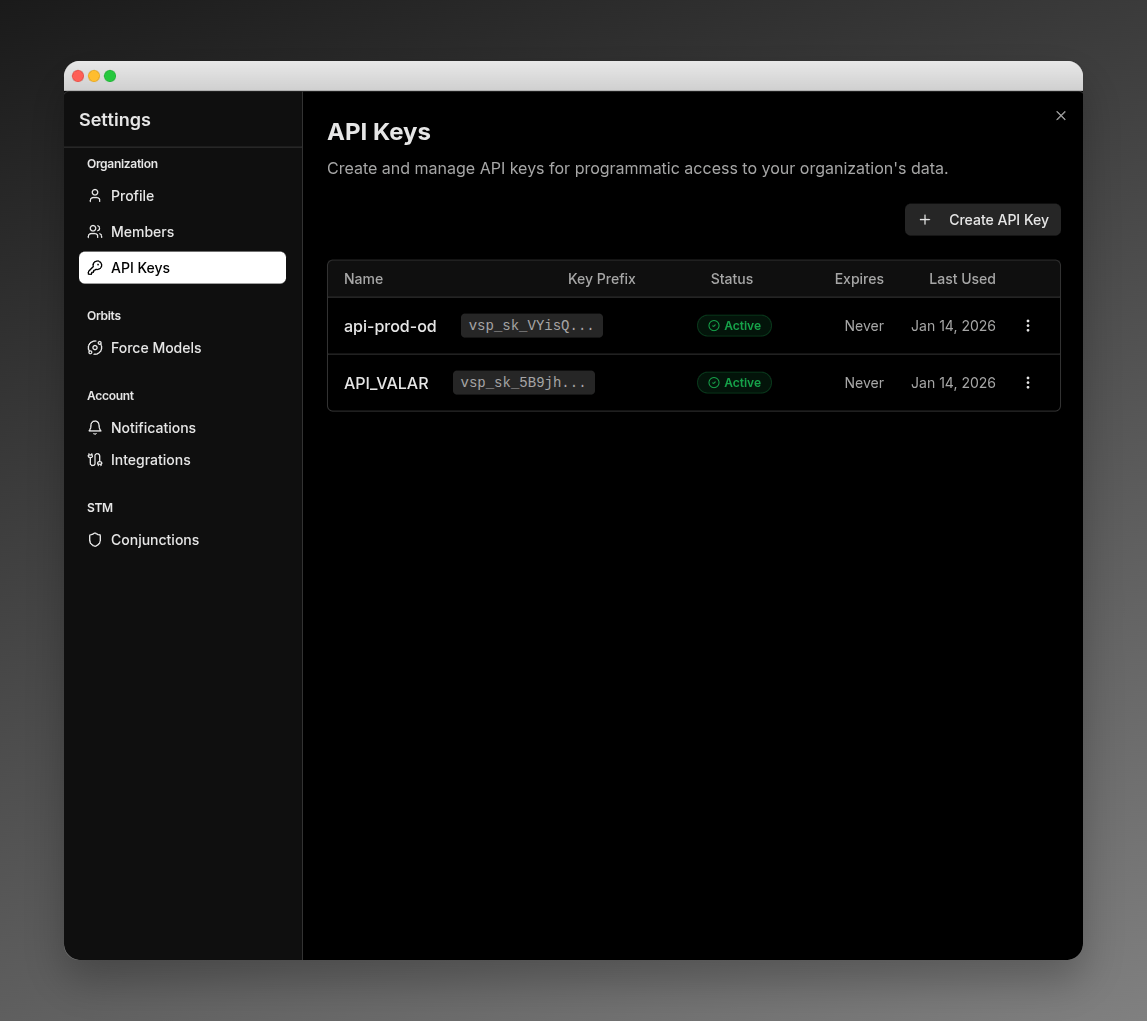
The API Keys section is located in the Settings page. It displays all your organization's API keys in a table with management actions.
 ## API Keys Table
The table shows all API keys for your organization:
| Column | Description |
| -------------- | ----------------------------------------------------------------------- |
| **Name** | The descriptive name you assigned to the key |
| **Key Prefix** | First 12 characters of the key (full key is never shown after creation) |
| **Status** | Active (green) or Revoked (red) |
| **Expires** | Expiration date, or "Never" if no expiry set |
| **Last Used** | When the key was last used to make an API request |
### Actions Menu
Click the three-dot menu on any row to access these actions:
| Action | Description |
| ------------------ | ----------------------------------------------- |
| **Edit** | Modify key name, status, or IP restrictions |
| **Rotate** | Generate a new secret (invalidates the old one) |
| **View Audit Log** | See all API requests made with this key |
| **Delete** | Permanently delete the key |
## Creating an API Key
Click **Create API Key** to open the creation dialog. This is a two-step process.
### Step 1: Configure Key Settings
| Field | Description |
| ---------------- | ---------------------------------------------------------------- |
| **Name** | A descriptive name to identify this key (e.g., "Production API") |
| **Expiration** | When the key should expire |
| **IP Allowlist** | Optional IP addresses that can use this key |
**Expiration Options:**
* 1 Day
* 1 Week
* 1 Month
* 3 Months
* 1 Year
* No Expiry
**IP Allowlist:**
Restrict which IP addresses can use this key. Enter individual IPs or CIDR ranges (e.g., `192.168.1.1` or `10.0.0.0/24`). Maximum 50 entries. Leave empty to allow all IPs.
### Step 2: Copy Your Key
After clicking **Create Key**, your new API key is displayed.
**Important:** This is the only time you will see the full API key. Copy it immediately and store it securely. You cannot retrieve it later.
* Use the **copy button** to copy the key to your clipboard
* Use the **eye icon** to show/hide the key value
* Click **Done** when you've saved the key
## Editing an API Key
Click **Edit** from the actions menu to modify an existing key.
| Field | Description |
| ---------------- | ----------------------------- |
| **Name** | Update the display name |
| **Status** | Set to Active or Revoked |
| **IP Allowlist** | Add or remove IP restrictions |
Changing status to **Revoked** immediately stops all API access using this key. Applications will receive authentication errors until the key is re-enabled.
## Rotating an API Key
Rotation generates a new secret value for the key while keeping the same name and settings. Use this to periodically refresh credentials or if you suspect a key may be compromised.
**To rotate a key:**
1. Click **Rotate** from the actions menu
2. Type the key name to confirm
3. Click **Rotate Key**
4. Copy the new key value (shown only once)
The old key is **immediately invalidated** when you rotate. Update your applications with the new key before they attempt to make API requests.
## Deleting an API Key
Permanently remove an API key when it's no longer needed.
**To delete a key:**
1. Click **Delete** from the actions menu
2. Type the key name to confirm
3. Click **Delete Key**
Deletion is **permanent and cannot be undone**. All applications using this key will immediately lose access.
## Viewing Audit Logs
The audit log shows all API requests made with a specific key. Use it to monitor usage, troubleshoot issues, or investigate security concerns.
Click **View Audit Log** from the actions menu to open the dialog.
| Column | Description |
| -------------- | ------------------------------------------------------ |
| **Timestamp** | Date and time of the request |
| **Method** | HTTP method (GET, POST, PUT, DELETE, etc.) |
| **Endpoint** | API path that was accessed |
| **IP Address** | Source IP of the request |
| **Country** | Country flag based on IP geolocation |
| **Status** | HTTP response code (green for success, red for errors) |
**Navigation:**
* Click **Refresh** to fetch the latest logs
* Use **Previous/Next** buttons to navigate through pages
## Security Best Practices
Follow these guidelines to keep your API keys secure:
| Practice | Description |
| ------------------------- | ------------------------------------------------------------------------ |
| **Store securely** | Use environment variables or secrets managers, never commit keys to code |
| **Use IP allowlisting** | Restrict production keys to known IP addresses |
| **Set expiration dates** | Use time-limited keys for temporary access or integrations |
| **Rotate periodically** | Generate new keys regularly, especially for production use |
| **Monitor audit logs** | Review usage patterns and investigate unexpected activity |
| **Revoke unused keys** | Delete or disable keys that are no longer needed |
| **Use descriptive names** | Name keys by purpose (e.g., "CI/CD Pipeline", "Production Server") |
## Using Your API Key
Include your API key in the `Authorization` header using the Bearer scheme:
```
Authorization: Bearer vsp_sk_your_key_here
```
All API keys use the `vsp_sk_` prefix to identify them as VALAR Space secret keys.
## Limits
| Limit | Value |
| ------------------------ | ----- |
| **Maximum keys per org** | 20 |
| **Maximum IPs per key** | 50 |
## API Keys Table
The table shows all API keys for your organization:
| Column | Description |
| -------------- | ----------------------------------------------------------------------- |
| **Name** | The descriptive name you assigned to the key |
| **Key Prefix** | First 12 characters of the key (full key is never shown after creation) |
| **Status** | Active (green) or Revoked (red) |
| **Expires** | Expiration date, or "Never" if no expiry set |
| **Last Used** | When the key was last used to make an API request |
### Actions Menu
Click the three-dot menu on any row to access these actions:
| Action | Description |
| ------------------ | ----------------------------------------------- |
| **Edit** | Modify key name, status, or IP restrictions |
| **Rotate** | Generate a new secret (invalidates the old one) |
| **View Audit Log** | See all API requests made with this key |
| **Delete** | Permanently delete the key |
## Creating an API Key
Click **Create API Key** to open the creation dialog. This is a two-step process.
### Step 1: Configure Key Settings
| Field | Description |
| ---------------- | ---------------------------------------------------------------- |
| **Name** | A descriptive name to identify this key (e.g., "Production API") |
| **Expiration** | When the key should expire |
| **IP Allowlist** | Optional IP addresses that can use this key |
**Expiration Options:**
* 1 Day
* 1 Week
* 1 Month
* 3 Months
* 1 Year
* No Expiry
**IP Allowlist:**
Restrict which IP addresses can use this key. Enter individual IPs or CIDR ranges (e.g., `192.168.1.1` or `10.0.0.0/24`). Maximum 50 entries. Leave empty to allow all IPs.
### Step 2: Copy Your Key
After clicking **Create Key**, your new API key is displayed.
**Important:** This is the only time you will see the full API key. Copy it immediately and store it securely. You cannot retrieve it later.
* Use the **copy button** to copy the key to your clipboard
* Use the **eye icon** to show/hide the key value
* Click **Done** when you've saved the key
## Editing an API Key
Click **Edit** from the actions menu to modify an existing key.
| Field | Description |
| ---------------- | ----------------------------- |
| **Name** | Update the display name |
| **Status** | Set to Active or Revoked |
| **IP Allowlist** | Add or remove IP restrictions |
Changing status to **Revoked** immediately stops all API access using this key. Applications will receive authentication errors until the key is re-enabled.
## Rotating an API Key
Rotation generates a new secret value for the key while keeping the same name and settings. Use this to periodically refresh credentials or if you suspect a key may be compromised.
**To rotate a key:**
1. Click **Rotate** from the actions menu
2. Type the key name to confirm
3. Click **Rotate Key**
4. Copy the new key value (shown only once)
The old key is **immediately invalidated** when you rotate. Update your applications with the new key before they attempt to make API requests.
## Deleting an API Key
Permanently remove an API key when it's no longer needed.
**To delete a key:**
1. Click **Delete** from the actions menu
2. Type the key name to confirm
3. Click **Delete Key**
Deletion is **permanent and cannot be undone**. All applications using this key will immediately lose access.
## Viewing Audit Logs
The audit log shows all API requests made with a specific key. Use it to monitor usage, troubleshoot issues, or investigate security concerns.
Click **View Audit Log** from the actions menu to open the dialog.
| Column | Description |
| -------------- | ------------------------------------------------------ |
| **Timestamp** | Date and time of the request |
| **Method** | HTTP method (GET, POST, PUT, DELETE, etc.) |
| **Endpoint** | API path that was accessed |
| **IP Address** | Source IP of the request |
| **Country** | Country flag based on IP geolocation |
| **Status** | HTTP response code (green for success, red for errors) |
**Navigation:**
* Click **Refresh** to fetch the latest logs
* Use **Previous/Next** buttons to navigate through pages
## Security Best Practices
Follow these guidelines to keep your API keys secure:
| Practice | Description |
| ------------------------- | ------------------------------------------------------------------------ |
| **Store securely** | Use environment variables or secrets managers, never commit keys to code |
| **Use IP allowlisting** | Restrict production keys to known IP addresses |
| **Set expiration dates** | Use time-limited keys for temporary access or integrations |
| **Rotate periodically** | Generate new keys regularly, especially for production use |
| **Monitor audit logs** | Review usage patterns and investigate unexpected activity |
| **Revoke unused keys** | Delete or disable keys that are no longer needed |
| **Use descriptive names** | Name keys by purpose (e.g., "CI/CD Pipeline", "Production Server") |
## Using Your API Key
Include your API key in the `Authorization` header using the Bearer scheme:
```
Authorization: Bearer vsp_sk_your_key_here
```
All API keys use the `vsp_sk_` prefix to identify them as VALAR Space secret keys.
## Limits
| Limit | Value |
| ------------------------ | ----- |
| **Maximum keys per org** | 20 |
| **Maximum IPs per key** | 50 |