> ## Documentation Index
> Fetch the complete documentation index at: https://docs.valar.space/llms.txt
> Use this file to discover all available pages before exploring further.
# Areas of Interest
> Inspect an Area of Interest, edit its identity and geometry in place, and review its 7-day overflight forecast
> For the complete documentation index, see [llms.txt](/llms.txt).
An **Area of Interest (AOI)** is a workspace-level geographic region you persist alongside the spacecraft fleet. Every AOI is automatically evaluated against every spacecraft in the workspace, producing a 7-day forecast of predicted overflight events on demand — there is no per-spacecraft binding step. The AOI Overview page is where you read one AOI in depth, edit its identity and geometry in place, and act on its overflight forecast.
**Route:** `/aoi`
Open the page via the **AOIs** entry in the sidebar.
## Page Layout
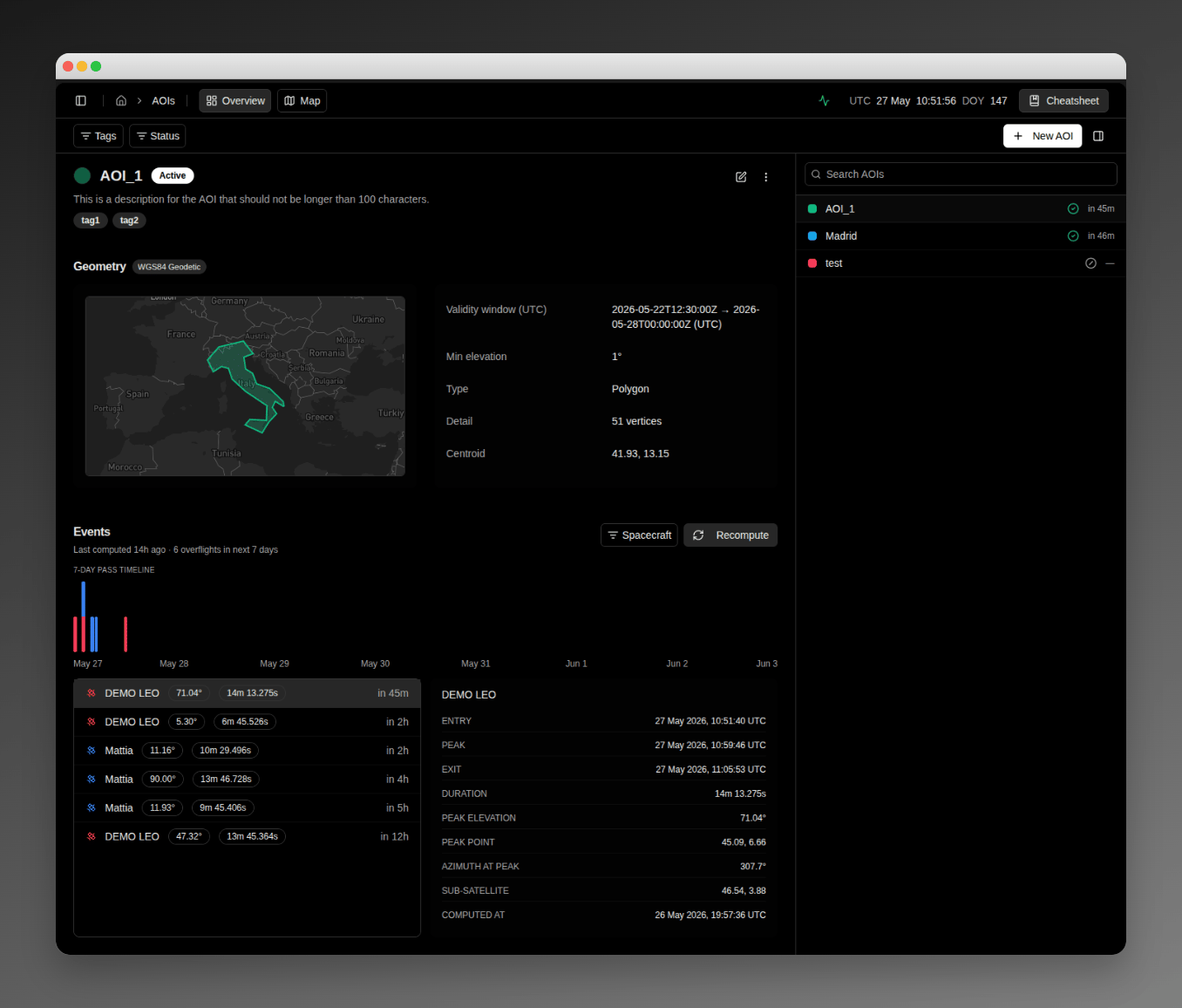 The Overview page is a three-band layout with the AOI list docked on the right and a shared topbar above:
| Band | Contents |
| ------------------ | ----------------------------------------------------------------------------------------------------------------------------------------- |
| **Top bar** | Tags filter, status filter, **New AOI** button, and a toggle that collapses the right-hand list pane. |
| **Identity hero** | Colour swatch, AOI name, status pill, optional description, tag chips, an edit-mode toggle, and a kebab menu. |
| **Geometry block** | Auto-zooming geometry preview on the left; geometry properties (validity window, type, detail, centroid) on the right. |
| **Events section** | Visibility / payload / spacecraft filters, **Recompute** button, last-computed timestamp, 7-day timeline, and the column-less event list. |
The right-docked AOI list pane is shared with the [AOI Map](/features/areas-of-interest/map) page and is rendered identically on both routes.
## Right-Pane AOI List
The AOI list pane is a vertical column on the right edge of the page. From top to bottom:
| Control | Behaviour |
| -------------------- | -------------------------------------------------------------------------------------------------------------------------------------------------------- |
| **Search AOIs** | Local text filter — matches any AOI whose name contains the typed query (case-insensitive). |
| **Filter by tag** | Multi-select dropdown in the top bar. Picks any subset of tags currently in use; rows must match every selected tag. |
| **Filter by status** | Multi-select dropdown in the top bar with options **Active**, **Inactive**, and **Out of window**. |
| **AOI rows** | Colour swatch, name, status icon (check for **Active**, slashed circle for **Inactive**, cross for **Out of window**), and a relative "next pass" label. |
Clicking a row selects the AOI and updates the URL to `/aoi?selected=`. The URL parameter survives reloads and links — paste `/aoi?selected=` to deep-link straight to a specific AOI.
When the search box plus the topbar filters narrow the list to zero rows, the pane renders **No AOIs match these filters** with a **Clear filters** link that resets every filter. When the workspace has no AOIs at all, the pane shows **No AOIs yet** with a **Create your first AOI** button that opens the creation method picker on the [AOI Map](/features/areas-of-interest/map) page.
The collapse toggle in the top bar hides the list pane so the main content takes the full page width; click it again to bring the list back.
## Identity Hero — In-Place Editing
The identity hero is the top band of the Overview page. By default every field renders as plain text — selection alone does not let you edit. Click the pen icon at the right edge of the hero to switch into edit mode. The pen icon is the only entry point to editing; switching to a different AOI in the list resets edit mode back off.
In edit mode, each identity field becomes inline-editable:
| Field | Edit affordance |
| ----------------- | ----------------------------------------------------------------------------------------------------------------------------------------------------------------------------------------------------------------------------------------------------------- |
| **Colour swatch** | Click the swatch to open a 12-swatch palette popover. Pick a colour and the popover closes. The palette colours are Emerald, Teal, Sky, Blue, Indigo, Violet, Fuchsia, Rose, Red, Orange, Amber, and Lime. |
| **Name** | Click the heading text to inline-edit. Up to 100 characters. **Enter** commits, **Escape** reverts. An empty name surfaces `Name is required` inline and blocks the save. |
| **Description** | Click the description (or the *Add a description…* placeholder) to inline-edit. Up to 100 characters. A live `N/100` counter renders beneath the input. |
| **Tags** | Click the tag row to edit. Type a tag and press **Enter** or `,` to commit it as a chip; **Backspace** on an empty input removes the last chip. Up to 20 tags, each ≤64 characters. Exceeding the cap surfaces `Up to 20 tags, each ≤64 characters` inline. |
To the right of the pen icon, the kebab menu offers two actions, both enabled only when edit mode is on:
| Action | Behaviour |
| ----------------------------- | --------------------------------------------------------------------------------------------------------------------------------------------------------------------------------------------------------------------------------------------------------------------------------------------------------- |
| **Set active / Set inactive** | Label flips with the current state. Setting **Inactive** pauses the AOI — no events are generated. Setting **Active** re-enables forecasting. |
| **Delete AOI** | Opens a confirmation dialog **Delete AOI** with the body `Are you sure you want to delete ""? This action cannot be undone.` Click **Delete** to confirm or **Cancel** to keep the AOI. After deletion, the page navigates to the next remaining AOI, or to the empty state if it was the only one. |
The status pill in the hero shows the AOI's lifecycle state:
| Status | Meaning |
| ----------------- | --------------------------------------------------------------------------------------------------------- |
| **Active** | Default state. Overflights compute when you click **Recompute** or change a geometry / lifecycle field. |
| **Inactive** | The AOI is paused — no events are generated until you set it active again. |
| **Out-of-window** | Outside the AOI's validity window. Events do not generate until the current time falls inside the window. |
## Geometry Block
The geometry block is rendered as two columns. On the left, a 16:9 Mapbox preview auto-zooms to the AOI's bounding box and renders the shape in the AOI's chosen colour. On the right, a properties column lists the geometry's derived values.
The Overview page is a three-band layout with the AOI list docked on the right and a shared topbar above:
| Band | Contents |
| ------------------ | ----------------------------------------------------------------------------------------------------------------------------------------- |
| **Top bar** | Tags filter, status filter, **New AOI** button, and a toggle that collapses the right-hand list pane. |
| **Identity hero** | Colour swatch, AOI name, status pill, optional description, tag chips, an edit-mode toggle, and a kebab menu. |
| **Geometry block** | Auto-zooming geometry preview on the left; geometry properties (validity window, type, detail, centroid) on the right. |
| **Events section** | Visibility / payload / spacecraft filters, **Recompute** button, last-computed timestamp, 7-day timeline, and the column-less event list. |
The right-docked AOI list pane is shared with the [AOI Map](/features/areas-of-interest/map) page and is rendered identically on both routes.
## Right-Pane AOI List
The AOI list pane is a vertical column on the right edge of the page. From top to bottom:
| Control | Behaviour |
| -------------------- | -------------------------------------------------------------------------------------------------------------------------------------------------------- |
| **Search AOIs** | Local text filter — matches any AOI whose name contains the typed query (case-insensitive). |
| **Filter by tag** | Multi-select dropdown in the top bar. Picks any subset of tags currently in use; rows must match every selected tag. |
| **Filter by status** | Multi-select dropdown in the top bar with options **Active**, **Inactive**, and **Out of window**. |
| **AOI rows** | Colour swatch, name, status icon (check for **Active**, slashed circle for **Inactive**, cross for **Out of window**), and a relative "next pass" label. |
Clicking a row selects the AOI and updates the URL to `/aoi?selected=`. The URL parameter survives reloads and links — paste `/aoi?selected=` to deep-link straight to a specific AOI.
When the search box plus the topbar filters narrow the list to zero rows, the pane renders **No AOIs match these filters** with a **Clear filters** link that resets every filter. When the workspace has no AOIs at all, the pane shows **No AOIs yet** with a **Create your first AOI** button that opens the creation method picker on the [AOI Map](/features/areas-of-interest/map) page.
The collapse toggle in the top bar hides the list pane so the main content takes the full page width; click it again to bring the list back.
## Identity Hero — In-Place Editing
The identity hero is the top band of the Overview page. By default every field renders as plain text — selection alone does not let you edit. Click the pen icon at the right edge of the hero to switch into edit mode. The pen icon is the only entry point to editing; switching to a different AOI in the list resets edit mode back off.
In edit mode, each identity field becomes inline-editable:
| Field | Edit affordance |
| ----------------- | ----------------------------------------------------------------------------------------------------------------------------------------------------------------------------------------------------------------------------------------------------------- |
| **Colour swatch** | Click the swatch to open a 12-swatch palette popover. Pick a colour and the popover closes. The palette colours are Emerald, Teal, Sky, Blue, Indigo, Violet, Fuchsia, Rose, Red, Orange, Amber, and Lime. |
| **Name** | Click the heading text to inline-edit. Up to 100 characters. **Enter** commits, **Escape** reverts. An empty name surfaces `Name is required` inline and blocks the save. |
| **Description** | Click the description (or the *Add a description…* placeholder) to inline-edit. Up to 100 characters. A live `N/100` counter renders beneath the input. |
| **Tags** | Click the tag row to edit. Type a tag and press **Enter** or `,` to commit it as a chip; **Backspace** on an empty input removes the last chip. Up to 20 tags, each ≤64 characters. Exceeding the cap surfaces `Up to 20 tags, each ≤64 characters` inline. |
To the right of the pen icon, the kebab menu offers two actions, both enabled only when edit mode is on:
| Action | Behaviour |
| ----------------------------- | --------------------------------------------------------------------------------------------------------------------------------------------------------------------------------------------------------------------------------------------------------------------------------------------------------- |
| **Set active / Set inactive** | Label flips with the current state. Setting **Inactive** pauses the AOI — no events are generated. Setting **Active** re-enables forecasting. |
| **Delete AOI** | Opens a confirmation dialog **Delete AOI** with the body `Are you sure you want to delete ""? This action cannot be undone.` Click **Delete** to confirm or **Cancel** to keep the AOI. After deletion, the page navigates to the next remaining AOI, or to the empty state if it was the only one. |
The status pill in the hero shows the AOI's lifecycle state:
| Status | Meaning |
| ----------------- | --------------------------------------------------------------------------------------------------------- |
| **Active** | Default state. Overflights compute when you click **Recompute** or change a geometry / lifecycle field. |
| **Inactive** | The AOI is paused — no events are generated until you set it active again. |
| **Out-of-window** | Outside the AOI's validity window. Events do not generate until the current time falls inside the window. |
## Geometry Block
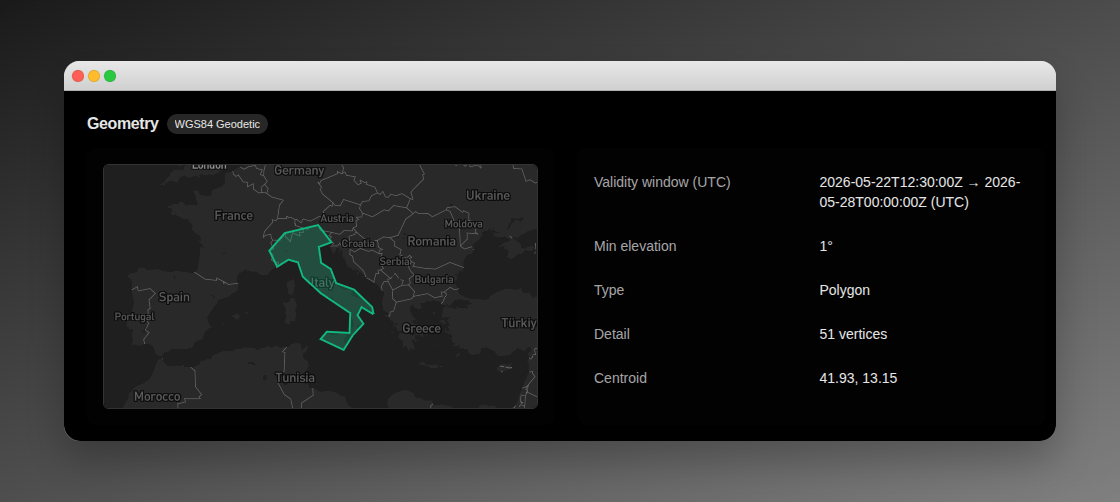
The geometry block is rendered as two columns. On the left, a 16:9 Mapbox preview auto-zooms to the AOI's bounding box and renders the shape in the AOI's chosen colour. On the right, a properties column lists the geometry's derived values.
 ### Geometry Preview
The preview is a read-only map by default. Reference frame is **WGS84 geodetic** — every coordinate is latitude / longitude on the WGS84 ellipsoid. The camera fits the AOI's bounding box with consistent padding on every load, and reapplies when you switch between light and dark themes.
When edit mode is on, an editor opens beneath the preview. You can adjust the geometry by:
* Dragging a vertex, midpoint, or disk handle directly on the preview.
* Editing the structured coordinates in the editor card (vertices for a polygon, centre + radius for a disk, per-piece vertices for a multipolygon).
Commits route through the same validation rules described on the [Create an AOI](/features/areas-of-interest/create-aoi) page; a successful edit triggers an automatic recompute.
### Geometry Properties
The properties column lists derived values for the current geometry:
| Field | Description |
| ------------------- | ------------------------------------------------------------------------------------------------------------------------------------------------------------------------------------------------------------- |
| **Validity window** | `start UTC → end UTC` when both bounds are set, ` (UTC) — Open-ended` when only the start is set, `Open-ended — (UTC)` when only the end is set, or **Always active** when neither bound is set. |
| **Type** | **Polygon**, **Disk**, or **Multipolygon**. |
| **Detail** | A polygon's vertex count, a disk's radius in kilometres, or a multipolygon's piece count. |
| **Centroid** | Mean latitude / longitude of every parsed coordinate, rounded to two decimals. |
In edit mode, **Validity window** opens an edit dialog:
* **Edit validity window** opens a modal with two independent date-time pickers, one per bound. Each bound has a **Set / Open-ended** switch — flip a switch to **Open-ended** to leave that side unbounded, or to **Set** to surface a MiniCalendar plus an `HH:MM` input. Leaving both sides Open-ended means the AOI is always active; setting only one means it is bounded on that side and open on the other. When both bounds are Set, the end must be strictly after the start — otherwise `Validity end must be after validity start` surfaces and **Save** is disabled. All times are UTC.
**Type**, **Detail**, and **Centroid** are always read-only — they reflect what the geometry editor produces.
## Events Section
The events section is the bottom band of the page. It composes the visibility, payload, and spacecraft filters, the **Recompute** action, the 7-day timeline, and the column-less event list.
### Header Controls
| Control | Description |
| --------------------- | ---------------------------------------------------------------------------------------------------------------------------------------------------------------------------------------------------------------------- |
| **Visibility filter** | Single-select dropdown (**All** / **Usable** / **Blinded**) — narrows the timeline and list by each pass's Sun/Moon blinding verdict. See [Overflight Events](/features/areas-of-interest/overflight-events#blinding). |
| **Payload filter** | Multi-select dropdown. Selecting one or more payloads narrows both the timeline and the list to events from those instruments. Appears beside the spacecraft filter. |
| **Spacecraft filter** | Multi-select dropdown. Selecting one or more spacecraft narrows both the timeline and the list to those vehicles' events. |
| **Recompute** | Refreshes the 7-day overflight schedule for the AOI across every spacecraft in the workspace. Disabled when the AOI is **Inactive** or **Out-of-window**, or while a recompute is already running. |
| **Last computed** | Relative timestamp of the last successful recompute, or **Never computed** before the first run. |
### Empty States
When the AOI or workspace is in a state that explains why no events are displayed, the events section surfaces a guidance card in place of the list. Only one card is shown at a time, and the priority order is:
| State | Headline shown | Why it shows |
| ------------------------------ | ------------------------------------------ | ------------------------------------------------------------------------------------------------------------------------------------- |
| Recompute error | `Recompute failed — try again` | The most recent recompute rejected. The error clears the next time you click **Recompute**. |
| Outside validity window | **Outside validity window** | The current time falls outside the AOI's validity bounds. |
| AOI inactive | **AOI is inactive** | The AOI is paused. |
| No payload-equipped spacecraft | **To see FOV access, configure a payload** | No spacecraft in the workspace has a payload configured. Add a payload to a spacecraft to generate FOV access events for this AOI. |
| Never computed | **No overflights computed yet** | The AOI has never had a recompute run. Click **Recompute** to generate the forecast. |
| No FOV access in the window | **No FOV access in the next 7 days** | The recompute completed but no payload's field of view crosses this AOI in the next 7 days. Check spacecraft orbit data or recompute. |
### 7-Day Timeline
The timeline is a **binned histogram** of upcoming passes over the next 7 days: the window is split into hourly bins, and each bar's **height** reflects how many passes start in that hour, stacked and coloured by the contributing spacecraft. A day axis runs beneath. The visibility, payload, and spacecraft filters all apply to both the timeline and the list.
### Column-Less Event List
Below the timeline, each event renders as a row with embedded labels — not a table. From left to right: the spacecraft name, an **eye / eye-off blinding indicator** (clean vs blinded — see [Overflight Events](/features/areas-of-interest/overflight-events#blinding) for the full blinding annotation), the payload name (instrument) in a muted label, and the entry time relative to now (`in 2h 30m`, `in 1d 4h`, etc.). The off-boresight angle, peak elevation, and duration are not shown on the row — they appear in the per-event detail panel.
Clicking a row selects it for the detail panel. The detail panel renders beside the list on wider viewports and beneath the list on narrower ones. Only one row is selected at a time.
| Field | Description |
| ------------------- | ---------------------------------------------------------------------------------------------------------------------------- |
| **Entry** | The earliest instant the payload's FOV footprint overlaps the AOI (UTC). |
| **Peak** | The instant the off-boresight angle reaches its minimum — closest FOV alignment (UTC). |
| **Exit** | The latest instant the payload's FOV footprint still overlaps the AOI (UTC). |
| **Duration** | Total duration of the FOV access window. |
| **Payload** | Name of the instrument whose field of view produced this access event. |
| **Off-boresight** | The payload's off-boresight angle at the peak instant, in degrees (one decimal place). Headline FOV metric. |
| **Peak elevation** | Elevation angle of the spacecraft above the horizon at the peak instant, in degrees (two decimal places). Secondary readout. |
| **Peak point** | The geodetic latitude / longitude of the AOI point that observed the peak elevation. |
| **Azimuth at peak** | Azimuth from the peak point to the spacecraft at the peak instant, in degrees clockwise from local north. |
| **Sub-satellite** | Geodetic latitude / longitude of the ground point directly below the spacecraft at the peak instant. |
| **Sub-intervals** | Count of disjoint access windows when the AOI shape produced more than one for the same pass. |
| **Pieces** | Per-piece off-boresight angle, peak point, and peak elevation breakdown for multipolygon AOIs. |
| **Computed at** | The instant the event was last refreshed (UTC). |
When a spacecraft filter is active, an `N of M shown` indicator appears beneath the timeline so you always know how many events the filter is hiding.
### Per-Spacecraft Banners
If a spacecraft in the workspace has no orbital data, it is silently excluded from the forecast — only the spacecraft that actually contribute events are surfaced in the spacecraft filter. The events you see represent every other vehicle in the workspace.
### Auto-Trigger on Edit
Committing any of the following edits triggers an automatic recompute — you do not need to click **Recompute** afterwards:
* Geometry edits (any vertex, disk centre or radius, multipolygon piece).
* Validity window changes.
* Setting the AOI **Active** or **Inactive** from the kebab menu.
Identity-only edits — name, description, tags, colour — do not trigger a recompute. Existing events stay in the list after an identity-only edit.
## Workspace-Scoped Evaluation
Every AOI is automatically evaluated against every spacecraft in the workspace. There is no AOI-to-spacecraft subscription step; the spacecraft filter is just a UI affordance on top of the full result set.
## 7-Day Forecast Horizon
The forecast horizon is fixed at **7 days** from the instant you click **Recompute**. Configurable horizons are not yet available.
Event timing is **better than 1 second at day 1** of the forecast. LEO spacecraft below 500 km may drift a few seconds at day 7 because of atmospheric drag uncertainty. After a fresh orbit determination or a known manoeuvre, click **Recompute** again to anchor the schedule on the new ephemeris.
## Related Pages
* [AOI Map](/features/areas-of-interest/map) — view every AOI at once on a full-bleed world map and drive creation from the same surface.
* [Create an AOI](/features/areas-of-interest/create-aoi) — define an AOI by drawing, by typing coordinates, or by pasting a [GeoJSON file](/file-formats/aoi-geojson).
* [Overflight events](/features/areas-of-interest/overflight-events) — per-event detail, recompute mechanics, and the 7-day forecast horizon.
* [GeoJSON file format](/file-formats/aoi-geojson) — the supported RFC 7946 subset accepted for AOI creation.
### Geometry Preview
The preview is a read-only map by default. Reference frame is **WGS84 geodetic** — every coordinate is latitude / longitude on the WGS84 ellipsoid. The camera fits the AOI's bounding box with consistent padding on every load, and reapplies when you switch between light and dark themes.
When edit mode is on, an editor opens beneath the preview. You can adjust the geometry by:
* Dragging a vertex, midpoint, or disk handle directly on the preview.
* Editing the structured coordinates in the editor card (vertices for a polygon, centre + radius for a disk, per-piece vertices for a multipolygon).
Commits route through the same validation rules described on the [Create an AOI](/features/areas-of-interest/create-aoi) page; a successful edit triggers an automatic recompute.
### Geometry Properties
The properties column lists derived values for the current geometry:
| Field | Description |
| ------------------- | ------------------------------------------------------------------------------------------------------------------------------------------------------------------------------------------------------------- |
| **Validity window** | `start UTC → end UTC` when both bounds are set, ` (UTC) — Open-ended` when only the start is set, `Open-ended — (UTC)` when only the end is set, or **Always active** when neither bound is set. |
| **Type** | **Polygon**, **Disk**, or **Multipolygon**. |
| **Detail** | A polygon's vertex count, a disk's radius in kilometres, or a multipolygon's piece count. |
| **Centroid** | Mean latitude / longitude of every parsed coordinate, rounded to two decimals. |
In edit mode, **Validity window** opens an edit dialog:
* **Edit validity window** opens a modal with two independent date-time pickers, one per bound. Each bound has a **Set / Open-ended** switch — flip a switch to **Open-ended** to leave that side unbounded, or to **Set** to surface a MiniCalendar plus an `HH:MM` input. Leaving both sides Open-ended means the AOI is always active; setting only one means it is bounded on that side and open on the other. When both bounds are Set, the end must be strictly after the start — otherwise `Validity end must be after validity start` surfaces and **Save** is disabled. All times are UTC.
**Type**, **Detail**, and **Centroid** are always read-only — they reflect what the geometry editor produces.
## Events Section
The events section is the bottom band of the page. It composes the visibility, payload, and spacecraft filters, the **Recompute** action, the 7-day timeline, and the column-less event list.
### Header Controls
| Control | Description |
| --------------------- | ---------------------------------------------------------------------------------------------------------------------------------------------------------------------------------------------------------------------- |
| **Visibility filter** | Single-select dropdown (**All** / **Usable** / **Blinded**) — narrows the timeline and list by each pass's Sun/Moon blinding verdict. See [Overflight Events](/features/areas-of-interest/overflight-events#blinding). |
| **Payload filter** | Multi-select dropdown. Selecting one or more payloads narrows both the timeline and the list to events from those instruments. Appears beside the spacecraft filter. |
| **Spacecraft filter** | Multi-select dropdown. Selecting one or more spacecraft narrows both the timeline and the list to those vehicles' events. |
| **Recompute** | Refreshes the 7-day overflight schedule for the AOI across every spacecraft in the workspace. Disabled when the AOI is **Inactive** or **Out-of-window**, or while a recompute is already running. |
| **Last computed** | Relative timestamp of the last successful recompute, or **Never computed** before the first run. |
### Empty States
When the AOI or workspace is in a state that explains why no events are displayed, the events section surfaces a guidance card in place of the list. Only one card is shown at a time, and the priority order is:
| State | Headline shown | Why it shows |
| ------------------------------ | ------------------------------------------ | ------------------------------------------------------------------------------------------------------------------------------------- |
| Recompute error | `Recompute failed — try again` | The most recent recompute rejected. The error clears the next time you click **Recompute**. |
| Outside validity window | **Outside validity window** | The current time falls outside the AOI's validity bounds. |
| AOI inactive | **AOI is inactive** | The AOI is paused. |
| No payload-equipped spacecraft | **To see FOV access, configure a payload** | No spacecraft in the workspace has a payload configured. Add a payload to a spacecraft to generate FOV access events for this AOI. |
| Never computed | **No overflights computed yet** | The AOI has never had a recompute run. Click **Recompute** to generate the forecast. |
| No FOV access in the window | **No FOV access in the next 7 days** | The recompute completed but no payload's field of view crosses this AOI in the next 7 days. Check spacecraft orbit data or recompute. |
### 7-Day Timeline
The timeline is a **binned histogram** of upcoming passes over the next 7 days: the window is split into hourly bins, and each bar's **height** reflects how many passes start in that hour, stacked and coloured by the contributing spacecraft. A day axis runs beneath. The visibility, payload, and spacecraft filters all apply to both the timeline and the list.
### Column-Less Event List
Below the timeline, each event renders as a row with embedded labels — not a table. From left to right: the spacecraft name, an **eye / eye-off blinding indicator** (clean vs blinded — see [Overflight Events](/features/areas-of-interest/overflight-events#blinding) for the full blinding annotation), the payload name (instrument) in a muted label, and the entry time relative to now (`in 2h 30m`, `in 1d 4h`, etc.). The off-boresight angle, peak elevation, and duration are not shown on the row — they appear in the per-event detail panel.
Clicking a row selects it for the detail panel. The detail panel renders beside the list on wider viewports and beneath the list on narrower ones. Only one row is selected at a time.
| Field | Description |
| ------------------- | ---------------------------------------------------------------------------------------------------------------------------- |
| **Entry** | The earliest instant the payload's FOV footprint overlaps the AOI (UTC). |
| **Peak** | The instant the off-boresight angle reaches its minimum — closest FOV alignment (UTC). |
| **Exit** | The latest instant the payload's FOV footprint still overlaps the AOI (UTC). |
| **Duration** | Total duration of the FOV access window. |
| **Payload** | Name of the instrument whose field of view produced this access event. |
| **Off-boresight** | The payload's off-boresight angle at the peak instant, in degrees (one decimal place). Headline FOV metric. |
| **Peak elevation** | Elevation angle of the spacecraft above the horizon at the peak instant, in degrees (two decimal places). Secondary readout. |
| **Peak point** | The geodetic latitude / longitude of the AOI point that observed the peak elevation. |
| **Azimuth at peak** | Azimuth from the peak point to the spacecraft at the peak instant, in degrees clockwise from local north. |
| **Sub-satellite** | Geodetic latitude / longitude of the ground point directly below the spacecraft at the peak instant. |
| **Sub-intervals** | Count of disjoint access windows when the AOI shape produced more than one for the same pass. |
| **Pieces** | Per-piece off-boresight angle, peak point, and peak elevation breakdown for multipolygon AOIs. |
| **Computed at** | The instant the event was last refreshed (UTC). |
When a spacecraft filter is active, an `N of M shown` indicator appears beneath the timeline so you always know how many events the filter is hiding.
### Per-Spacecraft Banners
If a spacecraft in the workspace has no orbital data, it is silently excluded from the forecast — only the spacecraft that actually contribute events are surfaced in the spacecraft filter. The events you see represent every other vehicle in the workspace.
### Auto-Trigger on Edit
Committing any of the following edits triggers an automatic recompute — you do not need to click **Recompute** afterwards:
* Geometry edits (any vertex, disk centre or radius, multipolygon piece).
* Validity window changes.
* Setting the AOI **Active** or **Inactive** from the kebab menu.
Identity-only edits — name, description, tags, colour — do not trigger a recompute. Existing events stay in the list after an identity-only edit.
## Workspace-Scoped Evaluation
Every AOI is automatically evaluated against every spacecraft in the workspace. There is no AOI-to-spacecraft subscription step; the spacecraft filter is just a UI affordance on top of the full result set.
## 7-Day Forecast Horizon
The forecast horizon is fixed at **7 days** from the instant you click **Recompute**. Configurable horizons are not yet available.
Event timing is **better than 1 second at day 1** of the forecast. LEO spacecraft below 500 km may drift a few seconds at day 7 because of atmospheric drag uncertainty. After a fresh orbit determination or a known manoeuvre, click **Recompute** again to anchor the schedule on the new ephemeris.
## Related Pages
* [AOI Map](/features/areas-of-interest/map) — view every AOI at once on a full-bleed world map and drive creation from the same surface.
* [Create an AOI](/features/areas-of-interest/create-aoi) — define an AOI by drawing, by typing coordinates, or by pasting a [GeoJSON file](/file-formats/aoi-geojson).
* [Overflight events](/features/areas-of-interest/overflight-events) — per-event detail, recompute mechanics, and the 7-day forecast horizon.
* [GeoJSON file format](/file-formats/aoi-geojson) — the supported RFC 7946 subset accepted for AOI creation.