> ## Documentation Index
> Fetch the complete documentation index at: https://docs.valar.space/llms.txt
> Use this file to discover all available pages before exploring further.
# Import & Export Attitude Ephemeris
> Import and export spacecraft attitude ephemeris data using AEM files
> For the complete documentation index, see [llms.txt](/llms.txt).
Use this page to bring an externally-computed attitude profile into VALAR, recover from a broken AEM import, or hand off a VALAR-computed attitude to a downstream tool. Both flows use the [AEM (Attitude Ephemeris Message)](/file-formats/aem) format — a CCSDS-standard ASCII file carrying time-ordered orientation samples for a spacecraft.
**Route:** `/attitude/modes`
For attitude mode concepts and the unified workspace catalog, see [Attitude Modes Overview](/features/attitude/overview). For how an imported AEM appears alongside other entries in the transition schedule, see [Schedule attitude transitions](/features/attitude/transitions).
## Importing an AEM File
Click the **Import** button in the attitude modes page header to open the **Import AEM file** dialog. The dialog accepts `.aem` and `.txt` files up to **50 MB**. Drop a file directly onto the upload zone — labelled **Drag and drop an AEM file here or click to browse** — or click the zone to pick a file with the system file picker.
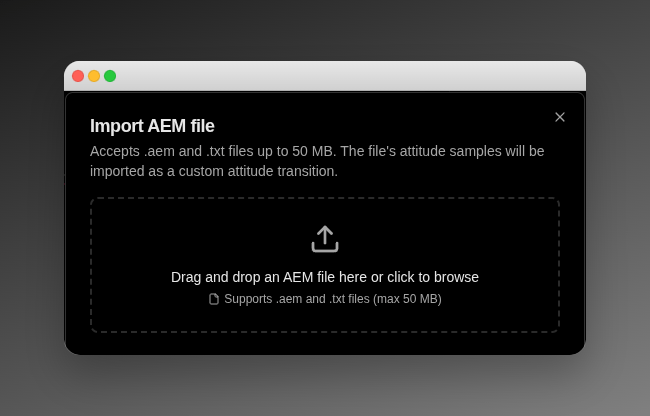 VALAR ingests CCSDS AEM files using the **quaternion** attitude type (`QUATERNION`, `QUATERNION/DERIVATIVE`, `QUATERNION/RATE`, `QUATERNION/ANGVEL`). Files using Euler angles or other attitude representations are rejected with a validation message (see below).
On a successful import, every attitude sample window from the file is added to the spacecraft's transition schedule as a `CUSTOM` mode row, sequenced by the file's `START_TIME` and `STOP_TIME`. The new transitions appear in the transition table alongside any operator-scheduled mode transitions.
When you next view the **Quaternions** tab during a window covered by this AEM file, the quaternion charts surface the file's `REF_FRAME_A` header verbatim in the [reference-frame indicator badge](/features/attitude/visualization#reference-frame-badge) — including free-form custom frames such as `ROLL_PITCH_YAW` that are preserved exactly as your source tool wrote them. Click **Learn more** on the badge to open the [reference frame catalog](/platform-overview/reference-frames).
Before the file reaches the backend, the dialog rejects non-AEM extensions with the literal message **"Only .aem and .txt files are supported."** and oversized files with the size message documented in **AI-4004** below. All other rejections come from backend validation.
## AEM Import Validation Messages
When the AEM file is rejected, the dialog surfaces an error message that describes why. Each backend error code carries a fixed user-facing message; some include `{...}` placeholders that the dialog substitutes at runtime, as detailed below the table.
| Code | Message | Meaning |
| -------------------- | ---------------------------------------------------------------------------- | ----------------------------------------------------------------------------------------------------------------------------------------- |
| **AI-4001** | That file doesn't look like a valid CCSDS AEM. Check the file and try again. | The upload failed CCSDS AEM parsing. Re-export the file from the source tool and verify it conforms to the AEM v2 standard. |
| **AI-4002** | Only quaternion AEM files are supported. | The file uses a non-quaternion `ATTITUDE_TYPE` (for example, `EULER_ANGLE`). Re-export it with `ATTITUDE_TYPE = QUATERNION`. |
| **AI-4003** | The AEM file doesn't contain any attitude samples. | The file parsed but its data block is empty. Verify the source generated samples for the requested interval. |
| **AI-4004** | The file is `{size}`, which exceeds the `{limit}` limit. | The upload is larger than the 50 MB cap. Shorten the time range or coarsen the sample rate, then re-import. |
| **AI-4005** | This file overlaps with "`{filename}`" (`{start}` to `{end}`). | The new file's time window intersects an existing AEM import on this spacecraft. Remove or trim the conflicting import, then retry. |
| **AI-4006** | This import would shadow `{count}` existing transition(s). | The new file's time window would override one or more existing scheduled transitions. Remove or reschedule those transitions, then retry. |
| **AI-4040** | That AEM import no longer exists. | The AEM import you tried to act on was deleted in another tab or session. Refresh the page and try again. |
| **AI-4041** | This spacecraft has no attitude configuration yet. | The spacecraft has no attitude configuration to attach the samples to. Configure attitude first, then re-import. |
| **Generic fallback** | An unexpected error occurred. | The backend returned an error that doesn't match any documented code. Retry the upload; if it persists, contact support. |
The parameterized messages above fill their placeholders at runtime:
* For **AI-4004**, `{size}` is the uploaded file's size and `{limit}` is the maximum allowed size. Both values are formatted in the largest fitting unit — `B`, `KB`, `MB`, or `GB`.
* For **AI-4005**, `{filename}` is the conflicting AEM file's name, and `{start}` and `{end}` are the conflicting file's time range in UTC.
* For **AI-4006**, `{count}` is the number of existing transitions the new file would shadow. The wording uses `transition` when `{count}` is `1` and `transitions` otherwise.
## Recovering from a Broken AEM Import
If a previously-imported AEM ends up unreachable — for example, the underlying file was removed or its storage location can no longer be served — VALAR replaces the affected attitude surface (such as the **Quaternions** tab) with a **Broken AEM import** empty state. The empty state names the failing import by its identifier and, when known, the original filename so you can pinpoint which upload is broken.
Two recovery paths are available depending on whether you have write access to the spacecraft:
* **With write access**, the empty state shows a destructive **Delete this import** button. Click it to open a confirmation dialog with the literal copy **Delete AEM import '`{filename}`'? This cannot be undone.** (or a filename-less variant when the original name is unknown). Confirm to remove the broken record. On success, the empty state clears and you can re-import a corrected AEM file using the **Import** button. If the delete itself fails, the page keeps the broken-import state mounted and surfaces the toast **Failed to delete import — please retry** so you can retry without losing context.
* **Without write access**, the **Delete this import** button is replaced with a **Contact support** link. Use it to raise the cleanup with the support team — they will remove the broken import on your behalf.
Deleting a broken AEM import permanently removes it from the spacecraft's transition schedule. There is no undo. If the original file is recoverable, save a local copy before deleting so you can re-import it later.
## Exporting Attitude Ephemeris
The **Export** button opens the **Export attitude ephemeris** dialog, which generates a CCSDS AEM v2 file containing the spacecraft's computed attitude over a time window. The button sits in the page header next to **Import**, and is available from both the attitude **Modes** page and the attitude **Quaternions** page — the same dialog opens from either.
VALAR ingests CCSDS AEM files using the **quaternion** attitude type (`QUATERNION`, `QUATERNION/DERIVATIVE`, `QUATERNION/RATE`, `QUATERNION/ANGVEL`). Files using Euler angles or other attitude representations are rejected with a validation message (see below).
On a successful import, every attitude sample window from the file is added to the spacecraft's transition schedule as a `CUSTOM` mode row, sequenced by the file's `START_TIME` and `STOP_TIME`. The new transitions appear in the transition table alongside any operator-scheduled mode transitions.
When you next view the **Quaternions** tab during a window covered by this AEM file, the quaternion charts surface the file's `REF_FRAME_A` header verbatim in the [reference-frame indicator badge](/features/attitude/visualization#reference-frame-badge) — including free-form custom frames such as `ROLL_PITCH_YAW` that are preserved exactly as your source tool wrote them. Click **Learn more** on the badge to open the [reference frame catalog](/platform-overview/reference-frames).
Before the file reaches the backend, the dialog rejects non-AEM extensions with the literal message **"Only .aem and .txt files are supported."** and oversized files with the size message documented in **AI-4004** below. All other rejections come from backend validation.
## AEM Import Validation Messages
When the AEM file is rejected, the dialog surfaces an error message that describes why. Each backend error code carries a fixed user-facing message; some include `{...}` placeholders that the dialog substitutes at runtime, as detailed below the table.
| Code | Message | Meaning |
| -------------------- | ---------------------------------------------------------------------------- | ----------------------------------------------------------------------------------------------------------------------------------------- |
| **AI-4001** | That file doesn't look like a valid CCSDS AEM. Check the file and try again. | The upload failed CCSDS AEM parsing. Re-export the file from the source tool and verify it conforms to the AEM v2 standard. |
| **AI-4002** | Only quaternion AEM files are supported. | The file uses a non-quaternion `ATTITUDE_TYPE` (for example, `EULER_ANGLE`). Re-export it with `ATTITUDE_TYPE = QUATERNION`. |
| **AI-4003** | The AEM file doesn't contain any attitude samples. | The file parsed but its data block is empty. Verify the source generated samples for the requested interval. |
| **AI-4004** | The file is `{size}`, which exceeds the `{limit}` limit. | The upload is larger than the 50 MB cap. Shorten the time range or coarsen the sample rate, then re-import. |
| **AI-4005** | This file overlaps with "`{filename}`" (`{start}` to `{end}`). | The new file's time window intersects an existing AEM import on this spacecraft. Remove or trim the conflicting import, then retry. |
| **AI-4006** | This import would shadow `{count}` existing transition(s). | The new file's time window would override one or more existing scheduled transitions. Remove or reschedule those transitions, then retry. |
| **AI-4040** | That AEM import no longer exists. | The AEM import you tried to act on was deleted in another tab or session. Refresh the page and try again. |
| **AI-4041** | This spacecraft has no attitude configuration yet. | The spacecraft has no attitude configuration to attach the samples to. Configure attitude first, then re-import. |
| **Generic fallback** | An unexpected error occurred. | The backend returned an error that doesn't match any documented code. Retry the upload; if it persists, contact support. |
The parameterized messages above fill their placeholders at runtime:
* For **AI-4004**, `{size}` is the uploaded file's size and `{limit}` is the maximum allowed size. Both values are formatted in the largest fitting unit — `B`, `KB`, `MB`, or `GB`.
* For **AI-4005**, `{filename}` is the conflicting AEM file's name, and `{start}` and `{end}` are the conflicting file's time range in UTC.
* For **AI-4006**, `{count}` is the number of existing transitions the new file would shadow. The wording uses `transition` when `{count}` is `1` and `transitions` otherwise.
## Recovering from a Broken AEM Import
If a previously-imported AEM ends up unreachable — for example, the underlying file was removed or its storage location can no longer be served — VALAR replaces the affected attitude surface (such as the **Quaternions** tab) with a **Broken AEM import** empty state. The empty state names the failing import by its identifier and, when known, the original filename so you can pinpoint which upload is broken.
Two recovery paths are available depending on whether you have write access to the spacecraft:
* **With write access**, the empty state shows a destructive **Delete this import** button. Click it to open a confirmation dialog with the literal copy **Delete AEM import '`{filename}`'? This cannot be undone.** (or a filename-less variant when the original name is unknown). Confirm to remove the broken record. On success, the empty state clears and you can re-import a corrected AEM file using the **Import** button. If the delete itself fails, the page keeps the broken-import state mounted and surfaces the toast **Failed to delete import — please retry** so you can retry without losing context.
* **Without write access**, the **Delete this import** button is replaced with a **Contact support** link. Use it to raise the cleanup with the support team — they will remove the broken import on your behalf.
Deleting a broken AEM import permanently removes it from the spacecraft's transition schedule. There is no undo. If the original file is recoverable, save a local copy before deleting so you can re-import it later.
## Exporting Attitude Ephemeris
The **Export** button opens the **Export attitude ephemeris** dialog, which generates a CCSDS AEM v2 file containing the spacecraft's computed attitude over a time window. The button sits in the page header next to **Import**, and is available from both the attitude **Modes** page and the attitude **Quaternions** page — the same dialog opens from either.
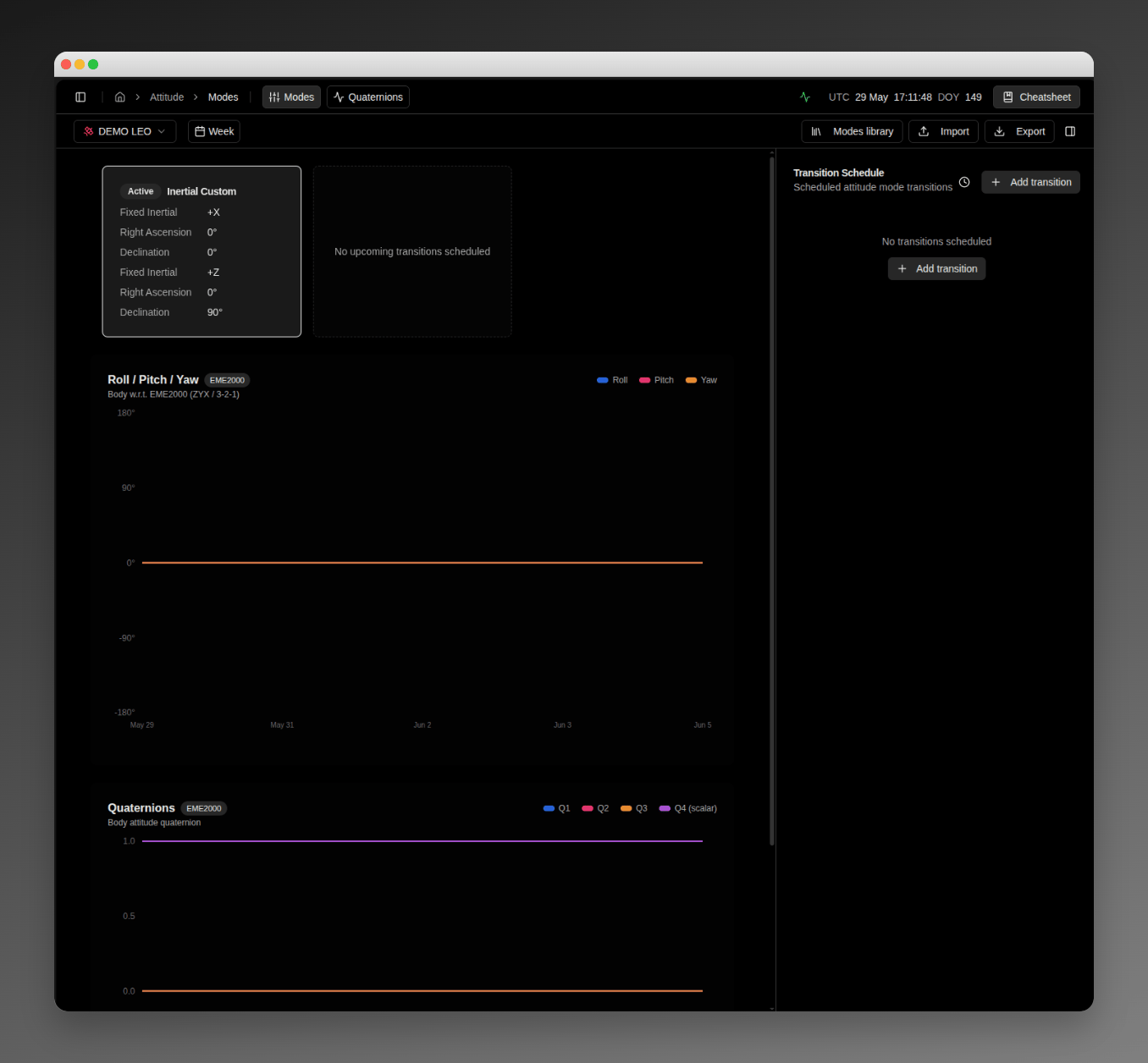 The button is enabled when both of the following are true:
* The spacecraft has an attitude configuration (a default mode is set).
* The spacecraft has at least one [state vector](/features/state-vectors) so attitude can be sampled against the orbit.
If the spacecraft has no attitude configuration, the **Import** and **Export** buttons are not shown — the page displays an attitude setup prompt instead. If the spacecraft has an attitude configuration but no state vector, the **Export** button is rendered as disabled with a tooltip naming the missing piece.
The dialog title carries a spacecraft selector dropdown so you can switch the target spacecraft from inside the dialog.
The button is enabled when both of the following are true:
* The spacecraft has an attitude configuration (a default mode is set).
* The spacecraft has at least one [state vector](/features/state-vectors) so attitude can be sampled against the orbit.
If the spacecraft has no attitude configuration, the **Import** and **Export** buttons are not shown — the page displays an attitude setup prompt instead. If the spacecraft has an attitude configuration but no state vector, the **Export** button is rendered as disabled with a tooltip naming the missing piece.
The dialog title carries a spacecraft selector dropdown so you can switch the target spacecraft from inside the dialog.
 ### Representations and reference frames
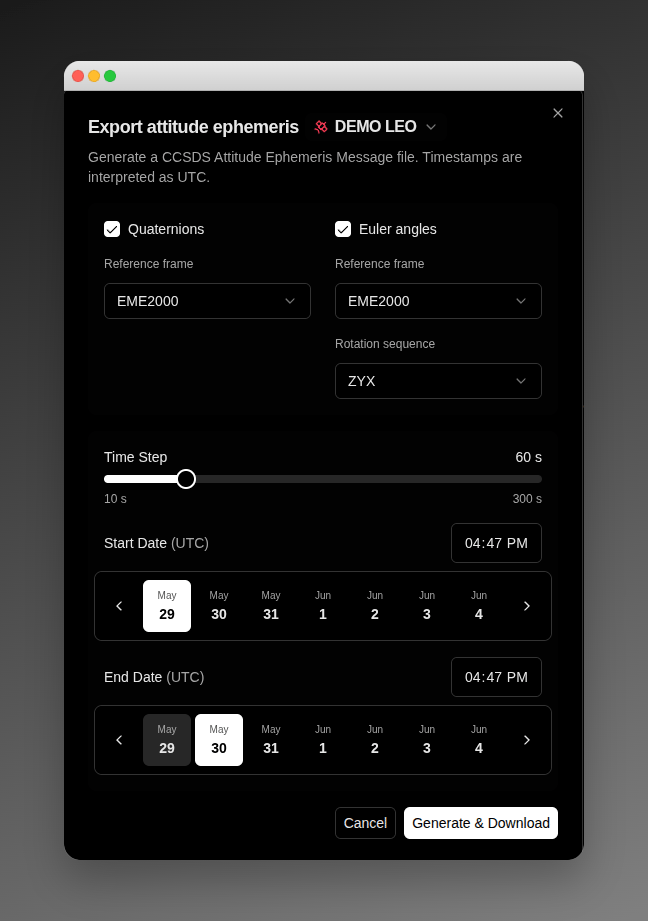
The dialog presents two **representation cards** — **Quaternions** and **Euler angles**. Tick a card to include that representation in the file; tick both to write a single file carrying one segment per representation. The default selection is **Quaternions** in **EME2000**, so leaving the cards untouched reproduces the classic single-quaternion export.
| Representation | Reference frame | Rotation sequence |
| ------------------------- | --------------------------------------------------- | -------------------------------- |
| **Quaternions** (default) | `EME2000` (default), `ITRF2014`, or `LVLH_ROTATING` | — |
| **Euler angles** | `EME2000` (default), `ITRF2014`, or `LVLH_ROTATING` | `ZYX` (default), `XYZ`, or `ZXY` |
* The **Quaternions** card exposes **no** convention selector. CCSDS 504.0-B-2 mandates scalar-last quaternion ordering, so there is nothing to choose.
* The **Euler angles** card writes the attitude as RPY (roll, pitch, yaw) angles and adds a **Rotation sequence** selector — `ZYX` (default), `XYZ`, or `ZXY`.
* Each card has its own **Reference frame** selector — `EME2000`, `ITRF2014`, or `LVLH_ROTATING` — so a combined export can express each segment in a different frame.
When a card's reference frame is set to `LVLH_ROTATING`, the dialog shows the notice **AEM is not self-contained in LVLH. Consumer must also fetch the companion OEM.** An LVLH attitude file is only meaningful alongside the orbit ephemeris it was expressed against — the [AEM reference](/file-formats/aem) describes the companion-OEM `COMMENT` block VALAR writes so the consumer can locate it.
An `ITRF2014` reference frame uses the EOP 14 C04 Earth-orientation realization (EOP 14 C04 → ITRF2014). Consumers pinned to ITRF2020 should confirm compatibility before consuming the file — the two realizations agree only to the few-millimetre level.
### Time window and sampling
| Field | Description |
| -------------------- | ----------------------------------------------------------------------------------------------------------------------------------------------------------------------------------------------------------------------------------------------------------------------------------------------------------------------------------------------------------------- |
| **Time Step** | A slider for the sampling interval between attitude samples in the file. Accepts values from `10` s to `300` s in 10-second steps. Default: `60` s. The current value (e.g., `"60 s"`) is shown to the right of the label. |
| **Start Date (UTC)** | A `HH:MM` time input on the right of the row sets the time-of-day, and a 7-day MiniCalendar carousel below sets the date. Use the left/right chevrons to navigate the carousel one 7-day window at a time; click a day cell to select it. The currently-selected day is highlighted; the current day (when not selected) is rendered with a secondary background. |
| **End Date (UTC)** | Same shape as **Start Date** — a time input plus a 7-day MiniCalendar carousel. The end must be strictly later than the start, and the total window must not exceed 7 days. |
All timestamps are interpreted as UTC.
### Generating the file
Click **Generate & Download** to produce the file. While VALAR computes the attitude over the requested window, the dialog displays a `Computing attitude ephemeris…` progress indicator. When the file is ready, your browser saves it locally and a confirmation toast — **Attitude ephemeris export ready** — appears. If the backend rejects the request, the dialog stays open with your inputs intact, displays the reason, and surfaces a matching toast so you can adjust the inputs and retry without re-entering data.
The downloaded file is a CCSDS AEM v2 document. By default it carries scalar-last quaternion samples (`Q1 Q2 Q3 QC`); the reference frames and Euler sequence you choose are reflected in each segment's metadata. See the [AEM format reference](/file-formats/aem) for the full structure, including the two-segment layout written when you select both representations.
### Euler-angle singularities
Euler angles are undefined at gimbal lock (pitch at ±90°), where a single rotation sequence cannot describe the orientation. If the chosen Euler sequence is singular at any sample in the requested window, the export is refused with a **400** response, error code **AE-4007**, and the dialog shows the alert **RPY sequence is singular at this timestamp** — with the offending timestamp and **two suggested alternative Euler conventions** offered as one-click buttons (for example, **Try `XYZ`** or **Try `ZXY`**). Pick a suggested sequence and run the export again. **Quaternion exports are never refused** — they have no singularity — so a file that includes the **Quaternions** card always contains that segment.
***
Understand attitude modes, body axes, target types, and the unified workspace catalog
Browse, create, edit, and delete modes in the workspace catalog
Plan time-anchored mode switches and override the default
Inspect quaternion and Euler angle plots over time
AEM structure, quaternion ordering, reference frames, time systems, and a sample file
### Representations and reference frames
The dialog presents two **representation cards** — **Quaternions** and **Euler angles**. Tick a card to include that representation in the file; tick both to write a single file carrying one segment per representation. The default selection is **Quaternions** in **EME2000**, so leaving the cards untouched reproduces the classic single-quaternion export.
| Representation | Reference frame | Rotation sequence |
| ------------------------- | --------------------------------------------------- | -------------------------------- |
| **Quaternions** (default) | `EME2000` (default), `ITRF2014`, or `LVLH_ROTATING` | — |
| **Euler angles** | `EME2000` (default), `ITRF2014`, or `LVLH_ROTATING` | `ZYX` (default), `XYZ`, or `ZXY` |
* The **Quaternions** card exposes **no** convention selector. CCSDS 504.0-B-2 mandates scalar-last quaternion ordering, so there is nothing to choose.
* The **Euler angles** card writes the attitude as RPY (roll, pitch, yaw) angles and adds a **Rotation sequence** selector — `ZYX` (default), `XYZ`, or `ZXY`.
* Each card has its own **Reference frame** selector — `EME2000`, `ITRF2014`, or `LVLH_ROTATING` — so a combined export can express each segment in a different frame.
When a card's reference frame is set to `LVLH_ROTATING`, the dialog shows the notice **AEM is not self-contained in LVLH. Consumer must also fetch the companion OEM.** An LVLH attitude file is only meaningful alongside the orbit ephemeris it was expressed against — the [AEM reference](/file-formats/aem) describes the companion-OEM `COMMENT` block VALAR writes so the consumer can locate it.
An `ITRF2014` reference frame uses the EOP 14 C04 Earth-orientation realization (EOP 14 C04 → ITRF2014). Consumers pinned to ITRF2020 should confirm compatibility before consuming the file — the two realizations agree only to the few-millimetre level.
### Time window and sampling
| Field | Description |
| -------------------- | ----------------------------------------------------------------------------------------------------------------------------------------------------------------------------------------------------------------------------------------------------------------------------------------------------------------------------------------------------------------- |
| **Time Step** | A slider for the sampling interval between attitude samples in the file. Accepts values from `10` s to `300` s in 10-second steps. Default: `60` s. The current value (e.g., `"60 s"`) is shown to the right of the label. |
| **Start Date (UTC)** | A `HH:MM` time input on the right of the row sets the time-of-day, and a 7-day MiniCalendar carousel below sets the date. Use the left/right chevrons to navigate the carousel one 7-day window at a time; click a day cell to select it. The currently-selected day is highlighted; the current day (when not selected) is rendered with a secondary background. |
| **End Date (UTC)** | Same shape as **Start Date** — a time input plus a 7-day MiniCalendar carousel. The end must be strictly later than the start, and the total window must not exceed 7 days. |
All timestamps are interpreted as UTC.
### Generating the file
Click **Generate & Download** to produce the file. While VALAR computes the attitude over the requested window, the dialog displays a `Computing attitude ephemeris…` progress indicator. When the file is ready, your browser saves it locally and a confirmation toast — **Attitude ephemeris export ready** — appears. If the backend rejects the request, the dialog stays open with your inputs intact, displays the reason, and surfaces a matching toast so you can adjust the inputs and retry without re-entering data.
The downloaded file is a CCSDS AEM v2 document. By default it carries scalar-last quaternion samples (`Q1 Q2 Q3 QC`); the reference frames and Euler sequence you choose are reflected in each segment's metadata. See the [AEM format reference](/file-formats/aem) for the full structure, including the two-segment layout written when you select both representations.
### Euler-angle singularities
Euler angles are undefined at gimbal lock (pitch at ±90°), where a single rotation sequence cannot describe the orientation. If the chosen Euler sequence is singular at any sample in the requested window, the export is refused with a **400** response, error code **AE-4007**, and the dialog shows the alert **RPY sequence is singular at this timestamp** — with the offending timestamp and **two suggested alternative Euler conventions** offered as one-click buttons (for example, **Try `XYZ`** or **Try `ZXY`**). Pick a suggested sequence and run the export again. **Quaternion exports are never refused** — they have no singularity — so a file that includes the **Quaternions** card always contains that segment.
***
Understand attitude modes, body axes, target types, and the unified workspace catalog
Browse, create, edit, and delete modes in the workspace catalog
Plan time-anchored mode switches and override the default
Inspect quaternion and Euler angle plots over time
AEM structure, quaternion ordering, reference frames, time systems, and a sample file