> ## Documentation Index
> Fetch the complete documentation index at: https://docs.valar.space/llms.txt
> Use this file to discover all available pages before exploring further.
# Attitude Visualization
> Read quaternion and Euler angle plots that show how your spacecraft was oriented over time
> For the complete documentation index, see [llms.txt](/llms.txt).
VALAR exposes spacecraft attitude through two complementary plots:
* A **quaternion time series** on the dedicated **Quaternions** tab, showing the four quaternion components over a chosen time window.
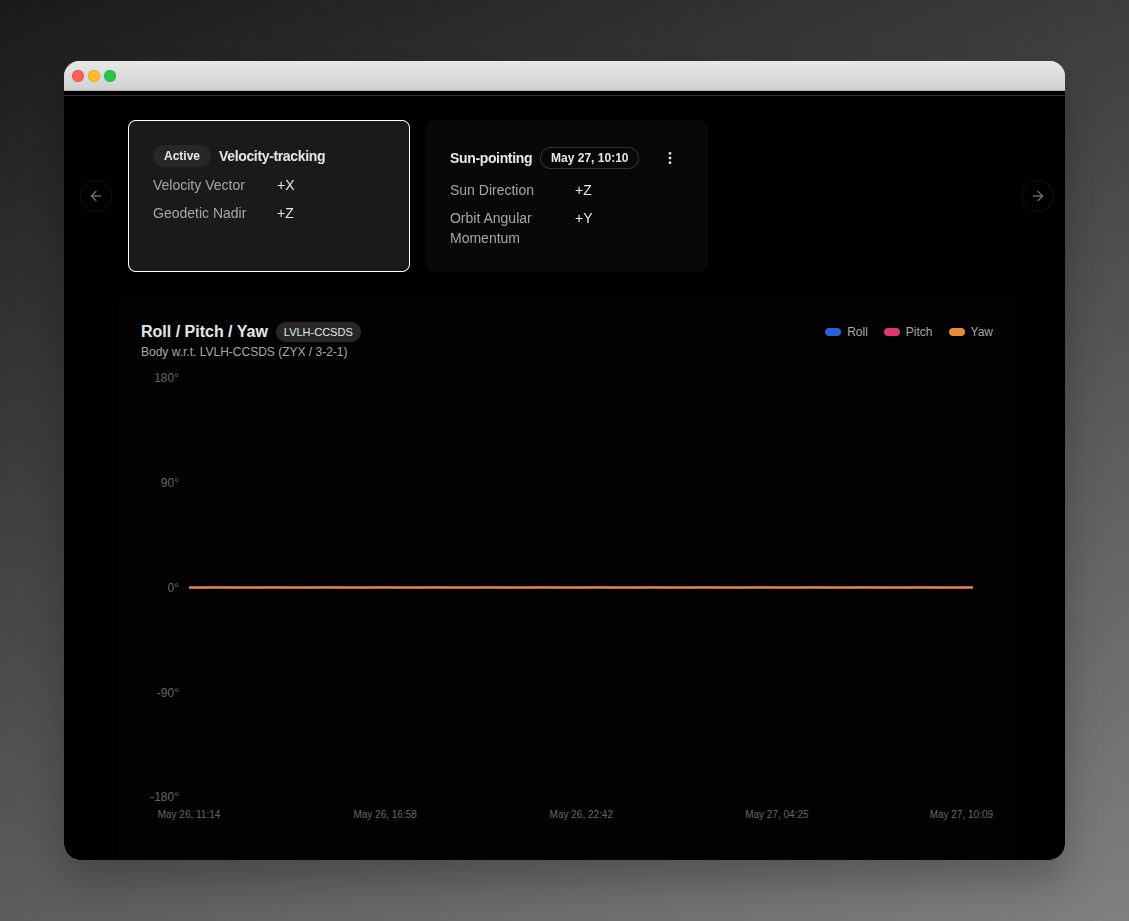
* A **roll / pitch / yaw Euler-angle plot** on the **Modes** tab, embedded alongside the mode schedule.
Both plots are driven by the same underlying attitude profile — the orientation your spacecraft holds under its active mode and any scheduled transitions. This page explains how to read each one. For attitude concepts (modes, body axes, targets), see [Attitude modes overview](/features/attitude/overview).
## Quaternion plots on the Quaternions tab
Open the Quaternions tab from the sidebar at **Attitude → Quaternions**, then pick a spacecraft from the spacecraft selector at the top. The page renders four stacked charts, one for each quaternion component:
* **Q1**, **Q2**, **Q3** — the three vector components of the unit quaternion.
* **Q4 (scalar)** — the scalar (real) component of the unit quaternion.
A quaternion is a four-number description of a rotation. The four values are dimensionless and always lie between **-1 and 1**, so every chart shares the same fixed y-axis. The x-axis is time, labelled with the UTC date.
### Adjusting the time window
The time-range pill at the top of the page controls how much history and forecast appear on each chart. The default is **24 h** — twelve hours of past attitude and twelve hours of forecast around the current moment. You can switch to **12 h** for a tighter view or **72 h** for a longer one. If no attitude data is available for the selected window, the charts render blank with no points.
### Reading discontinuities
The quaternion `q` and its negation `-q` represent the same physical rotation, so the same attitude can be written in two equivalent ways. When the underlying samples flip sign between consecutive points, the chart draws a **brief gap** instead of an artificial jump from `+0.9` to `-0.9`. Gaps therefore mark sign transitions in the data, not gaps in coverage.
Sign flips most often appear at mode-transition boundaries, because the active and the scheduled modes may produce quaternions with opposite signs even though they describe smoothly continuous orientations.
### What the plotted data reflects
The plotted quaternions reflect your spacecraft's full attitude schedule:
* When no transition is active, the plot follows the spacecraft's **default attitude mode**.
* When a [scheduled transition](/features/attitude/transitions) is active, the plot follows the **scheduled mode** for the duration of its window.
* After a transition ends, the plot returns to the default mode until the next transition.
You do not need to overlay the transition schedule manually — it is already baked into the curve.
### Reference frame badge
A reference-frame indicator badge appears next to the chart title on **all four** Q1 / Q2 / Q3 / Q4 cards, showing the frame the body-frame quaternions are expressed against (e.g., `LVLH-CCSDS` for an Earth-pointing mode, or a custom name carried verbatim from an [imported AEM file](/features/attitude/ephemeris) such as `ROLL_PITCH_YAW`). All four cards share the same badge value because the quaternion-profile endpoint carries a single top-level frame for the whole window. Hover the badge for the full frame name; click **Learn more** to open the [reference frame catalog](/platform-overview/reference-frames).
## Euler angle plot on the Modes tab
For an operator-friendly view of the same attitude, open **Attitude → Modes**. The right side of the modes page shows a **Roll / Pitch / Yaw** chart that expresses the same attitude as three rotation angles instead of four quaternion components.
* **Roll**, **Pitch**, **Yaw** are the rotation angles around the spacecraft's body axes, applied in the **ZYX (3-2-1)** sequence.
* Values are in **degrees** and range from **-180 to 180**.
The roll / pitch / yaw values are derived from the same underlying attitude profile as the quaternion charts. They are not a new piece of data — just a more human-readable presentation of the same orientation.
### Reference frame
The chart subtitle reads **Body w\.r.t. *\* (ZYX / 3-2-1)**. The frame name identifies the reference the rotation is expressed against — for example, `Sun-aligned local frame`, `LVLH-CCSDS`, or `EME2000`. The frame depends on the active mode: a Sun-pointing mode reports angles against a Sun-aligned frame; an inertial mode reports against an inertial frame. For definitions of each frame, see [Reference frames](/platform-overview/reference-frames).
A reference-frame indicator badge also appears next to the chart title, showing the same frame as a compact chip. The existing **Body w\.r.t. *\*** subtitle remains alongside the badge — the slight redundancy is intentional: the subtitle is the canonical sentence, the badge is the at-a-glance signal that mirrors what appears on every other plot in the product. Hover the badge for the full frame name; click **Learn more** to open the [reference frame catalog](/platform-overview/reference-frames).
 ## Empty and unavailable states
Two situations prevent the plots from rendering with data:
### No state vector
If the spacecraft has no [state vector](/features/state-vectors), the entire Attitude section shows a **No state vector available** message with an **Add a state vector** button that takes you to the State Vectors page. Attitude cannot be computed without orbital state, so neither the Quaternions tab nor the Modes tab will render their charts until you add a state vector.
### No attitude configuration
If the spacecraft has a state vector but no default attitude mode has been set, the Quaternions tab shows a **Configure modes** prompt that links to the Modes tab. The Modes tab in turn lets you pick a default mode and start scheduling transitions — see [Attitude modes overview](/features/attitude/overview).
***
Understand attitude modes, body axes, target types, and the workspace catalog
Browse, create, edit, and delete modes in the workspace catalog
Plan time-anchored mode switches and override the default
Exchange attitude ephemeris with external partners and tools
## Empty and unavailable states
Two situations prevent the plots from rendering with data:
### No state vector
If the spacecraft has no [state vector](/features/state-vectors), the entire Attitude section shows a **No state vector available** message with an **Add a state vector** button that takes you to the State Vectors page. Attitude cannot be computed without orbital state, so neither the Quaternions tab nor the Modes tab will render their charts until you add a state vector.
### No attitude configuration
If the spacecraft has a state vector but no default attitude mode has been set, the Quaternions tab shows a **Configure modes** prompt that links to the Modes tab. The Modes tab in turn lets you pick a default mode and start scheduling transitions — see [Attitude modes overview](/features/attitude/overview).
***
Understand attitude modes, body axes, target types, and the workspace catalog
Browse, create, edit, and delete modes in the workspace catalog
Plan time-anchored mode switches and override the default
Exchange attitude ephemeris with external partners and tools