> ## Documentation Index
> Fetch the complete documentation index at: https://docs.valar.space/llms.txt
> Use this file to discover all available pages before exploring further.
# CAM Optimization
> Compute optimal collision avoidance maneuvers from conjunction events
> For the complete documentation index, see [llms.txt](/llms.txt).
CAM (Collision Avoidance Maneuver) Optimization helps you find the best avoidance maneuver for an active conjunction event. A guided 5-step wizard sweeps through a range of delta-V magnitudes and maneuver directions, filters the results, and lets you select an optimal candidate to create a maneuver plan.
**Route:** Opened from the [Conjunction Classification](/features/conjunction-classification) page via the **CAM Optimization** button.
## Wizard Overview
The CAM Optimization dialog is a 5-step wizard:
| Step | Name | Purpose |
| ---- | ---------------- | ------------------------------------------------------- |
| 1 | Conjunction | Select the conjunction event and alert to analyze |
| 2 | Constraints | Configure sweep parameters and thruster |
| 3 | Time Filter | Restrict maneuver execution to specific time windows |
| 4 | Direction Filter | Constrain maneuver directions using a directional cone |
| 5 | Options | Review results, select a candidate, and create the plan |
## Step 1: Conjunction
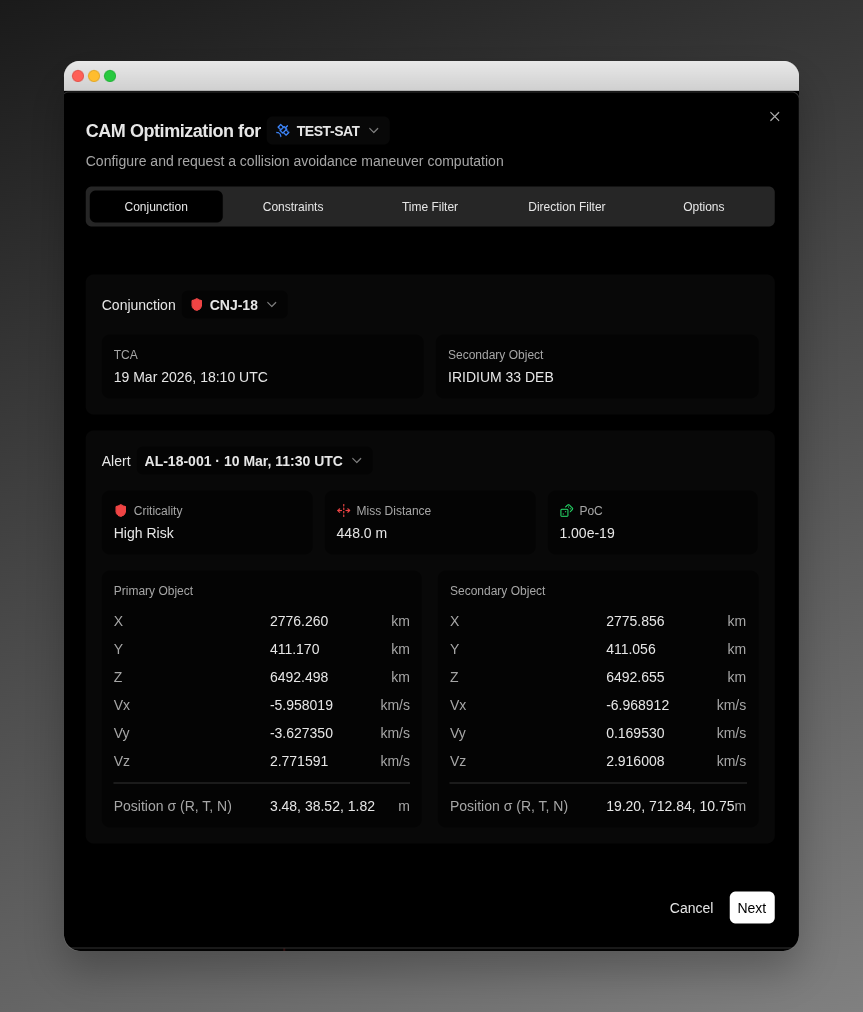
Select the conjunction event and alert data that will be used for the avoidance maneuver computation.
 ### Spacecraft Selection
The spacecraft is selected in the dialog header. Changing the spacecraft resets the conjunction selection.
### Conjunction Selection
Use the dropdown to select an active conjunction (only conjunctions with a future TCA are shown). Conjunctions are sorted by TCA ascending, and the first one is selected automatically. Each entry shows the conjunction code with a risk shield icon.
Once selected, the conjunction card displays the **TCA** (Time of Closest Approach) and the **Secondary Object** name.
### Alert Selection
After selecting a conjunction, choose which alert (CDM) to use as the data source. Alerts are sorted by timestamp with the latest first, and the most recent alert is selected automatically.
The alert card shows the **Criticality** level, **Miss Distance** (in meters), and **PoC** (Probability of Collision).
Below the summary, the **Primary Object** and **Secondary Object** panels show the position vector, velocity vector, and position sigma in the RTN frame.
## Step 2: Constraints
Configure the sweep parameters and thruster that control how candidate maneuvers are computed.
### Spacecraft Selection
The spacecraft is selected in the dialog header. Changing the spacecraft resets the conjunction selection.
### Conjunction Selection
Use the dropdown to select an active conjunction (only conjunctions with a future TCA are shown). Conjunctions are sorted by TCA ascending, and the first one is selected automatically. Each entry shows the conjunction code with a risk shield icon.
Once selected, the conjunction card displays the **TCA** (Time of Closest Approach) and the **Secondary Object** name.
### Alert Selection
After selecting a conjunction, choose which alert (CDM) to use as the data source. Alerts are sorted by timestamp with the latest first, and the most recent alert is selected automatically.
The alert card shows the **Criticality** level, **Miss Distance** (in meters), and **PoC** (Probability of Collision).
Below the summary, the **Primary Object** and **Secondary Object** panels show the position vector, velocity vector, and position sigma in the RTN frame.
## Step 2: Constraints
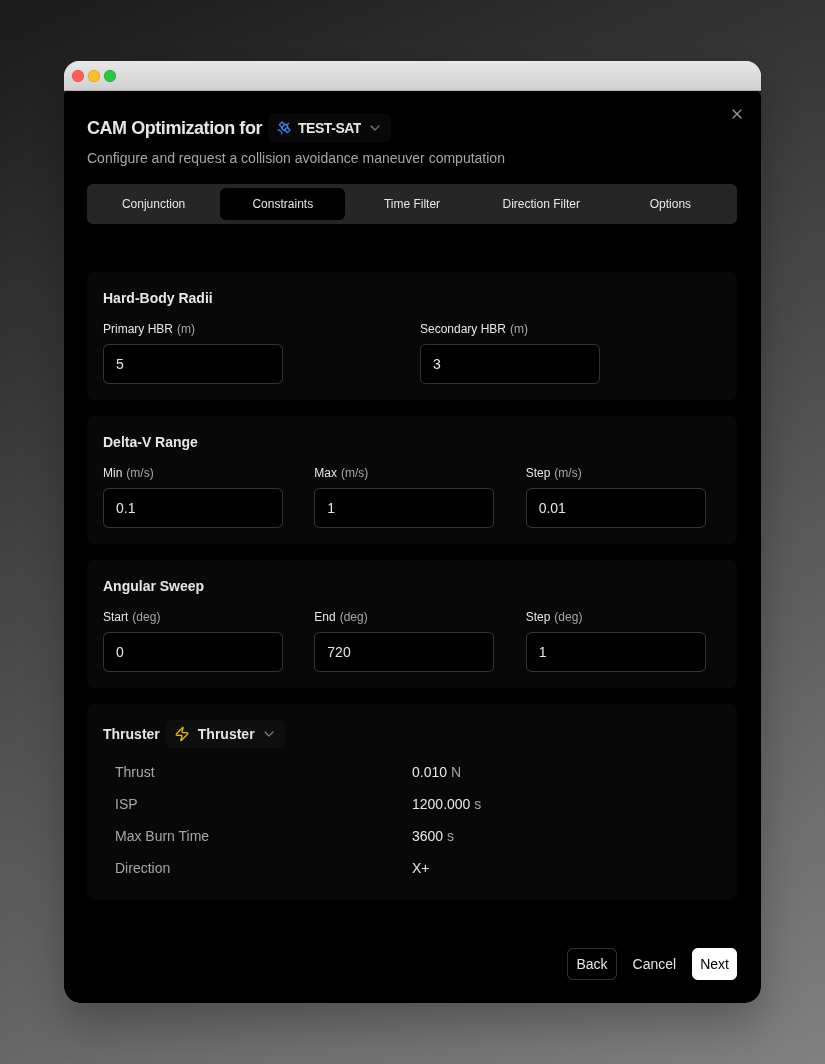
Configure the sweep parameters and thruster that control how candidate maneuvers are computed.
 ### Hard-Body Radii
| Field | Description | Unit |
| ----------------- | ---------------------------------------- | ---- |
| **Primary HBR** | Hard body radius of the primary object | m |
| **Secondary HBR** | Hard body radius of the secondary object | m |
Hard-body radii are provided by the user. Information can sometimes be present as comments on the CDM file.
### Delta-V Range
Define the range of velocity changes to sweep through.
| Field | Description | Unit |
| -------- | -------------------------------- | ---- |
| **Min** | Minimum delta-V magnitude | m/s |
| **Max** | Maximum delta-V magnitude | m/s |
| **Step** | Increment between delta-V values | m/s |
### Angular Sweep
Define the range of maneuver directions to sweep through.
| Field | Description | Unit |
| --------- | -------------------------------- | ---- |
| **Start** | Starting sweep angle | deg |
| **End** | Ending sweep angle | deg |
| **Step** | Increment between angular values | deg |
### Thruster Selection
Select which thruster to use for computing burn parameters. The thruster's specifications (thrust, ISP, max burn time, direction) are displayed for reference.
## Step 3: Time Filter
Optionally restrict the maneuver execution time to specific windows between now and TCA.
### Hard-Body Radii
| Field | Description | Unit |
| ----------------- | ---------------------------------------- | ---- |
| **Primary HBR** | Hard body radius of the primary object | m |
| **Secondary HBR** | Hard body radius of the secondary object | m |
Hard-body radii are provided by the user. Information can sometimes be present as comments on the CDM file.
### Delta-V Range
Define the range of velocity changes to sweep through.
| Field | Description | Unit |
| -------- | -------------------------------- | ---- |
| **Min** | Minimum delta-V magnitude | m/s |
| **Max** | Maximum delta-V magnitude | m/s |
| **Step** | Increment between delta-V values | m/s |
### Angular Sweep
Define the range of maneuver directions to sweep through.
| Field | Description | Unit |
| --------- | -------------------------------- | ---- |
| **Start** | Starting sweep angle | deg |
| **End** | Ending sweep angle | deg |
| **Step** | Increment between angular values | deg |
### Thruster Selection
Select which thruster to use for computing burn parameters. The thruster's specifications (thrust, ISP, max burn time, direction) are displayed for reference.
## Step 3: Time Filter
Optionally restrict the maneuver execution time to specific windows between now and TCA.
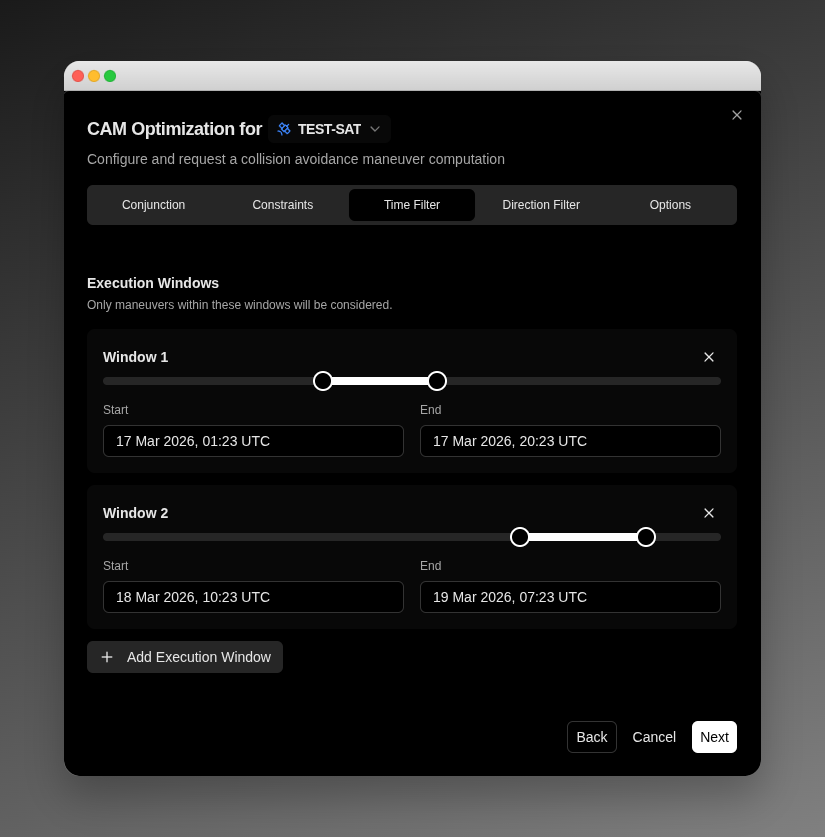 By default, no execution windows are defined and all maneuver times between now and TCA are considered. Click **Add Execution Window** to restrict the search to specific time ranges.
Set the mode to **Inclusion** (maneuver epochs within defined windows) or **Exclusion** (maneuver epochs avoid defined windows).
Each window defines a start and end time using date-time pickers bounded between now and TCA. Only maneuvers within these windows will be considered. You can add multiple windows, but they cannot overlap — overlapping windows are flagged with a validation error.
This step is optional, you can proceed to the next step without adding any windows.
## Step 4: Direction Filter
Optionally constrain maneuver directions using a directional cone in RTN (Radial-Tangential-Normal) space.
By default, no execution windows are defined and all maneuver times between now and TCA are considered. Click **Add Execution Window** to restrict the search to specific time ranges.
Set the mode to **Inclusion** (maneuver epochs within defined windows) or **Exclusion** (maneuver epochs avoid defined windows).
Each window defines a start and end time using date-time pickers bounded between now and TCA. Only maneuvers within these windows will be considered. You can add multiple windows, but they cannot overlap — overlapping windows are flagged with a validation error.
This step is optional, you can proceed to the next step without adding any windows.
## Step 4: Direction Filter
Optionally constrain maneuver directions using a directional cone in RTN (Radial-Tangential-Normal) space.
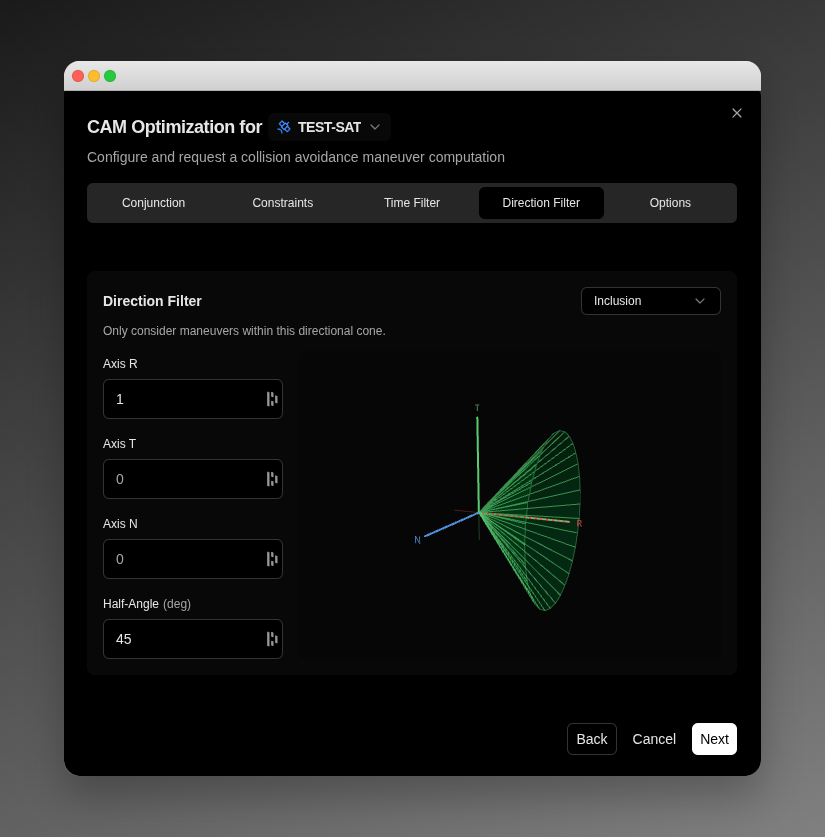 Set the mode to **Inclusion** (only within the cone) or **Exclusion** (avoid the cone), then define the cone parameters.
| Element | Description |
| ---------------- | ------------------------------------------------- |
| **Mode** | None, Inclusion, or Exclusion |
| **Axis R, T, N** | RTN components of the cone axis direction vector |
| **Half-Angle** | Angular radius of the cone in degrees |
| **3D Preview** | Interactive visualization of the directional cone |
A reference-frame indicator badge appears next to the 3D Preview title showing `RTN` — the frame the cone axis components are expressed in. Hover the badge to see the full frame name and click **Learn more** to open the [reference frame catalog](/platform-overview/reference-frames) for the canonical definition.
This step is optional, leave the mode set to **None** to skip direction filtering.
**Running the computation:** Clicking **Next** at the end of Step 4 triggers the sweep-filter computation. The system evaluates all combinations of delta-V magnitudes and sweep angles, applies the configured time and direction filters, and advances to Step 5 with the results.
## Step 5: Options
Review the sweep-filter results, select a candidate maneuver, and create the maneuver plan.
The options shown correspond to the **Pareto frontier** of maneuver solutions. Only non-dominated candidates are displayed—each represents an optimal trade-off between Δv and collision risk (PoC).
Solutions that are strictly worse (higher Δv and higher PoC) are filtered out.
Set the mode to **Inclusion** (only within the cone) or **Exclusion** (avoid the cone), then define the cone parameters.
| Element | Description |
| ---------------- | ------------------------------------------------- |
| **Mode** | None, Inclusion, or Exclusion |
| **Axis R, T, N** | RTN components of the cone axis direction vector |
| **Half-Angle** | Angular radius of the cone in degrees |
| **3D Preview** | Interactive visualization of the directional cone |
A reference-frame indicator badge appears next to the 3D Preview title showing `RTN` — the frame the cone axis components are expressed in. Hover the badge to see the full frame name and click **Learn more** to open the [reference frame catalog](/platform-overview/reference-frames) for the canonical definition.
This step is optional, leave the mode set to **None** to skip direction filtering.
**Running the computation:** Clicking **Next** at the end of Step 4 triggers the sweep-filter computation. The system evaluates all combinations of delta-V magnitudes and sweep angles, applies the configured time and direction filters, and advances to Step 5 with the results.
## Step 5: Options
Review the sweep-filter results, select a candidate maneuver, and create the maneuver plan.
The options shown correspond to the **Pareto frontier** of maneuver solutions. Only non-dominated candidates are displayed—each represents an optimal trade-off between Δv and collision risk (PoC).
Solutions that are strictly worse (higher Δv and higher PoC) are filtered out.
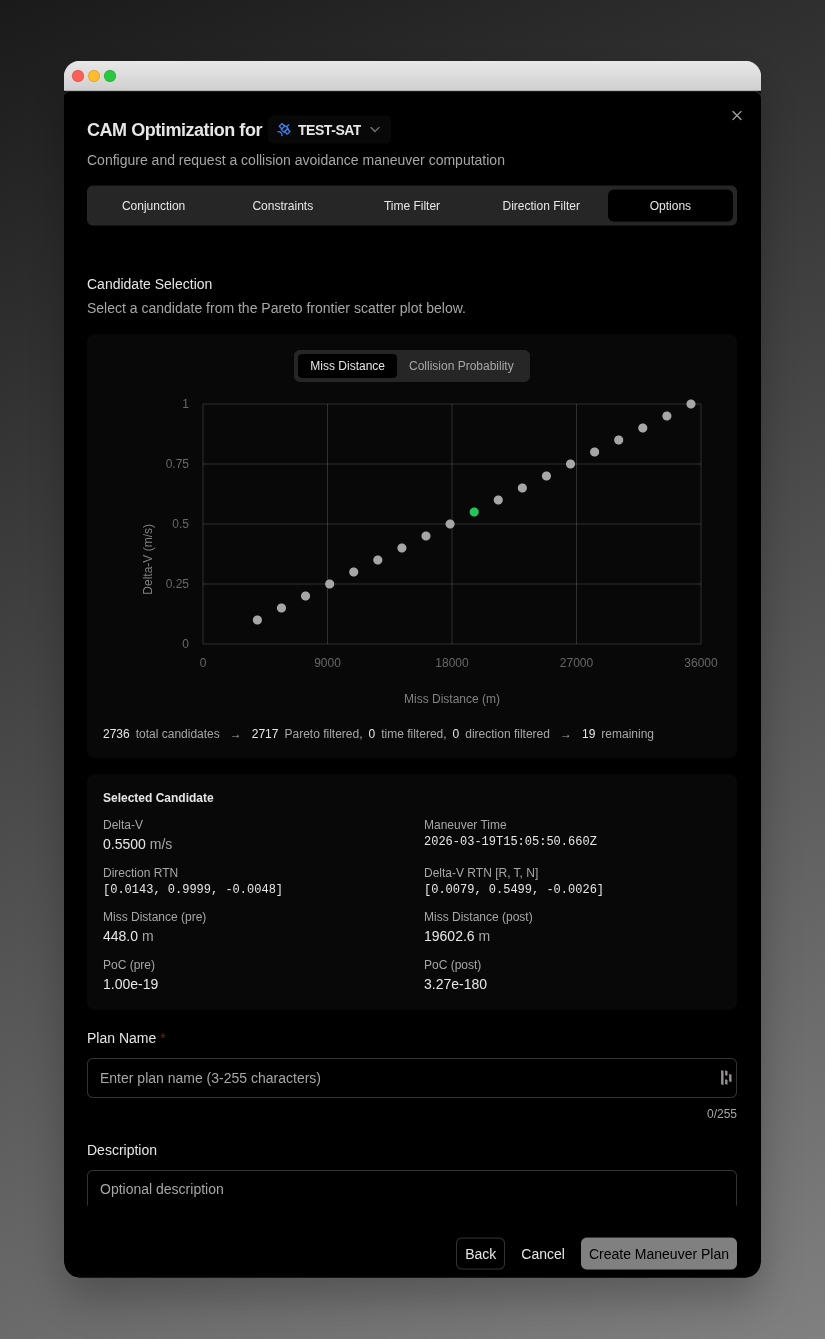 ### Scatter Plot
The scatter plot displays all remaining candidates after filtering. The Y-axis always shows **Delta-V (m/s)**. Use the tabs above the chart to toggle the X-axis between **Miss Distance** (post-maneuver, linear scale) and **Collision Probability** (post-maneuver PoC, logarithmic scale).
**Interactions:**
* **Hover** a point to see a tooltip with candidate details (delta-V, miss distance, post-PoC)
* **Click** a point to select it — the point turns green and grows larger
### Pipeline Statistics
A summary line below the chart shows the filtering pipeline:
> **N** total candidates → **X** Pareto filtered, **Y** time filtered, **Z** direction filtered → **M** remaining
### **Zero Remaining Candidates**
If the pipeline returns zero remaining candidates, all feasible maneuvers were filtered out. This does not mean no maneuver exists, it means the current combination of constraints is too restrictive.\
To recover candidates, go back and try the following adjustments:
* Widen the delta-V range in Step 2
* Edit execution windows in Step 3
* Increase the cone half-angle or remove the direction filter in Step 4.
### Selected Candidate Detail
When a candidate is selected, the detail panel shows:
| Field | Description |
| ------------------------ | -------------------------------------------- |
| **Delta-V** | Velocity change magnitude in m/s |
| **Maneuver Time** | Optimal time for the maneuver (UTC) |
| **Direction RTN** | Normalized maneuver direction in RTN frame |
| **Delta-V RTN** | Velocity change components \[R, T, N] in m/s |
| **Miss Distance (pre)** | Miss distance before maneuver in meters |
| **Miss Distance (post)** | Miss distance after maneuver in meters |
| **PoC (pre)** | Probability of collision before maneuver |
| **PoC (post)** | Probability of collision after maneuver |
### Plan Name and Description
After selecting a candidate, fill in the plan details:
| Element | Description |
| --------------- | -------------------------------------------- |
| **Plan Name** | Required — minimum 3 characters, maximum 255 |
| **Description** | Optional — maximum 2000 characters |
### Creating the Plan
Click **Create Maneuver Plan** in the dialog footer to finalize. The system creates a maneuver plan linked to the conjunction event and the selected thruster. On success, the dialog closes and the new plan appears in the [Burn Plan](/features/burn-plan) page.
## Key Concepts
For foundational concepts like delta-V, Probability of Collision (PoC), miss distance, and conjunctions, see [Core Concepts](/platform-overview/core-concepts).
The following concepts are specific to CAM optimization:
### Sweep Angle
The direction of the avoidance maneuver in the orbital plane, measured in degrees. The system sweeps through a range of angles to evaluate maneuver effectiveness in different directions.
### Pareto Filtering
After computing all candidate maneuvers, the system applies Pareto filtering to identify the optimal frontier — candidates where no other option is better in both delta-V cost and collision risk reduction. This eliminates dominated solutions, leaving only the most efficient trade-offs.
## Related Pages
* [Conjunction Classification](/features/conjunction-classification) — View and manage conjunction events and risk levels
* [Conjunction Computation](/features/conjunction-computation) — Recompute conjunction assessments with your own state vectors
* [Burn Plan](/features/burn-plan) — View and manage spacecraft maneuver plans
### Scatter Plot
The scatter plot displays all remaining candidates after filtering. The Y-axis always shows **Delta-V (m/s)**. Use the tabs above the chart to toggle the X-axis between **Miss Distance** (post-maneuver, linear scale) and **Collision Probability** (post-maneuver PoC, logarithmic scale).
**Interactions:**
* **Hover** a point to see a tooltip with candidate details (delta-V, miss distance, post-PoC)
* **Click** a point to select it — the point turns green and grows larger
### Pipeline Statistics
A summary line below the chart shows the filtering pipeline:
> **N** total candidates → **X** Pareto filtered, **Y** time filtered, **Z** direction filtered → **M** remaining
### **Zero Remaining Candidates**
If the pipeline returns zero remaining candidates, all feasible maneuvers were filtered out. This does not mean no maneuver exists, it means the current combination of constraints is too restrictive.\
To recover candidates, go back and try the following adjustments:
* Widen the delta-V range in Step 2
* Edit execution windows in Step 3
* Increase the cone half-angle or remove the direction filter in Step 4.
### Selected Candidate Detail
When a candidate is selected, the detail panel shows:
| Field | Description |
| ------------------------ | -------------------------------------------- |
| **Delta-V** | Velocity change magnitude in m/s |
| **Maneuver Time** | Optimal time for the maneuver (UTC) |
| **Direction RTN** | Normalized maneuver direction in RTN frame |
| **Delta-V RTN** | Velocity change components \[R, T, N] in m/s |
| **Miss Distance (pre)** | Miss distance before maneuver in meters |
| **Miss Distance (post)** | Miss distance after maneuver in meters |
| **PoC (pre)** | Probability of collision before maneuver |
| **PoC (post)** | Probability of collision after maneuver |
### Plan Name and Description
After selecting a candidate, fill in the plan details:
| Element | Description |
| --------------- | -------------------------------------------- |
| **Plan Name** | Required — minimum 3 characters, maximum 255 |
| **Description** | Optional — maximum 2000 characters |
### Creating the Plan
Click **Create Maneuver Plan** in the dialog footer to finalize. The system creates a maneuver plan linked to the conjunction event and the selected thruster. On success, the dialog closes and the new plan appears in the [Burn Plan](/features/burn-plan) page.
## Key Concepts
For foundational concepts like delta-V, Probability of Collision (PoC), miss distance, and conjunctions, see [Core Concepts](/platform-overview/core-concepts).
The following concepts are specific to CAM optimization:
### Sweep Angle
The direction of the avoidance maneuver in the orbital plane, measured in degrees. The system sweeps through a range of angles to evaluate maneuver effectiveness in different directions.
### Pareto Filtering
After computing all candidate maneuvers, the system applies Pareto filtering to identify the optimal frontier — candidates where no other option is better in both delta-V cost and collision risk reduction. This eliminates dominated solutions, leaving only the most efficient trade-offs.
## Related Pages
* [Conjunction Classification](/features/conjunction-classification) — View and manage conjunction events and risk levels
* [Conjunction Computation](/features/conjunction-computation) — Recompute conjunction assessments with your own state vectors
* [Burn Plan](/features/burn-plan) — View and manage spacecraft maneuver plans