> ## Documentation Index
> Fetch the complete documentation index at: https://docs.valar.space/llms.txt
> Use this file to discover all available pages before exploring further.
# Ephemeris Generation
> Generate OEM files from state vectors for mission planning and data sharing
> For the complete documentation index, see [llms.txt](/llms.txt).
Generate OEM (Orbit Ephemeris Message) files from state vectors. OEM files contain predicted satellite positions over a specified time range, useful for mission planning, conjunction analysis, or sharing with external systems.
**Access:** Click **Generate Ephemerides** on the State Vectors page top-right corner.
## Modal Overview
The Generate Ephemerides modal guides you through four steps:
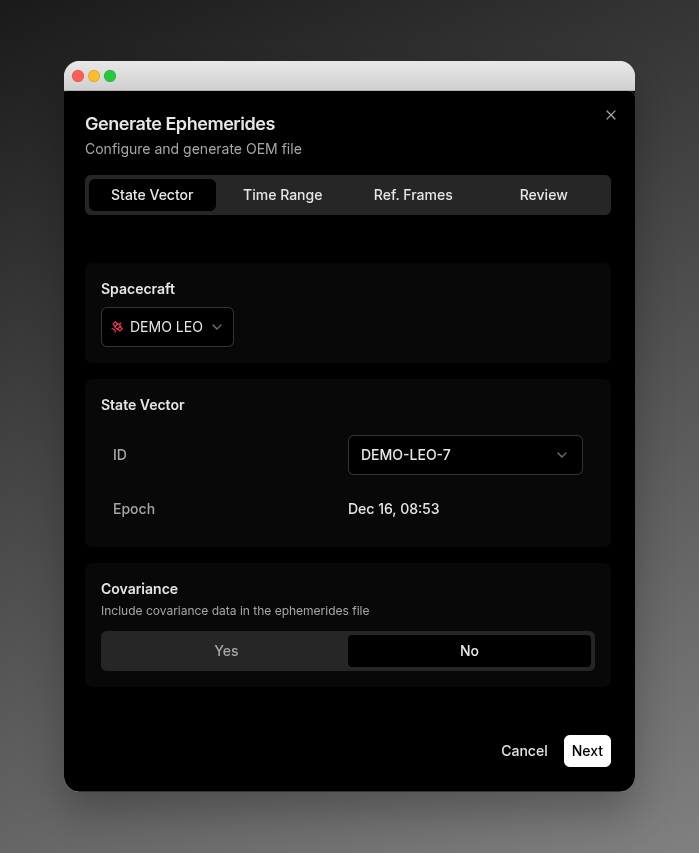 ## Step 1: State Vector Selection
### Select Spacecraft
Choose a spacecraft from the dropdown. The list shows spacecraft names with colored satellite icons.
### Select State Vector
After selecting a spacecraft, choose a state vector from the dropdown. Each option shows the state vector ID and epoch date/time.
**Empty State:** If no state vectors are available for the selected spacecraft in the last 30 days, you can:
* Click **Import State Vector** to open the import dialog
* Click **Run Orbit Determination** to configure OD
### Include Covariance Data
Toggle whether to include covariance matrix in the OEM file:
| Option | Effect |
| ------- | ------------------------------------------------------------------------ |
| **Yes** | Includes covariance matrix; enables covariance frame selection in Step 3 |
| **No** | Excludes covariance data (default) |
## Step 2: Time Range Configuration
### Time Step
Use the slider to set the interval between data points (1–60 minutes).
* Smaller step = more data points, larger file
* Larger step = fewer data points, smaller file
### Start Date & Time
Select the start date from the 7-day calendar (use arrows to navigate weeks) and enter the start time in 24-hour UTC format (e.g., "08:30").
**Default:** 00:00 UTC
### End Date & Time
Select the end date and enter the end time.
**Default:** 23:59 UTC
Dates are limited to ±30 days from the state vector epoch. Total duration cannot exceed 30 days.
## Step 3: Reference Frames
### Time System
| Value | Description |
| ------- | ------------------------------------ |
| **UTC** | Coordinated Universal Time (default) |
| **TAI** | International Atomic Time |
| **TT** | Terrestrial Time |
| **TDB** | Barycentric Dynamical Time |
| **TCG** | Geocentric Coordinate Time |
| **TCB** | Barycentric Coordinate Time |
| **GPS** | GPS Time |
### Ephemerides Reference Frame
| Value | Description |
| ----------- | ---------------------------------------------- |
| **GCRF** | Geocentric Celestial Reference Frame (default) |
| **EME2000** | Earth Mean Equator and Equinox of J2000 |
| **ITRF** | International Terrestrial Reference Frame |
| **TOD** | True of Date |
| **MOD** | Mean of Date |
| **TEME** | True Equator Mean Equinox |
### Covariance Reference Frame
Only available when covariance is enabled in Step 1.
| Value | Description |
| ------- | ---------------------------------- |
| **RTN** | Radial-Tangential-Normal (default) |
| **TNW** | Tangential-Normal-Out-of-plane |
## Step 4: Review & Generate
Review your configuration before generating:
**State Vector Card**
* Spacecraft name
* State Vector ID
* Epoch date and time
**Time Range Card**
* Start and end date/time (UTC)
* Time step in minutes
* Calculated number of data points
**Reference Frames Card**
* Time system
* Ephemerides frame
* Covariance frame (if enabled)
Click the **Edit** button (pencil icon) on any card to jump back to that step.
### Generate OEM
Click **Generate OEM** to create and download the file.
**Loading states:**
1. "Sending request to server..."
2. "Downloading file..."
**On success:**
* Toast notification: "OEM generated successfully"
* File downloads automatically
* Modal closes
## Navigation
* **Step tabs**: Click any step name to jump directly to it
* **Next**: Validates current step and proceeds
* **Back**: Returns to previous step (hidden on Step 1)
* **Cancel**: Closes modal without generating
## Error Handling
| Error | Message |
| ------------------ | ------------------------------------------------------------ |
| 422 (Validation) | Field-specific messages from server |
| 400 (Bad Request) | "Please check your configuration" |
| 404 (Not Found) | "The state vector may have been deleted" |
| 500 (Server Error) | "An error occurred during OEM generation. Please try again." |
## Output
**Format:** OEM (Orbit Ephemeris Message), CCSDS standard text format
**Filename:** `oem_{stateVectorId}_{timestamp}.txt`
## Constraints
| Constraint | Value |
| --------------------- | ---------- |
| Date range from epoch | ±30 days |
| Maximum duration | 30 days |
| Minimum time step | 1 minute |
| Maximum time step | 60 minutes |
## Related Pages
* [State Vectors](/features/state-vectors): Manage orbit solutions and state vectors
* [OEM Format](/file-formats/oem): OEM file format specification
## Step 1: State Vector Selection
### Select Spacecraft
Choose a spacecraft from the dropdown. The list shows spacecraft names with colored satellite icons.
### Select State Vector
After selecting a spacecraft, choose a state vector from the dropdown. Each option shows the state vector ID and epoch date/time.
**Empty State:** If no state vectors are available for the selected spacecraft in the last 30 days, you can:
* Click **Import State Vector** to open the import dialog
* Click **Run Orbit Determination** to configure OD
### Include Covariance Data
Toggle whether to include covariance matrix in the OEM file:
| Option | Effect |
| ------- | ------------------------------------------------------------------------ |
| **Yes** | Includes covariance matrix; enables covariance frame selection in Step 3 |
| **No** | Excludes covariance data (default) |
## Step 2: Time Range Configuration
### Time Step
Use the slider to set the interval between data points (1–60 minutes).
* Smaller step = more data points, larger file
* Larger step = fewer data points, smaller file
### Start Date & Time
Select the start date from the 7-day calendar (use arrows to navigate weeks) and enter the start time in 24-hour UTC format (e.g., "08:30").
**Default:** 00:00 UTC
### End Date & Time
Select the end date and enter the end time.
**Default:** 23:59 UTC
Dates are limited to ±30 days from the state vector epoch. Total duration cannot exceed 30 days.
## Step 3: Reference Frames
### Time System
| Value | Description |
| ------- | ------------------------------------ |
| **UTC** | Coordinated Universal Time (default) |
| **TAI** | International Atomic Time |
| **TT** | Terrestrial Time |
| **TDB** | Barycentric Dynamical Time |
| **TCG** | Geocentric Coordinate Time |
| **TCB** | Barycentric Coordinate Time |
| **GPS** | GPS Time |
### Ephemerides Reference Frame
| Value | Description |
| ----------- | ---------------------------------------------- |
| **GCRF** | Geocentric Celestial Reference Frame (default) |
| **EME2000** | Earth Mean Equator and Equinox of J2000 |
| **ITRF** | International Terrestrial Reference Frame |
| **TOD** | True of Date |
| **MOD** | Mean of Date |
| **TEME** | True Equator Mean Equinox |
### Covariance Reference Frame
Only available when covariance is enabled in Step 1.
| Value | Description |
| ------- | ---------------------------------- |
| **RTN** | Radial-Tangential-Normal (default) |
| **TNW** | Tangential-Normal-Out-of-plane |
## Step 4: Review & Generate
Review your configuration before generating:
**State Vector Card**
* Spacecraft name
* State Vector ID
* Epoch date and time
**Time Range Card**
* Start and end date/time (UTC)
* Time step in minutes
* Calculated number of data points
**Reference Frames Card**
* Time system
* Ephemerides frame
* Covariance frame (if enabled)
Click the **Edit** button (pencil icon) on any card to jump back to that step.
### Generate OEM
Click **Generate OEM** to create and download the file.
**Loading states:**
1. "Sending request to server..."
2. "Downloading file..."
**On success:**
* Toast notification: "OEM generated successfully"
* File downloads automatically
* Modal closes
## Navigation
* **Step tabs**: Click any step name to jump directly to it
* **Next**: Validates current step and proceeds
* **Back**: Returns to previous step (hidden on Step 1)
* **Cancel**: Closes modal without generating
## Error Handling
| Error | Message |
| ------------------ | ------------------------------------------------------------ |
| 422 (Validation) | Field-specific messages from server |
| 400 (Bad Request) | "Please check your configuration" |
| 404 (Not Found) | "The state vector may have been deleted" |
| 500 (Server Error) | "An error occurred during OEM generation. Please try again." |
## Output
**Format:** OEM (Orbit Ephemeris Message), CCSDS standard text format
**Filename:** `oem_{stateVectorId}_{timestamp}.txt`
## Constraints
| Constraint | Value |
| --------------------- | ---------- |
| Date range from epoch | ±30 days |
| Maximum duration | 30 days |
| Minimum time step | 1 minute |
| Maximum time step | 60 minutes |
## Related Pages
* [State Vectors](/features/state-vectors): Manage orbit solutions and state vectors
* [OEM Format](/file-formats/oem): OEM file format specification