> ## Documentation Index
> Fetch the complete documentation index at: https://docs.valar.space/llms.txt
> Use this file to discover all available pages before exploring further.
# Fetch Alerts
> Download alerts from external space surveillance providers
> For the complete documentation index, see [llms.txt](/llms.txt).
Fetch alerts from external space surveillance providers to keep your conjunction data up to date with the latest tracking information. Fetched alerts are automatically matched to existing conjunctions or used to create new ones.
## Opening the Dialog
From the [Conjunction Classification](/features/conjunction-classification) page, click **Fetch** in the toolbar.
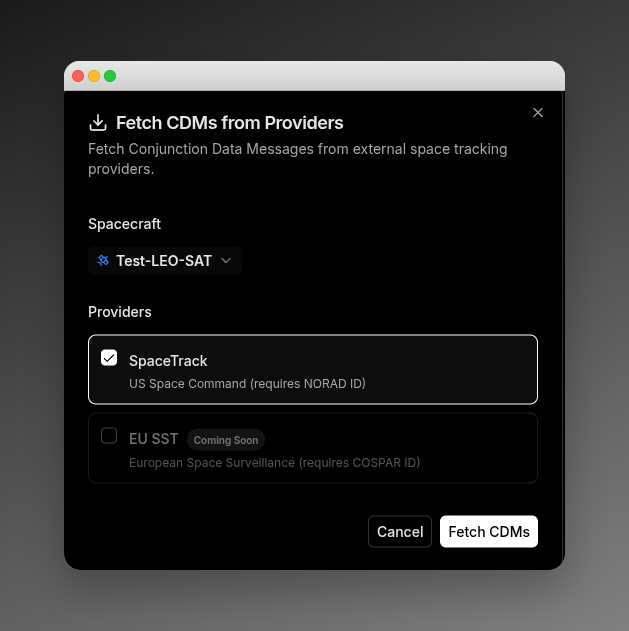 ## Configuration
1. **Spacecraft** — Select which spacecraft to fetch alerts for
2. **Providers** — Select a source:
| Provider | Requirement | Description |
| ----------------------------------------- | ----------- | ------------------------------------------- |
| [SpaceTrack](https://www.space-track.org) | NORAD ID | US Space Command conjunction data |
| [EU SST](https://www.eusst.eu) | COSPAR ID | European Space Surveillance & Tracking data |
SpaceTrack is only available if the spacecraft has a NORAD ID configured. EU SST is only available if the spacecraft has a COSPAR ID configured. If the required identifier is missing, the provider appears disabled with a message explaining why.
EU SST uses **COSPAR ID** for satellite identification, while SpaceTrack uses **NORAD ID**. Make sure your spacecraft has the correct identifier configured before fetching from each provider.
### Provider Credentials
Each provider requires authentication credentials. Configure them in **Settings → Integrations → STM** before fetching for the first time. Once saved, credentials are used automatically.
**SpaceTrack** requires:
* **Username** — Your SpaceTrack account username
* **Password** — Your SpaceTrack account password
**EU SST** requires OAuth2 credentials:
* **Client ID** — Your EU SST OAuth2 client identifier
* **Client Secret** — Your EU SST OAuth2 client secret
* **Username** — Your EU SST account username
* **Password** — Your EU SST account password
EU SST uses OAuth2 authentication (Client ID + Client Secret) in addition to username and password, unlike SpaceTrack which only requires username and password. You can obtain your OAuth2 credentials from the [EU SST portal](https://www.eusst.eu).
You can update credentials at any time from the same settings page. When updating, leave the password or secret fields blank to keep the current values.
## Results
After fetching, the dialog shows a summary:
* **Alerts fetched** — Total alerts received from the provider
* **New** — Alerts added to the system
* **Already existed** — Alerts already in the system (skipped)
* **Failed** — Alerts that could not be processed
* **New conjunctions** — Conjunction events created from the fetched data
* **Updated conjunctions** — Existing conjunctions updated with new alerts
New conjunctions and alerts appear immediately on the Classification page.
## Related Pages
* [Conjunction Classification](/features/conjunction-classification) — View and manage conjunction events and risk levels
* [Conjunction Computation](/features/conjunction-computation) — Compute conjunctions using your own state vectors
## Configuration
1. **Spacecraft** — Select which spacecraft to fetch alerts for
2. **Providers** — Select a source:
| Provider | Requirement | Description |
| ----------------------------------------- | ----------- | ------------------------------------------- |
| [SpaceTrack](https://www.space-track.org) | NORAD ID | US Space Command conjunction data |
| [EU SST](https://www.eusst.eu) | COSPAR ID | European Space Surveillance & Tracking data |
SpaceTrack is only available if the spacecraft has a NORAD ID configured. EU SST is only available if the spacecraft has a COSPAR ID configured. If the required identifier is missing, the provider appears disabled with a message explaining why.
EU SST uses **COSPAR ID** for satellite identification, while SpaceTrack uses **NORAD ID**. Make sure your spacecraft has the correct identifier configured before fetching from each provider.
### Provider Credentials
Each provider requires authentication credentials. Configure them in **Settings → Integrations → STM** before fetching for the first time. Once saved, credentials are used automatically.
**SpaceTrack** requires:
* **Username** — Your SpaceTrack account username
* **Password** — Your SpaceTrack account password
**EU SST** requires OAuth2 credentials:
* **Client ID** — Your EU SST OAuth2 client identifier
* **Client Secret** — Your EU SST OAuth2 client secret
* **Username** — Your EU SST account username
* **Password** — Your EU SST account password
EU SST uses OAuth2 authentication (Client ID + Client Secret) in addition to username and password, unlike SpaceTrack which only requires username and password. You can obtain your OAuth2 credentials from the [EU SST portal](https://www.eusst.eu).
You can update credentials at any time from the same settings page. When updating, leave the password or secret fields blank to keep the current values.
## Results
After fetching, the dialog shows a summary:
* **Alerts fetched** — Total alerts received from the provider
* **New** — Alerts added to the system
* **Already existed** — Alerts already in the system (skipped)
* **Failed** — Alerts that could not be processed
* **New conjunctions** — Conjunction events created from the fetched data
* **Updated conjunctions** — Existing conjunctions updated with new alerts
New conjunctions and alerts appear immediately on the Classification page.
## Related Pages
* [Conjunction Classification](/features/conjunction-classification) — View and manage conjunction events and risk levels
* [Conjunction Computation](/features/conjunction-computation) — Compute conjunctions using your own state vectors