> ## Documentation Index
> Fetch the complete documentation index at: https://docs.valar.space/llms.txt
> Use this file to discover all available pages before exploring further.
# Importing Measurements
> Upload measurements and ephemeris data
> For the complete documentation index, see [llms.txt](/llms.txt).
Import measurement and ephemeris files into VALAR using the Import dialog. Supported formats include TDM, OEM, and SP3.
**Route:** `/orbits/measurements/data`
## Import Dialog
On the measurements page, click the **Import** button in the top-right corner of the toolbar:
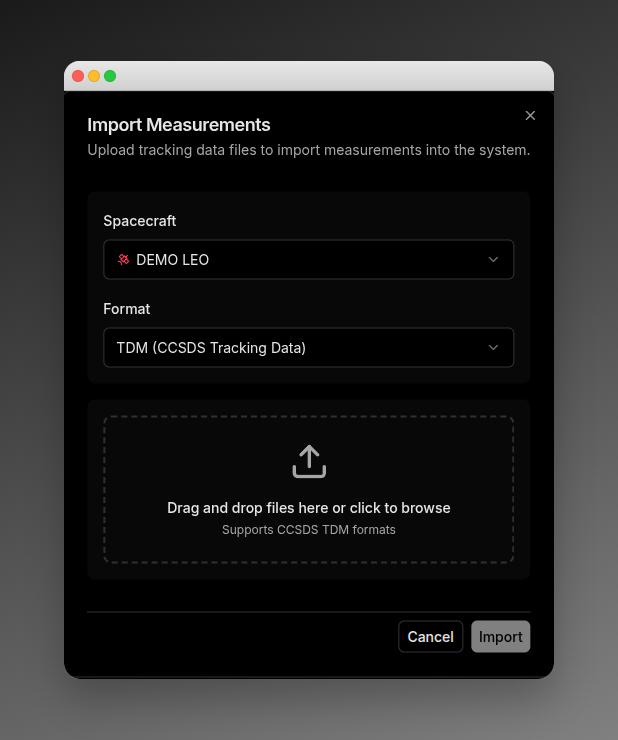 The import dialog has three sections:
### 1. Configuration
**Spacecraft Selection**
* Select which spacecraft the measurements belong to
* If you had a spacecraft selected on the page, it will be pre-selected
**Format Selection**
| Format | Description | File Extensions |
| ------- | ------------------------------ | --------------- |
| **TDM** | CCSDS Tracking Data Message | `.tdm`, `.txt` |
| **OEM** | CCSDS Orbit Ephemeris Messages | `.oem`, `.txt` |
| **SP3** | Precise Ephemeris | `.sp3`, `.txt` |
Files must conform to CCSDS standards. See the [TDM](/file-formats/tdm), [OEM](/file-formats/oem), and [SP3](/file-formats/sp3) format specifications for details.
**Doppler (range-rate) observables** are a supported TDM measurement type. TDM blocks containing `DOPPLER_INSTANTANEOUS` rows are ingested into the orbit determination pipeline alongside angle and range observations, subject to band, two-way convention, and integration-interval constraints. See [Doppler (Range-Rate) Measurements](/file-formats/tdm#doppler-range-rate-measurements) for the full contract, default sigma values, and error code reference.
### 2. File Upload
A drag-and-drop zone where you can:
* Drag and drop files directly onto the zone
* Click to browse and select files from your file system
* Upload multiple files at once
The file picker automatically filters by the selected format's extensions.
**Upload Behavior:**
* All selected files are uploaded in a single batch request
* Files are processed concurrently on the server
* Each file receives individual success/failure status
* No explicit file size limit is enforced by the frontend
### 3. File Queue
After adding files, they appear in a list showing:
* File name
* Status icon (idle, uploading, success, or error)
* Progress bar during upload
* Remove button to remove files before upload
## Validation
### Frontend Validation
Before upload, the system checks:
* **File extension**: Must match the selected format
* **Queue not empty**: At least one file must be selected
* **Upload state**: Cannot upload while another upload is in progress
### Backend Validation
When you click **Import**, files are validated on the server:
* **CCSDS format validation**: Files must conform to CCSDS standard formats
* **Data structure validation**: Required fields and proper data types
* **Timestamp validation**: Valid ISO-8601 date formats
* **Spacecraft association**: Data must be associable with a valid spacecraft
## Upload Outcomes
### Full Success
* Toast notification: "Successfully imported X tracking files"
* Dialog auto-closes after 500ms
* Data automatically refreshes
### Partial Success
* Toast warning: "X of Y files imported successfully. Z failed."
* Dialog stays open showing failed files
* Alert displays failed files with error codes and messages
* Successfully imported files are removed from queue
* Data refreshes for the successful imports
### Full Failure
* Toast error with first file's error details
* Dialog stays open
* Alert displays all failed files with error codes and messages
### Network/Server Error
* All files marked as failed
* Error message displayed in toast and dialog
## Error Display
Failed files show detailed error information:
The import dialog has three sections:
### 1. Configuration
**Spacecraft Selection**
* Select which spacecraft the measurements belong to
* If you had a spacecraft selected on the page, it will be pre-selected
**Format Selection**
| Format | Description | File Extensions |
| ------- | ------------------------------ | --------------- |
| **TDM** | CCSDS Tracking Data Message | `.tdm`, `.txt` |
| **OEM** | CCSDS Orbit Ephemeris Messages | `.oem`, `.txt` |
| **SP3** | Precise Ephemeris | `.sp3`, `.txt` |
Files must conform to CCSDS standards. See the [TDM](/file-formats/tdm), [OEM](/file-formats/oem), and [SP3](/file-formats/sp3) format specifications for details.
**Doppler (range-rate) observables** are a supported TDM measurement type. TDM blocks containing `DOPPLER_INSTANTANEOUS` rows are ingested into the orbit determination pipeline alongside angle and range observations, subject to band, two-way convention, and integration-interval constraints. See [Doppler (Range-Rate) Measurements](/file-formats/tdm#doppler-range-rate-measurements) for the full contract, default sigma values, and error code reference.
### 2. File Upload
A drag-and-drop zone where you can:
* Drag and drop files directly onto the zone
* Click to browse and select files from your file system
* Upload multiple files at once
The file picker automatically filters by the selected format's extensions.
**Upload Behavior:**
* All selected files are uploaded in a single batch request
* Files are processed concurrently on the server
* Each file receives individual success/failure status
* No explicit file size limit is enforced by the frontend
### 3. File Queue
After adding files, they appear in a list showing:
* File name
* Status icon (idle, uploading, success, or error)
* Progress bar during upload
* Remove button to remove files before upload
## Validation
### Frontend Validation
Before upload, the system checks:
* **File extension**: Must match the selected format
* **Queue not empty**: At least one file must be selected
* **Upload state**: Cannot upload while another upload is in progress
### Backend Validation
When you click **Import**, files are validated on the server:
* **CCSDS format validation**: Files must conform to CCSDS standard formats
* **Data structure validation**: Required fields and proper data types
* **Timestamp validation**: Valid ISO-8601 date formats
* **Spacecraft association**: Data must be associable with a valid spacecraft
## Upload Outcomes
### Full Success
* Toast notification: "Successfully imported X tracking files"
* Dialog auto-closes after 500ms
* Data automatically refreshes
### Partial Success
* Toast warning: "X of Y files imported successfully. Z failed."
* Dialog stays open showing failed files
* Alert displays failed files with error codes and messages
* Successfully imported files are removed from queue
* Data refreshes for the successful imports
### Full Failure
* Toast error with first file's error details
* Dialog stays open
* Alert displays all failed files with error codes and messages
### Network/Server Error
* All files marked as failed
* Error message displayed in toast and dialog
## Error Display
Failed files show detailed error information:
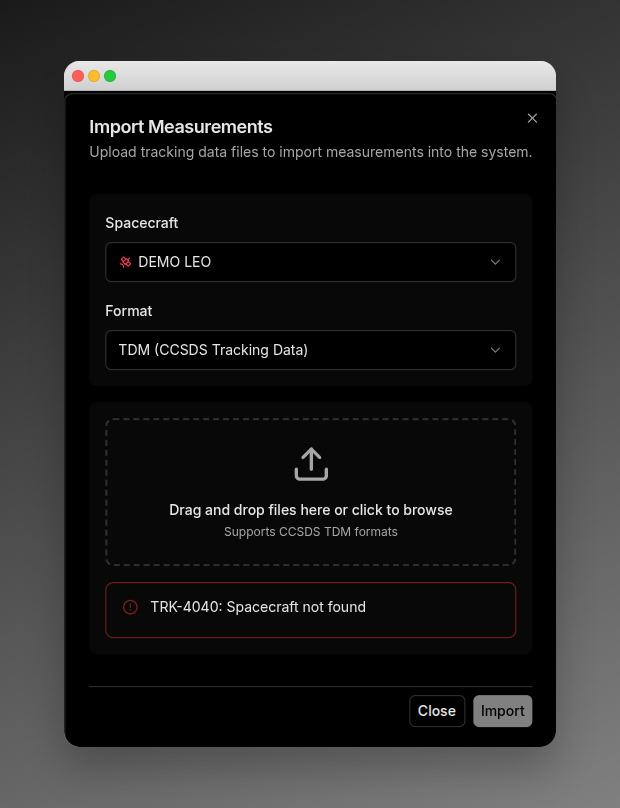 Common error codes:
* `PARSE_ERROR`: File could not be parsed (syntax error)
* `INVALID_FORMAT`: Missing required fields or invalid structure
## After Upload
After successful upload:
1. The dialog closes automatically
2. The measurements data table and plot refresh
3. New measurements appear with their source file name preserved
4. You can filter by the uploaded file using the **More Filters** option
## Next Steps
After uploading measurements, you can:
* [View and filter your data](/features/measurements-data) in the interactive plot and table
* [Configure sensors](/features/tracking-sensors) for processing measurements
Common error codes:
* `PARSE_ERROR`: File could not be parsed (syntax error)
* `INVALID_FORMAT`: Missing required fields or invalid structure
## After Upload
After successful upload:
1. The dialog closes automatically
2. The measurements data table and plot refresh
3. New measurements appear with their source file name preserved
4. You can filter by the uploaded file using the **More Filters** option
## Next Steps
After uploading measurements, you can:
* [View and filter your data](/features/measurements-data) in the interactive plot and table
* [Configure sensors](/features/tracking-sensors) for processing measurements