> ## Documentation Index
> Fetch the complete documentation index at: https://docs.valar.space/llms.txt
> Use this file to discover all available pages before exploring further.
# Planner
> Create and manage orbital maintenance plans using optimization algorithms
> For the complete documentation index, see [llms.txt](/llms.txt).
The Planner allows you to create and manage orbital maintenance plans for your spacecraft. Using optimization algorithms, the Planner computes a sequence of maneuvers to keep a spacecraft within defined orbital parameters over a given time window.
**Route:** `/maneuvers/planner`
## Supported Algorithms
| Algorithm | Description | Status |
| ---------------------------------------------------- | ------------------------------------------------ | --------- |
| [SMA Maintenance](/features/planner/sma-maintenance) | Maintain semi-major axis within a tolerance band | Available |
## Page Layout
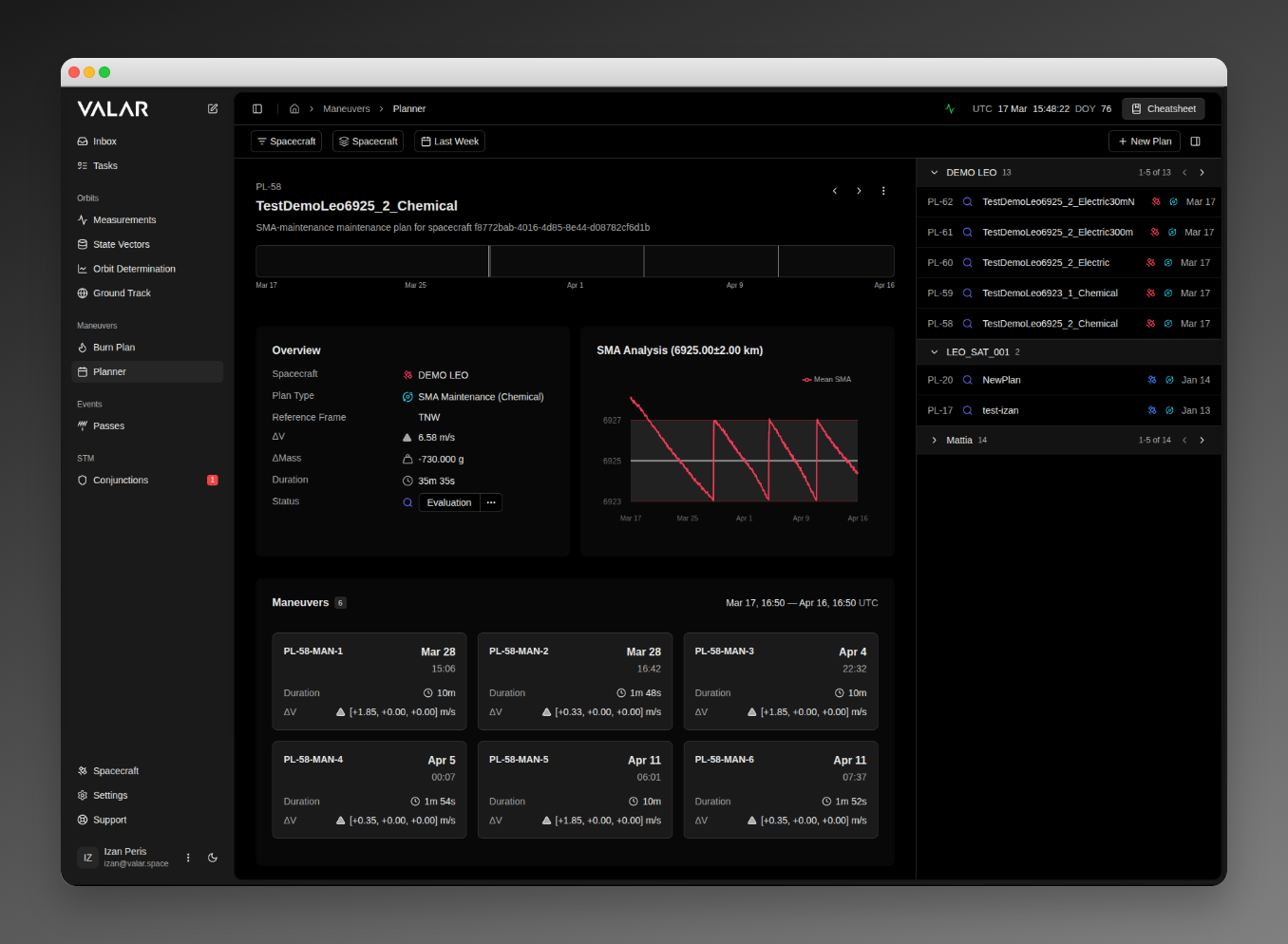
The Planner page has two main sections: a **details panel** on the left and a **plan list** on the right.
 ### Toolbar
The top bar contains:
* **Spacecraft Filter** — multi-select dropdown to filter plans by spacecraft
* **Group By** — group plans by Spacecraft, Status, Plan Type, or None
* **Time Range** — bidirectional time filter (past and future plans)
* **New Plan** — opens the plan creation wizard
* **Toggle Panel** — show/hide the plan list
### Plan List
The right panel lists all plans matching the current filters. Each row shows the plan ID, status icon, name, spacecraft, plan type icon, and creation date. Hover any element for a tooltip with details.
Plans can be grouped by spacecraft, status, or plan type. Each group header shows the count and supports pagination (5 items per page) and collapse/expand.
**Status icons:**
| Icon | Status | Description |
| ------------------ | -------------- | ------------------------------------ |
| Magnifier (indigo) | **Evaluation** | Plan is under review |
| Checkmark (green) | **Approved** | Plan has been approved for execution |
| Cross (red) | **Rejected** | Plan has been rejected |
Click a plan row to load its details in the left panel.
## Plan Creation Wizard
Click **New Plan** to open the plan creation wizard. The wizard guides you through 5 steps. Steps 1–3 and 5 are shared across all algorithm types; Step 4 is algorithm-specific.
### Step 1: Overview
Configure the plan metadata and select the optimization algorithm.
### Toolbar
The top bar contains:
* **Spacecraft Filter** — multi-select dropdown to filter plans by spacecraft
* **Group By** — group plans by Spacecraft, Status, Plan Type, or None
* **Time Range** — bidirectional time filter (past and future plans)
* **New Plan** — opens the plan creation wizard
* **Toggle Panel** — show/hide the plan list
### Plan List
The right panel lists all plans matching the current filters. Each row shows the plan ID, status icon, name, spacecraft, plan type icon, and creation date. Hover any element for a tooltip with details.
Plans can be grouped by spacecraft, status, or plan type. Each group header shows the count and supports pagination (5 items per page) and collapse/expand.
**Status icons:**
| Icon | Status | Description |
| ------------------ | -------------- | ------------------------------------ |
| Magnifier (indigo) | **Evaluation** | Plan is under review |
| Checkmark (green) | **Approved** | Plan has been approved for execution |
| Cross (red) | **Rejected** | Plan has been rejected |
Click a plan row to load its details in the left panel.
## Plan Creation Wizard
Click **New Plan** to open the plan creation wizard. The wizard guides you through 5 steps. Steps 1–3 and 5 are shared across all algorithm types; Step 4 is algorithm-specific.
### Step 1: Overview
Configure the plan metadata and select the optimization algorithm.
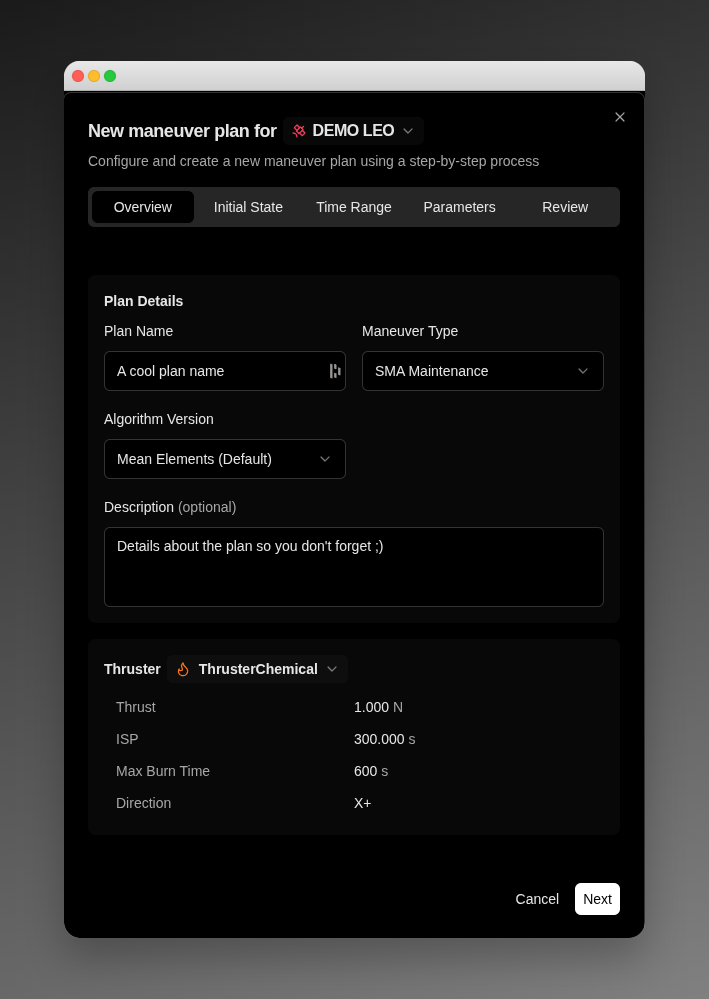 | Field | Description | Constraints |
| ----------------- | ------------------------------------------ | --------------------------------------------------------- |
| **Plan Name** | User-defined identifier | Required, max 30 characters |
| **Description** | Optional notes about the plan | Optional |
| **Spacecraft** | Target spacecraft for the maintenance plan | Required — must have at least one orbit solution |
| **Thruster** | Propulsion unit for computing burns | Required — must be configured for the selected spacecraft |
| **Maneuver Type** | Optimization algorithm to use | Select from supported algorithms |
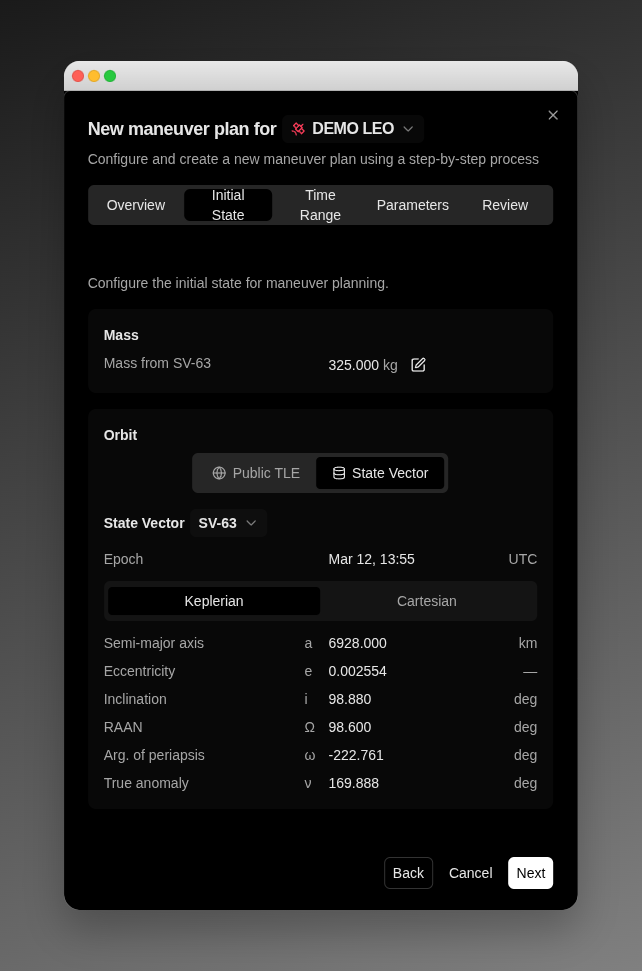
### Step 2: Initial State
Displays the spacecraft's **state** that will be used as the starting point for the optimization, which defaults to latest computed state vector. Users can select a different state vector if desired using the ID dropdown, or initialize the process with the latest **public TLE.**
| Field | Description | Constraints |
| ----------------- | ------------------------------------------ | --------------------------------------------------------- |
| **Plan Name** | User-defined identifier | Required, max 30 characters |
| **Description** | Optional notes about the plan | Optional |
| **Spacecraft** | Target spacecraft for the maintenance plan | Required — must have at least one orbit solution |
| **Thruster** | Propulsion unit for computing burns | Required — must be configured for the selected spacecraft |
| **Maneuver Type** | Optimization algorithm to use | Select from supported algorithms |
### Step 2: Initial State
Displays the spacecraft's **state** that will be used as the starting point for the optimization, which defaults to latest computed state vector. Users can select a different state vector if desired using the ID dropdown, or initialize the process with the latest **public TLE.**
 ### Step 3: Time Range
Define the time window over which the optimizer should plan maneuvers.
### Step 3: Time Range
Define the time window over which the optimizer should plan maneuvers.
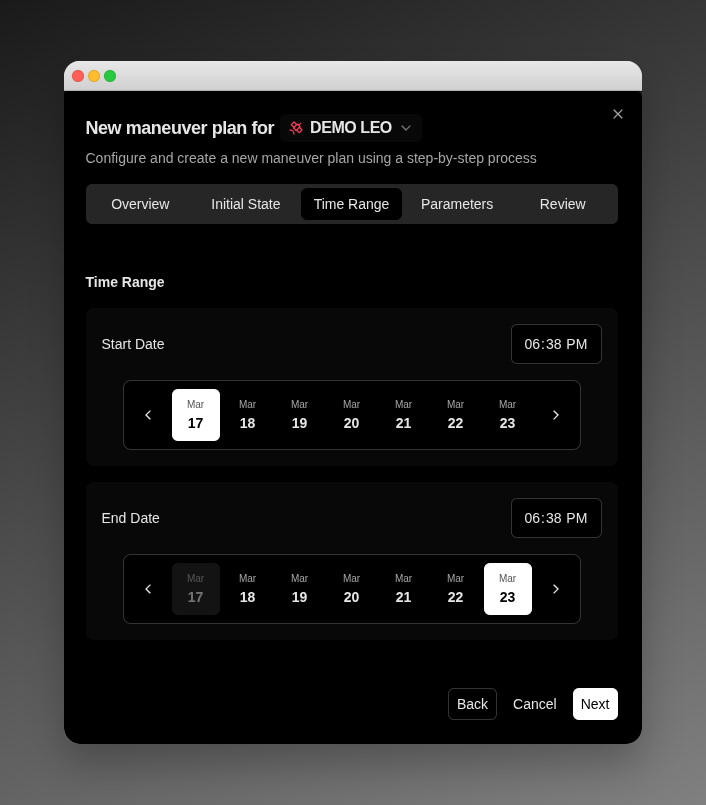 Set the **Start Date/Time** and **End Date/Time** in UTC. The end must be after the start. By default, the start is 3 hours from now and the duration is 3 days.
Some algorithms may require a single **Target Date/Time**.
### Step 4: Algorithm Parameters
This step varies by algorithm type. See the algorithm-specific documentation:
* [SMA Maintenance — Step 4](/features/planner/sma-maintenance#step-4-sma-parameters)
### Step 5: Review
Review the full plan configuration before submission.
Set the **Start Date/Time** and **End Date/Time** in UTC. The end must be after the start. By default, the start is 3 hours from now and the duration is 3 days.
Some algorithms may require a single **Target Date/Time**.
### Step 4: Algorithm Parameters
This step varies by algorithm type. See the algorithm-specific documentation:
* [SMA Maintenance — Step 4](/features/planner/sma-maintenance#step-4-sma-parameters)
### Step 5: Review
Review the full plan configuration before submission.
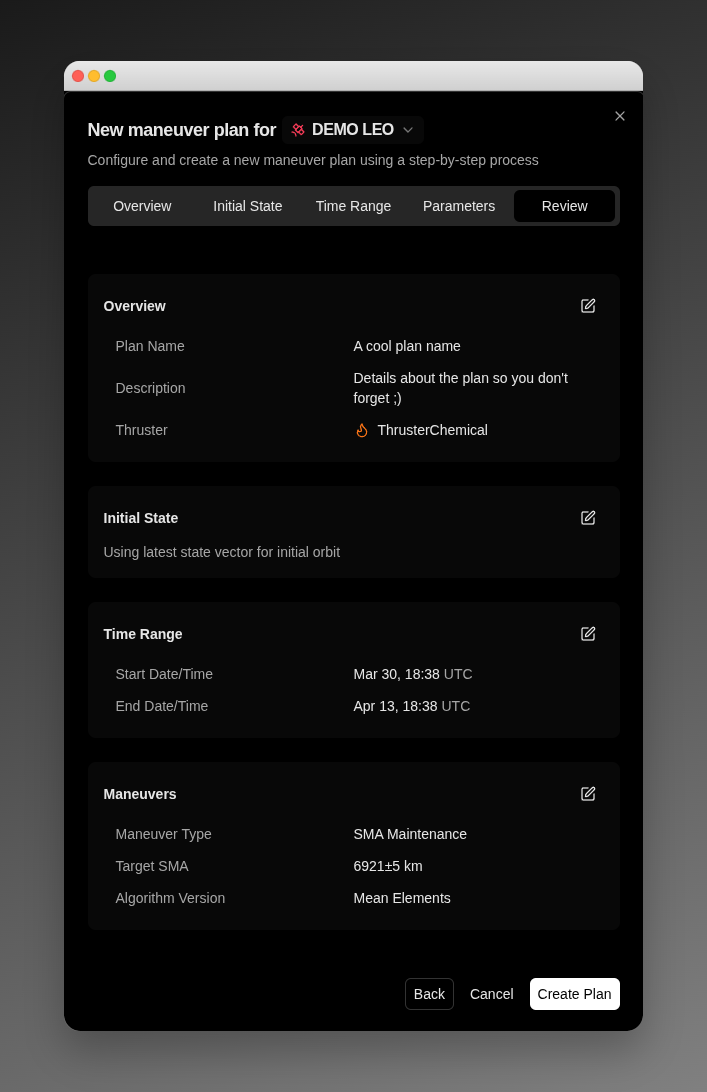 The review shows all configured parameters in editable summary cards. Click **Create Plan** to submit. For complex plans, the computation may run asynchronously — a progress dialog tracks the job until completion. On success, the new plan appears in the plan list.
## When the Orbit Is Stale
Maneuver optimization needs a **fresh** orbit to plan from. A spacecraft's [orbit age](/features/orbit-age#orbit-age) is measured from its latest [state vector](/features/state-vectors) — the position and velocity at an epoch you provide through orbit determination, an OPM import, or manual entry. When that age passes the workspace's configured [stale level](/features/orbit-age#stale-level), the orbit is **stale**. Because a maneuver is a higher-consequence action than a plot, a stale orbit does not silently block it and does not silently proceed — it asks you to **consciously acknowledge** the risk before the action completes.
### Acknowledging a stale orbit on create and approve
The acknowledgment is a deliberate confirmation step, shown separately at the two points where a maneuver acts on the orbit — **creating** a plan and **approving** it for execution.
| Action | Where it appears | What it asks |
| ------------------ | ------------------------------------------------------------ | -------------------------------------------------------------------------------------------------------------------------------------------------------------------------------------------------------------------------------------------------------------------------------------------------------------------------------------------------------------------- |
| **Create a plan** | After you click **Create Plan** on the **Review** step | A confirmation titled **Orbit is stale — create on a stale orbit?**, stating that **This maneuver would be planned from a stale orbit, which may make the result inaccurate**, alongside the orbit's age (`last determined N days ago`) and the stale level it crossed (`exceeds your N-day threshold`). Choose **Create anyway** to proceed, or **Cancel** to stop. |
| **Approve a plan** | When you select **Approve Plan** on a plan in **Evaluation** | A confirmation titled **Orbit is stale — approve on a stale orbit?**, stating that **Approving this plan will execute a maneuver computed from a stale orbit, which may be inaccurate**, with the same orbit age and stale-level lines. Choose **Approve anyway** to proceed, or **Cancel** to stop. |
Both `N` values are whole days — the spacecraft's actual orbit age and your configured stale level.
The acknowledgment is **per action**. Acknowledging at create does **not** carry over to approve: approving the plan asks you to confirm again. This is deliberate — approval is what authorizes the burn, so it always reconfirms the risk in its own right.
Approval **re-checks orbit freshness at the moment you approve**, against the spacecraft's latest orbit at that time — not against the orbit the plan was created on. A plan created while the orbit was fresh can still raise the approve-time confirmation if the orbit has since aged past the stale level; conversely, refreshing the orbit before approval clears it. To avoid the prompt entirely, provide a newer [state vector](/features/state-vectors) for the spacecraft, or raise the stale level in **Settings → Orbits → Orbit age**. See [Orbit age](/features/orbit-age#stale-level) for the workspace-wide policy.
### When a spacecraft has no usable orbit
A stale orbit can still be planned from once you acknowledge it. A spacecraft that has **no usable orbit at all** is different: there is nothing to plan from, so there is nothing to proceed on. Creating or approving a plan for such a spacecraft replaces the action with an in-place message — **Can't compute — `{spacecraft}` has no usable orbit** — explaining that **There is no usable orbit data for this spacecraft, so this product can't be computed. Add tracking data to continue**, with an **Add orbit data** button that takes you to the spacecraft page to add tracking data. This is never shown as a raw error; the remedy is to add orbit data, then create the plan.
## Plan Details
Select a plan from the list to view its details in the left panel (visible in the [page screenshot above](#page-layout)).
### Header
The header shows the plan name, plan type icon, and a more menu with actions:
| Action | Description |
| ---------- | --------------------------------- |
| **Export** | Download the plan as an OCM file |
| **Delete** | Delete the plan with confirmation |
### Plan Information
| Field | Description |
| ------------------ | ------------------------------------------------ |
| **Spacecraft** | Target spacecraft (with colored icon) |
| **Delta-V** | Total velocity change across all maneuvers (m/s) |
| **Delta-Mass** | Total propellant consumed (auto-converts kg/g) |
| **Duration** | Total burn time |
| **Creation Date** | When the plan was created (UTC) |
| **Execution Date** | Planned start time for the first maneuver (UTC) |
| **Status** | Evaluation, Approved, or Rejected |
### Status Actions
Plans in **Evaluation** status can be approved or rejected using the action buttons in the header:
* **Evaluation** → **Approved** (plan is ready for execution)
* **Evaluation** → **Rejected** (plan is discarded)
### Tabs
**Analysis** — Algorithm-specific visualization showing how the computed maneuvers maintain the target orbital parameter. See [SMA Maintenance Analysis](/features/planner/sma-maintenance#analysis-tab) for details.
**Burns** — Lists each individual maneuver in the plan:
| Field | Description |
| -------------- | ---------------------------------------------- |
| **Epoch** | Maneuver start time (UTC) |
| **Duration** | Burn length |
| **Delta-V** | Velocity change components and magnitude (m/s) |
| **Delta-Mass** | Propellant consumed |
**Activity** — Timeline of plan events (creation, approval, rejection) with user attribution and timestamps.
## Related Pages
* [SMA Maintenance](/features/planner/sma-maintenance) — SMA maintenance algorithm details
* [Burn Plan](/features/burn-plan) — View and manage individual spacecraft maneuvers
* [Orbit age](/features/orbit-age#stale-level) — The workspace-wide stale level behind the create- and approve-time acknowledgment
* [Core Concepts](/platform-overview/core-concepts) — Foundational orbital mechanics concepts
The review shows all configured parameters in editable summary cards. Click **Create Plan** to submit. For complex plans, the computation may run asynchronously — a progress dialog tracks the job until completion. On success, the new plan appears in the plan list.
## When the Orbit Is Stale
Maneuver optimization needs a **fresh** orbit to plan from. A spacecraft's [orbit age](/features/orbit-age#orbit-age) is measured from its latest [state vector](/features/state-vectors) — the position and velocity at an epoch you provide through orbit determination, an OPM import, or manual entry. When that age passes the workspace's configured [stale level](/features/orbit-age#stale-level), the orbit is **stale**. Because a maneuver is a higher-consequence action than a plot, a stale orbit does not silently block it and does not silently proceed — it asks you to **consciously acknowledge** the risk before the action completes.
### Acknowledging a stale orbit on create and approve
The acknowledgment is a deliberate confirmation step, shown separately at the two points where a maneuver acts on the orbit — **creating** a plan and **approving** it for execution.
| Action | Where it appears | What it asks |
| ------------------ | ------------------------------------------------------------ | -------------------------------------------------------------------------------------------------------------------------------------------------------------------------------------------------------------------------------------------------------------------------------------------------------------------------------------------------------------------- |
| **Create a plan** | After you click **Create Plan** on the **Review** step | A confirmation titled **Orbit is stale — create on a stale orbit?**, stating that **This maneuver would be planned from a stale orbit, which may make the result inaccurate**, alongside the orbit's age (`last determined N days ago`) and the stale level it crossed (`exceeds your N-day threshold`). Choose **Create anyway** to proceed, or **Cancel** to stop. |
| **Approve a plan** | When you select **Approve Plan** on a plan in **Evaluation** | A confirmation titled **Orbit is stale — approve on a stale orbit?**, stating that **Approving this plan will execute a maneuver computed from a stale orbit, which may be inaccurate**, with the same orbit age and stale-level lines. Choose **Approve anyway** to proceed, or **Cancel** to stop. |
Both `N` values are whole days — the spacecraft's actual orbit age and your configured stale level.
The acknowledgment is **per action**. Acknowledging at create does **not** carry over to approve: approving the plan asks you to confirm again. This is deliberate — approval is what authorizes the burn, so it always reconfirms the risk in its own right.
Approval **re-checks orbit freshness at the moment you approve**, against the spacecraft's latest orbit at that time — not against the orbit the plan was created on. A plan created while the orbit was fresh can still raise the approve-time confirmation if the orbit has since aged past the stale level; conversely, refreshing the orbit before approval clears it. To avoid the prompt entirely, provide a newer [state vector](/features/state-vectors) for the spacecraft, or raise the stale level in **Settings → Orbits → Orbit age**. See [Orbit age](/features/orbit-age#stale-level) for the workspace-wide policy.
### When a spacecraft has no usable orbit
A stale orbit can still be planned from once you acknowledge it. A spacecraft that has **no usable orbit at all** is different: there is nothing to plan from, so there is nothing to proceed on. Creating or approving a plan for such a spacecraft replaces the action with an in-place message — **Can't compute — `{spacecraft}` has no usable orbit** — explaining that **There is no usable orbit data for this spacecraft, so this product can't be computed. Add tracking data to continue**, with an **Add orbit data** button that takes you to the spacecraft page to add tracking data. This is never shown as a raw error; the remedy is to add orbit data, then create the plan.
## Plan Details
Select a plan from the list to view its details in the left panel (visible in the [page screenshot above](#page-layout)).
### Header
The header shows the plan name, plan type icon, and a more menu with actions:
| Action | Description |
| ---------- | --------------------------------- |
| **Export** | Download the plan as an OCM file |
| **Delete** | Delete the plan with confirmation |
### Plan Information
| Field | Description |
| ------------------ | ------------------------------------------------ |
| **Spacecraft** | Target spacecraft (with colored icon) |
| **Delta-V** | Total velocity change across all maneuvers (m/s) |
| **Delta-Mass** | Total propellant consumed (auto-converts kg/g) |
| **Duration** | Total burn time |
| **Creation Date** | When the plan was created (UTC) |
| **Execution Date** | Planned start time for the first maneuver (UTC) |
| **Status** | Evaluation, Approved, or Rejected |
### Status Actions
Plans in **Evaluation** status can be approved or rejected using the action buttons in the header:
* **Evaluation** → **Approved** (plan is ready for execution)
* **Evaluation** → **Rejected** (plan is discarded)
### Tabs
**Analysis** — Algorithm-specific visualization showing how the computed maneuvers maintain the target orbital parameter. See [SMA Maintenance Analysis](/features/planner/sma-maintenance#analysis-tab) for details.
**Burns** — Lists each individual maneuver in the plan:
| Field | Description |
| -------------- | ---------------------------------------------- |
| **Epoch** | Maneuver start time (UTC) |
| **Duration** | Burn length |
| **Delta-V** | Velocity change components and magnitude (m/s) |
| **Delta-Mass** | Propellant consumed |
**Activity** — Timeline of plan events (creation, approval, rejection) with user attribution and timestamps.
## Related Pages
* [SMA Maintenance](/features/planner/sma-maintenance) — SMA maintenance algorithm details
* [Burn Plan](/features/burn-plan) — View and manage individual spacecraft maneuvers
* [Orbit age](/features/orbit-age#stale-level) — The workspace-wide stale level behind the create- and approve-time acknowledgment
* [Core Concepts](/platform-overview/core-concepts) — Foundational orbital mechanics concepts