> ## Documentation Index
> Fetch the complete documentation index at: https://docs.valar.space/llms.txt
> Use this file to discover all available pages before exploring further.
# Spacecraft
> Configure and manage your satellite fleet — identifiers, mass, drag and SRP, geometry, and components
> For the complete documentation index, see [llms.txt](/llms.txt).
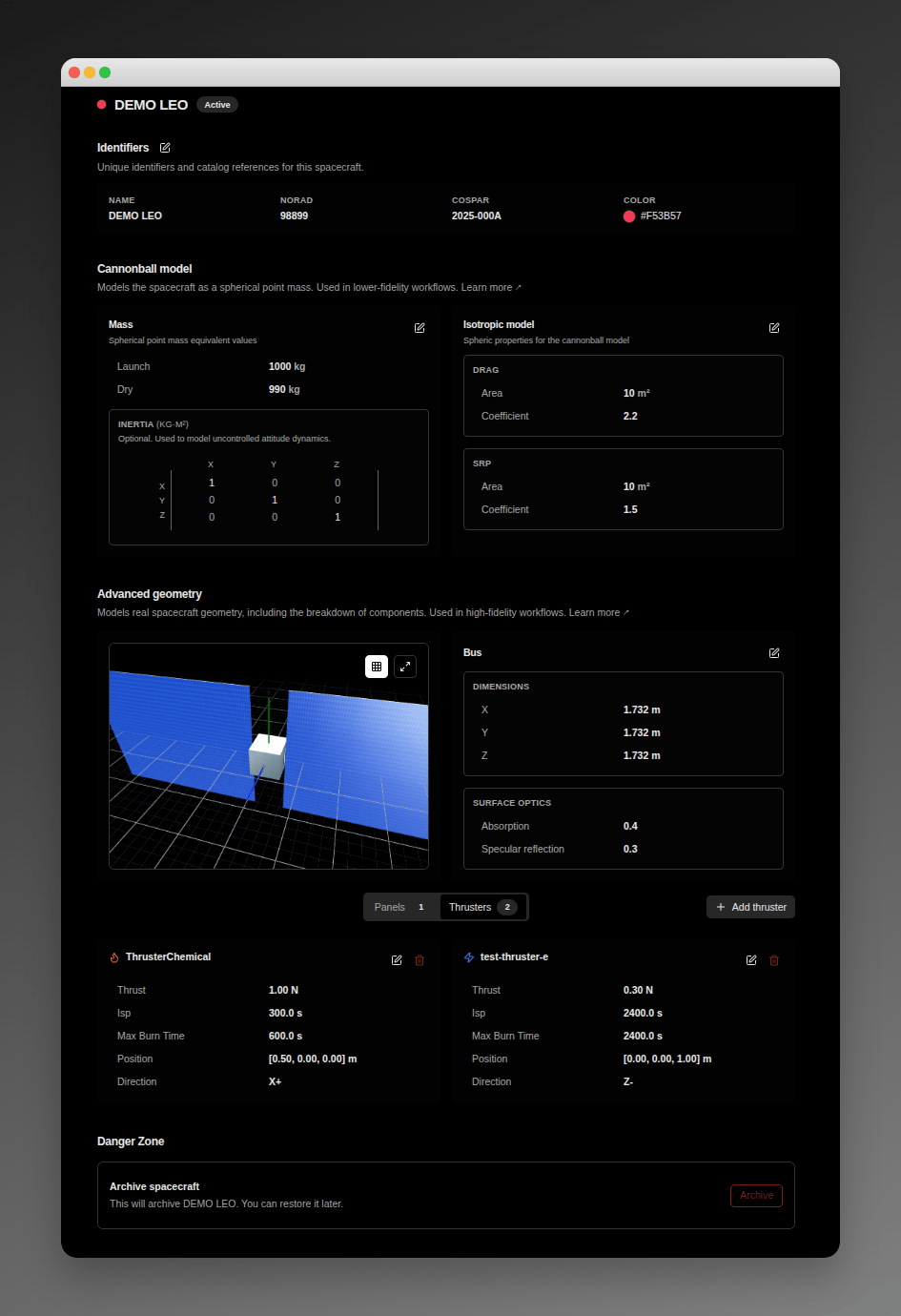
The Spacecraft page lets you manage your satellite fleet. Each spacecraft is organised by fidelity tier — identifiers, the cannonball model (bulk mass plus single drag and SRP area coefficients), advanced geometry (bus dimensions, panel definition, and mounted components), and a Danger Zone for archive and restore actions.
**Route:** `/spacecraft`
## Page Layout
The page shows a single spacecraft at a time. Use the spacecraft selector at the top-left to switch. Each spacecraft renders four sections — **Identifiers**, **Cannonball model**, **Advanced geometry**, and **Danger Zone** — in that order, with a real-time 3D viewer inside the Advanced geometry section.
 ## Page Header
The page opens with a compact header showing:
* A colour dot — the same colour the rest of the app uses to identify this spacecraft on plots and lists.
* The spacecraft name.
* A status badge:
| Status | Meaning |
| ------------ | ------------------------------------------------------------------------------ |
| **Active** | Operational and available for all operations. |
| **Archived** | Deactivated; data is preserved but the spacecraft is hidden from active lists. |
The header is read-only — lifecycle changes happen in the [Danger Zone](#danger-zone).
## Switching Spacecraft
Use the dropdown in the top-left corner to switch between spacecraft. The dropdown is disabled while any card on the page is in edit mode — finish or cancel the edit first, then switch.
## Per-Card Editing
Each card on the page has its own **Edit**, **Save**, and **Cancel** controls. Entering edit mode on one card leaves every other card in read mode. While a save is in flight, the card's button shows `Saving...` and its inputs are disabled until the save completes.
If a save fails, the card stays in edit mode with your draft intact so you can correct the value and retry. **Cancel** discards your draft and restores the last-saved values.
The Identifiers section is the one exception: it edits all four identifier fields under a single section-level **Edit** control.
## Identifiers Section
The Identifiers strip carries four fields:
| Field | Description |
| ------------- | ---------------------------------------------------------------------------------------------------------------------- |
| **Name** | The spacecraft's display name. Required. |
| **NORAD ID** | Public catalog reference number. Optional — see [NORAD catalog number](#norad-catalog-number) for the accepted format. |
| **COSPAR ID** | International designation. Optional. |
| **Colour** | Colour used to identify this spacecraft throughout the app. |
**Validation:** A blank or whitespace-only **Name** shows the message `"Name is required."` inline and blocks the save. All other fields are optional.
### NORAD catalog number
The **NORAD ID** is the public catalog number VALAR uses to fetch the spacecraft's orbit. It is optional, and when provided it must be a **whole number between 1 and 999999** — including **6-digit** numbers (`100000`–`999999`).
* **Blank is allowed.** Leave the field empty and the spacecraft is saved with no catalog number; it simply isn't fetched from a public catalog. This is a normal state — for example, a spacecraft that hasn't launched yet — not an error.
* **Letters and Alpha-5 identifiers are not accepted.** A catalog number must be a plain whole number. Alpha-5 identifiers such as `B1234` (the compressed form some tools use for numbers above `99999`) are rejected — enter the full numeric catalog number instead.
* **Analyst / reserved numbers (`70000`–`99999`) are saved but not looked up.** These are valid to record, but they are not part of CelesTrak's public catalog, so VALAR will not query CelesTrak for a spacecraft in that range.
A 6-digit catalog number can be **entered and stored** today. Propagating a 6-digit object's orbit is not yet supported — a known limitation tracked separately.
## Cannonball Model Section
The Cannonball model is the default fidelity tier — bulk mass plus single drag and SRP area coefficients. The platform's default propagation and conjunction stack uses these values for spacecraft without a full geometry. The section header includes a **Learn more** link to [the First spacecraft tutorial](/getting-started/first-spacecraft).
The section contains two cards side by side: a Mass card and an Isotropic model card.
### Mass card
| Field | Description | Unit |
| ------------------ | -------------------------------------------------------------------------------------------------------------------------------- | ----- |
| **Launch Mass** | Initial mass at launch. | kg |
| **Dry Mass** | Mass without propellant. | kg |
| **Inertia tensor** | The three principal moments (`Ixx`, `Iyy`, `Izz`) shown as a 3×3 matrix — moments on the diagonal, zeros off-diagonal. Optional. | kg·m² |
The Mass card shows configuration only — current mass and propellant remaining are not displayed.
**Inertia tensor display:** the matrix renders the three moments on the diagonal and a muted `0` in every off-diagonal cell. When all three moments are unset the matrix collapses to a `Inertia tensor not configured` hint.
**Inertia validation messages:**
| Condition | Message |
| ---------------------------------- | ------------------------------------------------------------ |
| Some moments set but not all three | `"Inertia tensor must have all three moments set, or none."` |
| Any moment is zero or negative | `"Inertia principal moments must be positive numbers."` |
The card surfaces these messages inline and stays in edit mode until you correct or clear all three moments.
### Isotropic model card
The Isotropic model card holds two self-contained blocks side by side — **Drag** and **SRP**:
| Block | Field | Unit |
| -------- | -------------------- | ---- |
| **Drag** | **Drag area** | m² |
| **Drag** | **Drag coefficient** | — |
| **SRP** | **SRP area** | m² |
| **SRP** | **Coefficient** | — |
**Drag area** and **SRP area** are always operator-typed. The page does not prefill them from box or panel dimensions, even when those are configured.
## Advanced Geometry Section
The Advanced geometry section is the high-fidelity tier — bus dimensions, panel definition, and mounted components. It's used by the faceted radiation model and attitude-aware perturbations. The section header includes a **Learn more** link to [the First spacecraft tutorial](/getting-started/first-spacecraft).
The section lays out a Bus card beside the 3D viewer, with a tabbed components area below.
## Page Header
The page opens with a compact header showing:
* A colour dot — the same colour the rest of the app uses to identify this spacecraft on plots and lists.
* The spacecraft name.
* A status badge:
| Status | Meaning |
| ------------ | ------------------------------------------------------------------------------ |
| **Active** | Operational and available for all operations. |
| **Archived** | Deactivated; data is preserved but the spacecraft is hidden from active lists. |
The header is read-only — lifecycle changes happen in the [Danger Zone](#danger-zone).
## Switching Spacecraft
Use the dropdown in the top-left corner to switch between spacecraft. The dropdown is disabled while any card on the page is in edit mode — finish or cancel the edit first, then switch.
## Per-Card Editing
Each card on the page has its own **Edit**, **Save**, and **Cancel** controls. Entering edit mode on one card leaves every other card in read mode. While a save is in flight, the card's button shows `Saving...` and its inputs are disabled until the save completes.
If a save fails, the card stays in edit mode with your draft intact so you can correct the value and retry. **Cancel** discards your draft and restores the last-saved values.
The Identifiers section is the one exception: it edits all four identifier fields under a single section-level **Edit** control.
## Identifiers Section
The Identifiers strip carries four fields:
| Field | Description |
| ------------- | ---------------------------------------------------------------------------------------------------------------------- |
| **Name** | The spacecraft's display name. Required. |
| **NORAD ID** | Public catalog reference number. Optional — see [NORAD catalog number](#norad-catalog-number) for the accepted format. |
| **COSPAR ID** | International designation. Optional. |
| **Colour** | Colour used to identify this spacecraft throughout the app. |
**Validation:** A blank or whitespace-only **Name** shows the message `"Name is required."` inline and blocks the save. All other fields are optional.
### NORAD catalog number
The **NORAD ID** is the public catalog number VALAR uses to fetch the spacecraft's orbit. It is optional, and when provided it must be a **whole number between 1 and 999999** — including **6-digit** numbers (`100000`–`999999`).
* **Blank is allowed.** Leave the field empty and the spacecraft is saved with no catalog number; it simply isn't fetched from a public catalog. This is a normal state — for example, a spacecraft that hasn't launched yet — not an error.
* **Letters and Alpha-5 identifiers are not accepted.** A catalog number must be a plain whole number. Alpha-5 identifiers such as `B1234` (the compressed form some tools use for numbers above `99999`) are rejected — enter the full numeric catalog number instead.
* **Analyst / reserved numbers (`70000`–`99999`) are saved but not looked up.** These are valid to record, but they are not part of CelesTrak's public catalog, so VALAR will not query CelesTrak for a spacecraft in that range.
A 6-digit catalog number can be **entered and stored** today. Propagating a 6-digit object's orbit is not yet supported — a known limitation tracked separately.
## Cannonball Model Section
The Cannonball model is the default fidelity tier — bulk mass plus single drag and SRP area coefficients. The platform's default propagation and conjunction stack uses these values for spacecraft without a full geometry. The section header includes a **Learn more** link to [the First spacecraft tutorial](/getting-started/first-spacecraft).
The section contains two cards side by side: a Mass card and an Isotropic model card.
### Mass card
| Field | Description | Unit |
| ------------------ | -------------------------------------------------------------------------------------------------------------------------------- | ----- |
| **Launch Mass** | Initial mass at launch. | kg |
| **Dry Mass** | Mass without propellant. | kg |
| **Inertia tensor** | The three principal moments (`Ixx`, `Iyy`, `Izz`) shown as a 3×3 matrix — moments on the diagonal, zeros off-diagonal. Optional. | kg·m² |
The Mass card shows configuration only — current mass and propellant remaining are not displayed.
**Inertia tensor display:** the matrix renders the three moments on the diagonal and a muted `0` in every off-diagonal cell. When all three moments are unset the matrix collapses to a `Inertia tensor not configured` hint.
**Inertia validation messages:**
| Condition | Message |
| ---------------------------------- | ------------------------------------------------------------ |
| Some moments set but not all three | `"Inertia tensor must have all three moments set, or none."` |
| Any moment is zero or negative | `"Inertia principal moments must be positive numbers."` |
The card surfaces these messages inline and stays in edit mode until you correct or clear all three moments.
### Isotropic model card
The Isotropic model card holds two self-contained blocks side by side — **Drag** and **SRP**:
| Block | Field | Unit |
| -------- | -------------------- | ---- |
| **Drag** | **Drag area** | m² |
| **Drag** | **Drag coefficient** | — |
| **SRP** | **SRP area** | m² |
| **SRP** | **Coefficient** | — |
**Drag area** and **SRP area** are always operator-typed. The page does not prefill them from box or panel dimensions, even when those are configured.
## Advanced Geometry Section
The Advanced geometry section is the high-fidelity tier — bus dimensions, panel definition, and mounted components. It's used by the faceted radiation model and attitude-aware perturbations. The section header includes a **Learn more** link to [the First spacecraft tutorial](/getting-started/first-spacecraft).
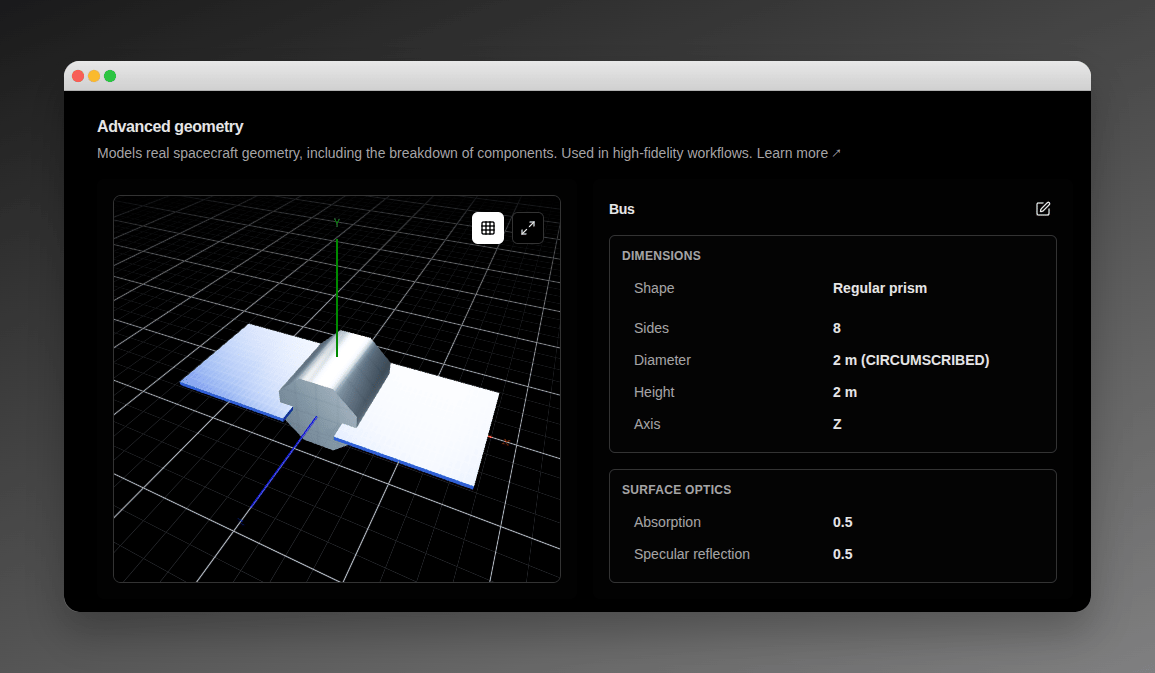
The section lays out a Bus card beside the 3D viewer, with a tabbed components area below.
 ### Bus card
A **Shape** selector at the top of the Bus card chooses the bus body shape — **Box** or **Regular prism** — and the dimension inputs below it change to match. You define the whole bus from this single card.
A **Box** bus exposes three dimension fields:
| Field | Unit |
| -------------- | ---- |
| **Box length** | m |
| **Box width** | m |
| **Box height** | m |
A **Regular prism** bus replaces the box fields with the polygon-prism inputs:
| Field | Description | Unit |
| ------------ | ---------------------------------------------------------------------------------------------------------------------------------------------------------------------------------------------------------------------------------------------------------------- | ---- |
| **Sides** | Number of polygon sides — an integer from `3` to `12`. Out-of-range values are rejected with `"Sides must be between 3 and 12"`. | — |
| **Diameter** | Cross-section diameter, paired with an **Inscribed / Circumscribed** toggle that sets how it is measured: **Inscribed** is across the flats, **Circumscribed** is across the corners. A non-positive value is rejected with `"Diameter must be greater than 0"`. | m |
| **Height** | Prism height along the extrusion axis. A non-positive value is rejected with `"Height must be greater than 0"`. | m |
| **Axis** | Extrusion axis — `X`, `Y`, or `Z` (default `Z`). | — |
In read mode the diameter is shown with its measure, for example `1.0 m (Inscribed)`. Switching the **Shape** clears the dimension inputs entered for the previous shape.
The card also holds **Surface optics** beside the dimensions:
| Field | Unit |
| ---------------------------- | ---- |
| **Absorption (α)** | — |
| **Specular reflection (ρs)** | — |
Surface optics describe the per-facet optical coefficients consumed by the faceted radiation model when an [attitude profile](/features/attitude/overview) is configured. When no attitude profile is configured, the Bus card shows the inline note **"faceted forces apply once an attitude profile is configured"** for both box and regular-prism shapes, and the spacecraft remains on the isotropic model — using only the scalar **Drag coefficient** and **Coefficient** values from the Isotropic model card.
### 3D Viewer
The right side of the Advanced geometry section displays a real-time 3D model of the spacecraft:
* Renders the bus in its true shape — a box for a **Box** spacecraft, or the configured polygon prism for a **Regular prism** spacecraft.
* Draws each configured panel as a flat plate at its mount position, oriented so its broad face points along its facing, and sized to its length and width — so the model reflects the true arrangement of the panels.
* Updates automatically as you save box, prism, panel, or thruster changes.
* Rotate the view by clicking and dragging.
* Zoom with the scroll wheel.
* Shows accurate proportions based on configured dimensions.
The viewer stays mounted while you edit any other card on the page — entering edit mode on the Bus card or a panel card does not unmount or reposition it.
### Components Tabs
Below the Bus + viewer row, the **Panels**, **Thrusters**, and **Payloads** tabs hold the mounted components. Each tab trigger shows an item-count badge.
#### Panels tab
The Panels tab holds the spacecraft's solar and radiator panels. Each panel is configured independently as its own card — mount point, orientation, size, and optics are set per panel, not shared across a fixed arrangement. The tab trigger badge shows the number of configured panels.
### Bus card
A **Shape** selector at the top of the Bus card chooses the bus body shape — **Box** or **Regular prism** — and the dimension inputs below it change to match. You define the whole bus from this single card.
A **Box** bus exposes three dimension fields:
| Field | Unit |
| -------------- | ---- |
| **Box length** | m |
| **Box width** | m |
| **Box height** | m |
A **Regular prism** bus replaces the box fields with the polygon-prism inputs:
| Field | Description | Unit |
| ------------ | ---------------------------------------------------------------------------------------------------------------------------------------------------------------------------------------------------------------------------------------------------------------- | ---- |
| **Sides** | Number of polygon sides — an integer from `3` to `12`. Out-of-range values are rejected with `"Sides must be between 3 and 12"`. | — |
| **Diameter** | Cross-section diameter, paired with an **Inscribed / Circumscribed** toggle that sets how it is measured: **Inscribed** is across the flats, **Circumscribed** is across the corners. A non-positive value is rejected with `"Diameter must be greater than 0"`. | m |
| **Height** | Prism height along the extrusion axis. A non-positive value is rejected with `"Height must be greater than 0"`. | m |
| **Axis** | Extrusion axis — `X`, `Y`, or `Z` (default `Z`). | — |
In read mode the diameter is shown with its measure, for example `1.0 m (Inscribed)`. Switching the **Shape** clears the dimension inputs entered for the previous shape.
The card also holds **Surface optics** beside the dimensions:
| Field | Unit |
| ---------------------------- | ---- |
| **Absorption (α)** | — |
| **Specular reflection (ρs)** | — |
Surface optics describe the per-facet optical coefficients consumed by the faceted radiation model when an [attitude profile](/features/attitude/overview) is configured. When no attitude profile is configured, the Bus card shows the inline note **"faceted forces apply once an attitude profile is configured"** for both box and regular-prism shapes, and the spacecraft remains on the isotropic model — using only the scalar **Drag coefficient** and **Coefficient** values from the Isotropic model card.
### 3D Viewer
The right side of the Advanced geometry section displays a real-time 3D model of the spacecraft:
* Renders the bus in its true shape — a box for a **Box** spacecraft, or the configured polygon prism for a **Regular prism** spacecraft.
* Draws each configured panel as a flat plate at its mount position, oriented so its broad face points along its facing, and sized to its length and width — so the model reflects the true arrangement of the panels.
* Updates automatically as you save box, prism, panel, or thruster changes.
* Rotate the view by clicking and dragging.
* Zoom with the scroll wheel.
* Shows accurate proportions based on configured dimensions.
The viewer stays mounted while you edit any other card on the page — entering edit mode on the Bus card or a panel card does not unmount or reposition it.
### Components Tabs
Below the Bus + viewer row, the **Panels**, **Thrusters**, and **Payloads** tabs hold the mounted components. Each tab trigger shows an item-count badge.
#### Panels tab
The Panels tab holds the spacecraft's solar and radiator panels. Each panel is configured independently as its own card — mount point, orientation, size, and optics are set per panel, not shared across a fixed arrangement. The tab trigger badge shows the number of configured panels.
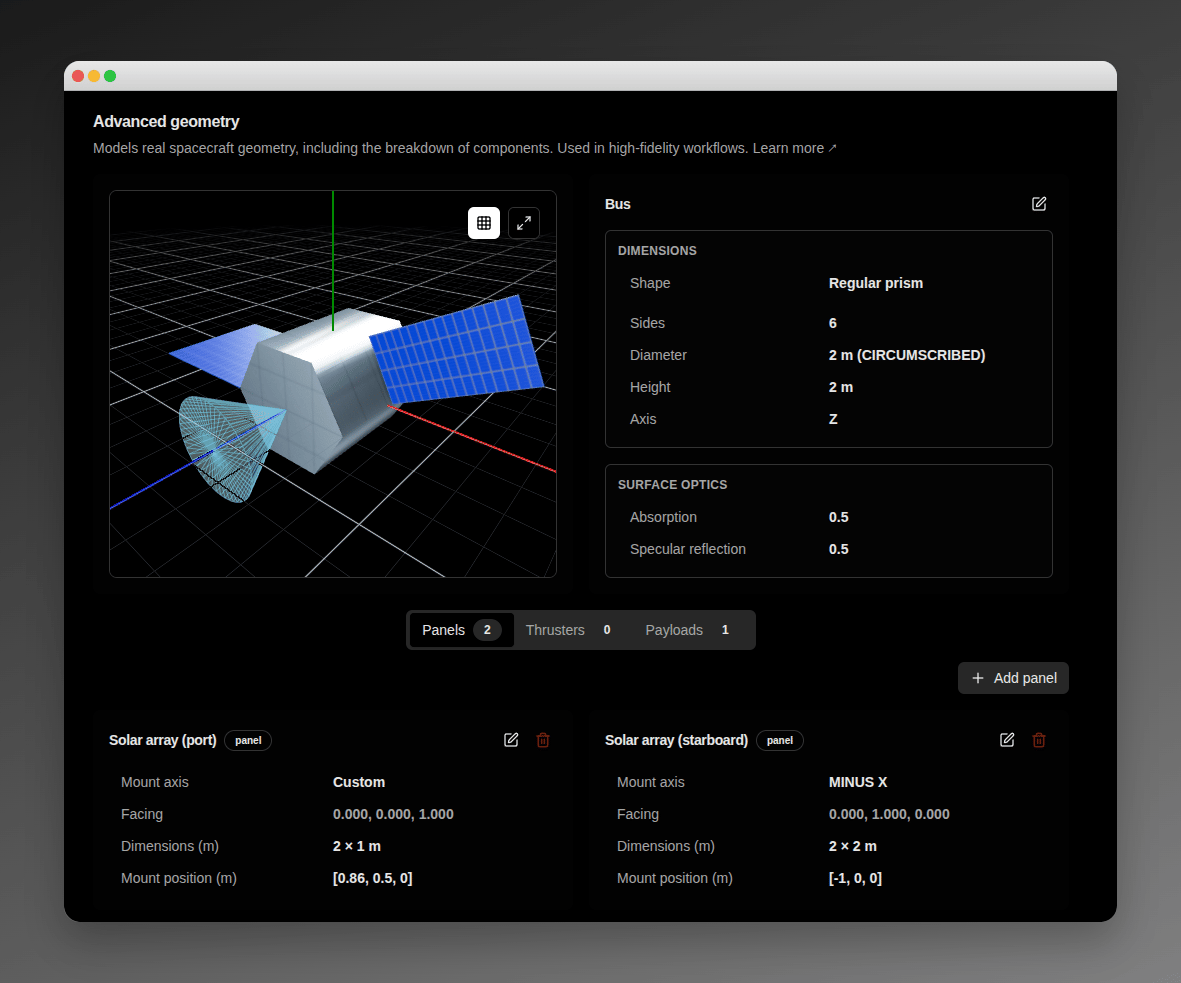 A spacecraft holds **0 to 8** panels. Click **Add panel** to append a new panel card and fill it in place; each card has its own **Edit**, **Save**, and **Cancel** controls and a delete control that prompts for confirmation before applying. Once eight panels are configured, the **Add panel** button is disabled and hovering it shows a **Maximum 8 panels** tooltip. When the spacecraft has no panels yet, the tab shows a `No panels configured` prompt with a single **Add panel** button.
Each panel card carries:
| Field | Description | Unit |
| ------------------ | ---------------------------------------------------------------------------------------------------------------------------------------------------------------------------------------- | ---- |
| **Name** | Display name for the panel. Required, and must be unique within the spacecraft. | — |
| **Mount position** | The panel's attachment point on the spacecraft body — **X**, **Y**, **Z** in the body frame. Each component may be negative. | m |
| **Mount axis** | The body-frame axis the panel mounts along; choose from the options below (default **PLUS Z**). | — |
| **Rotation** | In-plane rotation of the panel about its mount axis. Range `0°` up to (but not including) `360°` (default `0°`). | ° |
| **Facing** | A read-only readout of the panel's outward normal — the live unit vector its broad face points along, recomputed as you change the mount axis and rotation. A degenerate axis shows `—`. | — |
| **Dimensions** | The panel plate's **length × width**. Each must be greater than `0`. | m |
| **Double-sided** | When on, both faces of the plate are active surfaces; when off, only the outward face is (default off). | — |
| **Optics** | The panel's optical coefficients — **Absorption (α)** and **Specular reflection (ρs)**. | — |
**Mount axis selector** — choose one of seven options:
| Option | Effect |
| ------------------------------------------------------------------------- | --------------------------------------------------------------------------------------------------------------- |
| **PLUS X**, **MINUS X**, **PLUS Y**, **MINUS Y**, **PLUS Z**, **MINUS Z** | The panel mounts along the chosen spacecraft body axis. |
| **Custom** | Reveals three numeric sub-inputs — **Custom axis** **X**, **Y**, **Z** — for an arbitrary body-frame direction. |
**Validation** — a panel saves only when every field is valid:
| Field | Condition | Message |
| ---------------------------- | ------------------------------------------------------------ | ---------------------------------------------------- |
| **Name** | Blank | `Name is required` |
| **Dimensions** | Length not greater than `0` | `Length must be greater than 0` |
| **Dimensions** | Width not greater than `0` | `Width must be greater than 0` |
| **Rotation** | `360°` or above, or below `0°` | `Rotation must be between 0° and 360°` |
| **Custom axis** | A custom direction of `(0, 0, 0)` (or otherwise zero-length) | `Enter a non-zero direction` |
| **Absorption (α)** | Outside `0`–`1` | `Absorption must be between 0 and 1` |
| **Specular reflection (ρs)** | Outside `0`–`1` | `Specular reflection must be between 0 and 1` |
| **Optics** | Absorption + specular reflection exceeds `1` | `Absorption + specular reflection must not exceed 1` |
While a custom mount axis is invalid the **Facing** readout shows `—` and the panel cannot be saved.
A spacecraft that had a solar-panel array configured before independent panels were introduced is converted automatically: the former array becomes two symmetric panels — **Solar array (port)** and **Solar array (starboard)** — that reproduce the original array's drag and SRP exactly. No action is required; you can refine, rename, or remove them like any other panel. (A spacecraft that had no panel array simply starts with none.)
Panel **facing** drives drag and SRP forces only once an [attitude profile](/features/attitude/overview) is configured. Until then, panels save and display normally, but the spacecraft stays on the isotropic model — using the scalar **Drag coefficient** and **Coefficient** from the Isotropic model card.
#### Thrusters tab
The Thrusters tab lists every thruster mounted on the spacecraft. Click **Add thruster** to open the thruster dialog, or edit and delete existing thrusters from the list.
| Field | Description |
| -------------------------- | -------------------------------------------------------------------- |
| **Name** | Display name for the thruster. |
| **Thrust** | Thrust force output. |
| **Specific Impulse (Isp)** | Propellant efficiency. |
| **Max Burn Time** | Maximum continuous burn duration. |
| **Position (X, Y, Z)** | Thruster location on the spacecraft body. |
| **Direction** | Thrust vector direction — one of `X+`, `X-`, `Y+`, `Y-`, `Z+`, `Z-`. |
Deleting a thruster prompts a confirmation before applying.
#### Payloads tab
The Payloads tab lists every payload mounted on the spacecraft. A payload is an on-board sensor — a body-frame boresight axis plus a field of view describing the cone of sky it sees. Unlike the thruster dialog, payloads are added and edited **inline**: click **Add payload** to append a new payload card, fill it in place, and **Save** it. Each card has its own **Edit**, **Save**, and **Cancel** controls, and a delete control that prompts for confirmation before applying. When the spacecraft has no payloads yet, the tab shows a `No payloads configured` prompt with a single **Add payload** button.
Each payload card carries:
| Field | Description |
| ---------------- | --------------------------------------------------------------------------------------------------------------------------------------------------------------- |
| **Name** | Display name for the payload. Required. |
| **Position (m)** | The payload's attachment position on the spacecraft body — **X**, **Y**, **Z** in metres, in the body frame. Each component may be negative. |
| **Boresight** | The body-frame axis the payload points along — one of the six cardinal axes `X+`, `X-`, `Y+`, `Y-`, `Z+`, `Z-`. |
| **FOV shape** | The field-of-view shape — one of **Conical**, **Rectangular**, **Elliptical**, or **Polygon**. Choosing a shape reveals only that shape's angle fields (below). |
**Field-of-view fields by shape** — every angle is a half-angle measured from the boresight to the edge of the field of view:
| Shape | Fields | Range |
| --------------- | ------------------------------ | ------------------------------------------------------------------------------------------------------------------- |
| **Conical** | A single half-angle | `0°`–`90°`, where `90°` opens the field of view to a full hemisphere. |
| **Rectangular** | A half-width and a half-height | Each above `0°` and below `90°`. |
| **Elliptical** | A half-width and a half-height | Each above `0°` and below `90°`. |
| **Polygon** | A number of sides and a radius | At least `3` sides; the radius is a half-angle above `0°` and below `90°`, measured from the boresight to a vertex. |
A spacecraft holds up to **8** payloads. Once eight are configured, the **Add payload** button is disabled and hovering it shows a **Maximum 8 payloads** tooltip.
Each payload's field of view is drawn live in the [3D viewer](#3d-viewer) as a translucent solid: oriented along its boresight axis, with its apex at the attachment position. A `90°` conical field of view renders as a hemisphere.
A **payload** is an on-board sensor carried by the spacecraft — it points along a body-frame axis and moves with the spacecraft. Do not confuse it with a [tracking sensor](/features/tracking-sensors), which is a fixed ground-based observer that watches spacecraft from the surface.
## Danger Zone
The Danger Zone is the final section on the page and hosts the lifecycle actions:
| Spacecraft state | Action | Effect |
| ---------------- | ----------- | ----------------------------------------------------------------------------------------- |
| **Active** | **Archive** | Deactivate the spacecraft. Data is preserved; the spacecraft is hidden from active lists. |
| **Archived** | **Restore** | Reactivate an archived spacecraft. The spacecraft returns to active operations. |
The action button opens a confirmation dialog before applying. The configuration cards remain editable for archived spacecraft — archiving does not lock them.
## Validation Feedback
As you edit any card, each input shows inline feedback below it. The feedback uses four states:
| State | Indicator | Meaning |
| ----------------------------- | ----------------------- | ------------------------------------------------------------------------------------------------------------------------------------------------------------ |
| **Error** (red) | Alert icon + red text | The value is invalid and blocks save. Examples: a blank Name, a negative inertia moment, a panel's custom mount axis of `(0, 0, 0)`. |
| **Warning** (amber) | Alert icon + amber text | The value saves but falls outside the typical range. Examples: a Reflectivity coefficient outside the typical band, a soft-warned Drag area above `1000 m²`. |
| **Unable to validate** (grey) | Muted text | The validator could not respond — usually a transient network or backend issue. You can still save; the per-field rule will re-run on the next attempt. |
| **Valid** (green) | Check icon | The value passed validation. |
**Cross-field area-ratio warning** — when both **Drag area** and **SRP area** have been touched on the Isotropic model card, an amber warning appears on the card if the ratio of SRP area to drag area is outside the typical band:
> Ratio of SRP area to drag area is outside typical range — check for unit confusion or stale geometry
The warning is non-blocking — you can still save — but is a strong hint that one of the two values is wrong (commonly a `cm²` vs. `m²` slip, or a stale value from an earlier geometry).
**Per-field validation messages carried across the page:**
| Field | Condition | Message |
| ------------------------------ | ---------------------------------- | ---------------------------------------------------------- |
| **Name** (Identifiers) | Blank or whitespace-only | `Name is required.` |
| **Inertia tensor** (Mass card) | Some moments set but not all three | `Inertia tensor must have all three moments set, or none.` |
| **Inertia tensor** (Mass card) | Any moment is zero or negative | `Inertia principal moments must be positive numbers.` |
| **Custom axis** (Panel) | Custom mount axis of `(0, 0, 0)` | `Enter a non-zero direction` |
## Creating a New Spacecraft
Click **New Spacecraft** in the top-bar to navigate to the **`/spacecraft/new`** creation page. The page mirrors the detail-page layout — the same **Identifiers**, **Cannonball model**, and **Advanced geometry** sections — but starts with empty values and every card already in edit mode. A page-level **Create Spacecraft** button at the bottom of the page submits the form; **Cancel** returns to the spacecraft list without saving.
| Section | Required fields | Optional fields |
| --------------------- | ---------------------------------------------------------------------------- | ----------------------------------------------- |
| **Identifiers** | Name | NORAD ID, COSPAR ID, Colour |
| **Cannonball model** | Launch Mass, Drag area, SRP area, Drag coefficient, Reflectivity coefficient | Dry Mass |
| **Advanced geometry** | (none) | Box or prism dimensions, panels, surface optics |
**Pre-filled defaults** match the everyday workflow so you don't have to set them on every new spacecraft:
| Field | Default |
| ---------------------------- | ------------------------ |
| **Drag coefficient** | `2.2` |
| **Reflectivity coefficient** | `1.5` |
| **Colour** | Neutral blue (`#3b82f6`) |
**Required-field validation** runs through the same [Validation Feedback](#validation-feedback) surface as the detail page — submitting the form with a blank required field shows the per-field error inline (for example, `Name is required.`) and blocks the submit until every required field is filled. The Danger Zone does NOT appear on the creation page; archive and restore only apply to spacecraft that already exist.
On success the page shows a confirmation toast and navigates to the new spacecraft's detail page so you can complete the remaining configuration — inertia tensor, additional surface optics, panels, and thrusters.
## Related Pages
* [Creating Your First Spacecraft](/getting-started/first-spacecraft): Step-by-step walkthrough for new users — also the destination of the **Learn more** link from the Cannonball model and Advanced geometry section headers.
* [Force Model](/platform-overview/force-model): How geometry and optical inputs drive attitude-dependent drag and SRP.
* [Attitude Overview](/features/attitude/overview): Configure an attitude profile so the platform uses per-facet drag and SRP based on the Bus surface optics and panel definitions.
* [Burn Plan](/features/burn-plan): Plan maneuvers using configured thrusters.
* [State Vectors](/features/state-vectors): View orbit solutions for this spacecraft.
A spacecraft holds **0 to 8** panels. Click **Add panel** to append a new panel card and fill it in place; each card has its own **Edit**, **Save**, and **Cancel** controls and a delete control that prompts for confirmation before applying. Once eight panels are configured, the **Add panel** button is disabled and hovering it shows a **Maximum 8 panels** tooltip. When the spacecraft has no panels yet, the tab shows a `No panels configured` prompt with a single **Add panel** button.
Each panel card carries:
| Field | Description | Unit |
| ------------------ | ---------------------------------------------------------------------------------------------------------------------------------------------------------------------------------------- | ---- |
| **Name** | Display name for the panel. Required, and must be unique within the spacecraft. | — |
| **Mount position** | The panel's attachment point on the spacecraft body — **X**, **Y**, **Z** in the body frame. Each component may be negative. | m |
| **Mount axis** | The body-frame axis the panel mounts along; choose from the options below (default **PLUS Z**). | — |
| **Rotation** | In-plane rotation of the panel about its mount axis. Range `0°` up to (but not including) `360°` (default `0°`). | ° |
| **Facing** | A read-only readout of the panel's outward normal — the live unit vector its broad face points along, recomputed as you change the mount axis and rotation. A degenerate axis shows `—`. | — |
| **Dimensions** | The panel plate's **length × width**. Each must be greater than `0`. | m |
| **Double-sided** | When on, both faces of the plate are active surfaces; when off, only the outward face is (default off). | — |
| **Optics** | The panel's optical coefficients — **Absorption (α)** and **Specular reflection (ρs)**. | — |
**Mount axis selector** — choose one of seven options:
| Option | Effect |
| ------------------------------------------------------------------------- | --------------------------------------------------------------------------------------------------------------- |
| **PLUS X**, **MINUS X**, **PLUS Y**, **MINUS Y**, **PLUS Z**, **MINUS Z** | The panel mounts along the chosen spacecraft body axis. |
| **Custom** | Reveals three numeric sub-inputs — **Custom axis** **X**, **Y**, **Z** — for an arbitrary body-frame direction. |
**Validation** — a panel saves only when every field is valid:
| Field | Condition | Message |
| ---------------------------- | ------------------------------------------------------------ | ---------------------------------------------------- |
| **Name** | Blank | `Name is required` |
| **Dimensions** | Length not greater than `0` | `Length must be greater than 0` |
| **Dimensions** | Width not greater than `0` | `Width must be greater than 0` |
| **Rotation** | `360°` or above, or below `0°` | `Rotation must be between 0° and 360°` |
| **Custom axis** | A custom direction of `(0, 0, 0)` (or otherwise zero-length) | `Enter a non-zero direction` |
| **Absorption (α)** | Outside `0`–`1` | `Absorption must be between 0 and 1` |
| **Specular reflection (ρs)** | Outside `0`–`1` | `Specular reflection must be between 0 and 1` |
| **Optics** | Absorption + specular reflection exceeds `1` | `Absorption + specular reflection must not exceed 1` |
While a custom mount axis is invalid the **Facing** readout shows `—` and the panel cannot be saved.
A spacecraft that had a solar-panel array configured before independent panels were introduced is converted automatically: the former array becomes two symmetric panels — **Solar array (port)** and **Solar array (starboard)** — that reproduce the original array's drag and SRP exactly. No action is required; you can refine, rename, or remove them like any other panel. (A spacecraft that had no panel array simply starts with none.)
Panel **facing** drives drag and SRP forces only once an [attitude profile](/features/attitude/overview) is configured. Until then, panels save and display normally, but the spacecraft stays on the isotropic model — using the scalar **Drag coefficient** and **Coefficient** from the Isotropic model card.
#### Thrusters tab
The Thrusters tab lists every thruster mounted on the spacecraft. Click **Add thruster** to open the thruster dialog, or edit and delete existing thrusters from the list.
| Field | Description |
| -------------------------- | -------------------------------------------------------------------- |
| **Name** | Display name for the thruster. |
| **Thrust** | Thrust force output. |
| **Specific Impulse (Isp)** | Propellant efficiency. |
| **Max Burn Time** | Maximum continuous burn duration. |
| **Position (X, Y, Z)** | Thruster location on the spacecraft body. |
| **Direction** | Thrust vector direction — one of `X+`, `X-`, `Y+`, `Y-`, `Z+`, `Z-`. |
Deleting a thruster prompts a confirmation before applying.
#### Payloads tab
The Payloads tab lists every payload mounted on the spacecraft. A payload is an on-board sensor — a body-frame boresight axis plus a field of view describing the cone of sky it sees. Unlike the thruster dialog, payloads are added and edited **inline**: click **Add payload** to append a new payload card, fill it in place, and **Save** it. Each card has its own **Edit**, **Save**, and **Cancel** controls, and a delete control that prompts for confirmation before applying. When the spacecraft has no payloads yet, the tab shows a `No payloads configured` prompt with a single **Add payload** button.
Each payload card carries:
| Field | Description |
| ---------------- | --------------------------------------------------------------------------------------------------------------------------------------------------------------- |
| **Name** | Display name for the payload. Required. |
| **Position (m)** | The payload's attachment position on the spacecraft body — **X**, **Y**, **Z** in metres, in the body frame. Each component may be negative. |
| **Boresight** | The body-frame axis the payload points along — one of the six cardinal axes `X+`, `X-`, `Y+`, `Y-`, `Z+`, `Z-`. |
| **FOV shape** | The field-of-view shape — one of **Conical**, **Rectangular**, **Elliptical**, or **Polygon**. Choosing a shape reveals only that shape's angle fields (below). |
**Field-of-view fields by shape** — every angle is a half-angle measured from the boresight to the edge of the field of view:
| Shape | Fields | Range |
| --------------- | ------------------------------ | ------------------------------------------------------------------------------------------------------------------- |
| **Conical** | A single half-angle | `0°`–`90°`, where `90°` opens the field of view to a full hemisphere. |
| **Rectangular** | A half-width and a half-height | Each above `0°` and below `90°`. |
| **Elliptical** | A half-width and a half-height | Each above `0°` and below `90°`. |
| **Polygon** | A number of sides and a radius | At least `3` sides; the radius is a half-angle above `0°` and below `90°`, measured from the boresight to a vertex. |
A spacecraft holds up to **8** payloads. Once eight are configured, the **Add payload** button is disabled and hovering it shows a **Maximum 8 payloads** tooltip.
Each payload's field of view is drawn live in the [3D viewer](#3d-viewer) as a translucent solid: oriented along its boresight axis, with its apex at the attachment position. A `90°` conical field of view renders as a hemisphere.
A **payload** is an on-board sensor carried by the spacecraft — it points along a body-frame axis and moves with the spacecraft. Do not confuse it with a [tracking sensor](/features/tracking-sensors), which is a fixed ground-based observer that watches spacecraft from the surface.
## Danger Zone
The Danger Zone is the final section on the page and hosts the lifecycle actions:
| Spacecraft state | Action | Effect |
| ---------------- | ----------- | ----------------------------------------------------------------------------------------- |
| **Active** | **Archive** | Deactivate the spacecraft. Data is preserved; the spacecraft is hidden from active lists. |
| **Archived** | **Restore** | Reactivate an archived spacecraft. The spacecraft returns to active operations. |
The action button opens a confirmation dialog before applying. The configuration cards remain editable for archived spacecraft — archiving does not lock them.
## Validation Feedback
As you edit any card, each input shows inline feedback below it. The feedback uses four states:
| State | Indicator | Meaning |
| ----------------------------- | ----------------------- | ------------------------------------------------------------------------------------------------------------------------------------------------------------ |
| **Error** (red) | Alert icon + red text | The value is invalid and blocks save. Examples: a blank Name, a negative inertia moment, a panel's custom mount axis of `(0, 0, 0)`. |
| **Warning** (amber) | Alert icon + amber text | The value saves but falls outside the typical range. Examples: a Reflectivity coefficient outside the typical band, a soft-warned Drag area above `1000 m²`. |
| **Unable to validate** (grey) | Muted text | The validator could not respond — usually a transient network or backend issue. You can still save; the per-field rule will re-run on the next attempt. |
| **Valid** (green) | Check icon | The value passed validation. |
**Cross-field area-ratio warning** — when both **Drag area** and **SRP area** have been touched on the Isotropic model card, an amber warning appears on the card if the ratio of SRP area to drag area is outside the typical band:
> Ratio of SRP area to drag area is outside typical range — check for unit confusion or stale geometry
The warning is non-blocking — you can still save — but is a strong hint that one of the two values is wrong (commonly a `cm²` vs. `m²` slip, or a stale value from an earlier geometry).
**Per-field validation messages carried across the page:**
| Field | Condition | Message |
| ------------------------------ | ---------------------------------- | ---------------------------------------------------------- |
| **Name** (Identifiers) | Blank or whitespace-only | `Name is required.` |
| **Inertia tensor** (Mass card) | Some moments set but not all three | `Inertia tensor must have all three moments set, or none.` |
| **Inertia tensor** (Mass card) | Any moment is zero or negative | `Inertia principal moments must be positive numbers.` |
| **Custom axis** (Panel) | Custom mount axis of `(0, 0, 0)` | `Enter a non-zero direction` |
## Creating a New Spacecraft
Click **New Spacecraft** in the top-bar to navigate to the **`/spacecraft/new`** creation page. The page mirrors the detail-page layout — the same **Identifiers**, **Cannonball model**, and **Advanced geometry** sections — but starts with empty values and every card already in edit mode. A page-level **Create Spacecraft** button at the bottom of the page submits the form; **Cancel** returns to the spacecraft list without saving.
| Section | Required fields | Optional fields |
| --------------------- | ---------------------------------------------------------------------------- | ----------------------------------------------- |
| **Identifiers** | Name | NORAD ID, COSPAR ID, Colour |
| **Cannonball model** | Launch Mass, Drag area, SRP area, Drag coefficient, Reflectivity coefficient | Dry Mass |
| **Advanced geometry** | (none) | Box or prism dimensions, panels, surface optics |
**Pre-filled defaults** match the everyday workflow so you don't have to set them on every new spacecraft:
| Field | Default |
| ---------------------------- | ------------------------ |
| **Drag coefficient** | `2.2` |
| **Reflectivity coefficient** | `1.5` |
| **Colour** | Neutral blue (`#3b82f6`) |
**Required-field validation** runs through the same [Validation Feedback](#validation-feedback) surface as the detail page — submitting the form with a blank required field shows the per-field error inline (for example, `Name is required.`) and blocks the submit until every required field is filled. The Danger Zone does NOT appear on the creation page; archive and restore only apply to spacecraft that already exist.
On success the page shows a confirmation toast and navigates to the new spacecraft's detail page so you can complete the remaining configuration — inertia tensor, additional surface optics, panels, and thrusters.
## Related Pages
* [Creating Your First Spacecraft](/getting-started/first-spacecraft): Step-by-step walkthrough for new users — also the destination of the **Learn more** link from the Cannonball model and Advanced geometry section headers.
* [Force Model](/platform-overview/force-model): How geometry and optical inputs drive attitude-dependent drag and SRP.
* [Attitude Overview](/features/attitude/overview): Configure an attitude profile so the platform uses per-facet drag and SRP based on the Bus surface optics and panel definitions.
* [Burn Plan](/features/burn-plan): Plan maneuvers using configured thrusters.
* [State Vectors](/features/state-vectors): View orbit solutions for this spacecraft.