> ## Documentation Index
> Fetch the complete documentation index at: https://docs.valar.space/llms.txt
> Use this file to discover all available pages before exploring further.
# Task Automation
> Create, schedule, and trigger automated tasks for orbit determination and alert fetching
> For the complete documentation index, see [llms.txt](/llms.txt).
Task Automation lets you save operational workflows as reusable tasks with optional scheduling. Configure orbit determination runs or alert fetches once, then execute them on demand or on a recurring schedule.
**Route:** `/tasks`
## Task Dashboard
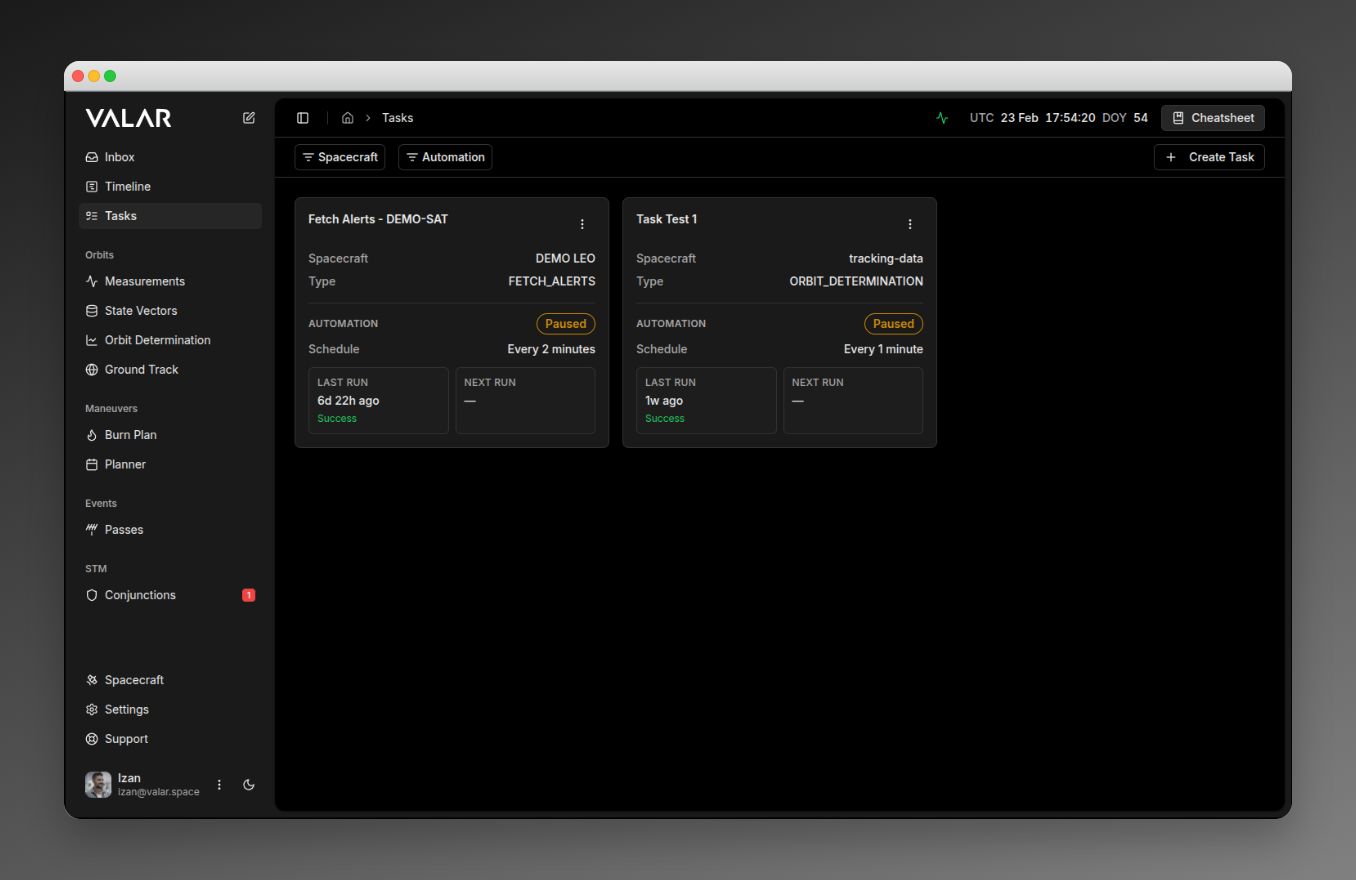
The Tasks page displays all configured tasks in a responsive grid layout. Each task appears as a card showing its configuration, automation status, and last run.
The site header shows two tabs next to the breadcrumbs: **Tasks** (this page) and **Runs** (the centralized run history at `/tasks/runs`). Each tab keeps its own filter state across switches.
 ### Filtering Tasks
Two filters are available in the toolbar:
* **Spacecraft filter:** Show only tasks associated with specific spacecraft
* **Automation status filter:** Filter by automation state:
| Status | Description |
| ---------- | --------------------------------------------- |
| **Active** | Task has a schedule and is enabled |
| **Paused** | Task has a schedule but is currently disabled |
| **None** | Task has no schedule (manual trigger only) |
Both filters persist in the URL, so you can bookmark or share filtered views.
### Task Cards
Each task card displays:
* **Task name** — The display name you assigned when creating the task
* **Spacecraft** — Which spacecraft the task is configured for
* **Type** — The task type (Orbit Determination or Fetch Alerts)
* **Automation section** — Schedule details, last run time with status, and a live countdown to the next scheduled run
For automated tasks, a status badge indicates whether the task is **Active** or **Paused**.
For event-triggered tasks, the **Schedule** row reads `Event: New measurements` and the **Next Run** tile is replaced with an **Event-driven** tile naming the configured event. Hover the tile to see when the event fires.
### Task Actions
Click the **⋮** menu on any task card to access:
| Action | Description |
| ------------------ | ------------------------------------------------------- |
| **Run now** | Execute the task immediately regardless of its schedule |
| **Configure** | Open the task configuration dialog to modify settings |
| **Enable/Disable** | Toggle the task's automation on or off |
| **Delete** | Permanently remove the task (requires confirmation) |
## Creating a Task
Click **Create Task** in the toolbar to open the task type picker.
### Filtering Tasks
Two filters are available in the toolbar:
* **Spacecraft filter:** Show only tasks associated with specific spacecraft
* **Automation status filter:** Filter by automation state:
| Status | Description |
| ---------- | --------------------------------------------- |
| **Active** | Task has a schedule and is enabled |
| **Paused** | Task has a schedule but is currently disabled |
| **None** | Task has no schedule (manual trigger only) |
Both filters persist in the URL, so you can bookmark or share filtered views.
### Task Cards
Each task card displays:
* **Task name** — The display name you assigned when creating the task
* **Spacecraft** — Which spacecraft the task is configured for
* **Type** — The task type (Orbit Determination or Fetch Alerts)
* **Automation section** — Schedule details, last run time with status, and a live countdown to the next scheduled run
For automated tasks, a status badge indicates whether the task is **Active** or **Paused**.
For event-triggered tasks, the **Schedule** row reads `Event: New measurements` and the **Next Run** tile is replaced with an **Event-driven** tile naming the configured event. Hover the tile to see when the event fires.
### Task Actions
Click the **⋮** menu on any task card to access:
| Action | Description |
| ------------------ | ------------------------------------------------------- |
| **Run now** | Execute the task immediately regardless of its schedule |
| **Configure** | Open the task configuration dialog to modify settings |
| **Enable/Disable** | Toggle the task's automation on or off |
| **Delete** | Permanently remove the task (requires confirmation) |
## Creating a Task
Click **Create Task** in the toolbar to open the task type picker.
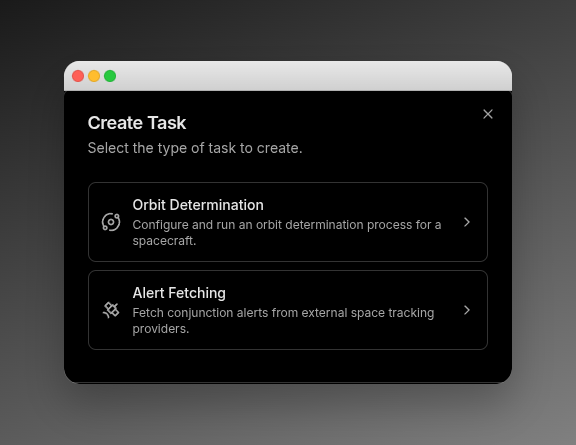 Choose one of the available task types:
| Task Type | Description |
| ----------------------- | ----------------------------------------------------------------- |
| **Orbit Determination** | Configure and run an orbit determination process for a spacecraft |
| **Alert Fetching** | Fetch conjunction alerts from external space tracking providers |
After selecting a type, the corresponding configuration dialog opens.
### Orbit Determination Tasks
The Orbit Determination dialog is a multi-step wizard. When creating a task, you first choose between **Run now** (execute immediately) or **Save as task** (save the configuration for reuse) using the mode selector in the dialog header.
Choose one of the available task types:
| Task Type | Description |
| ----------------------- | ----------------------------------------------------------------- |
| **Orbit Determination** | Configure and run an orbit determination process for a spacecraft |
| **Alert Fetching** | Fetch conjunction alerts from external space tracking providers |
After selecting a type, the corresponding configuration dialog opens.
### Orbit Determination Tasks
The Orbit Determination dialog is a multi-step wizard. When creating a task, you first choose between **Run now** (execute immediately) or **Save as task** (save the configuration for reuse) using the mode selector in the dialog header.
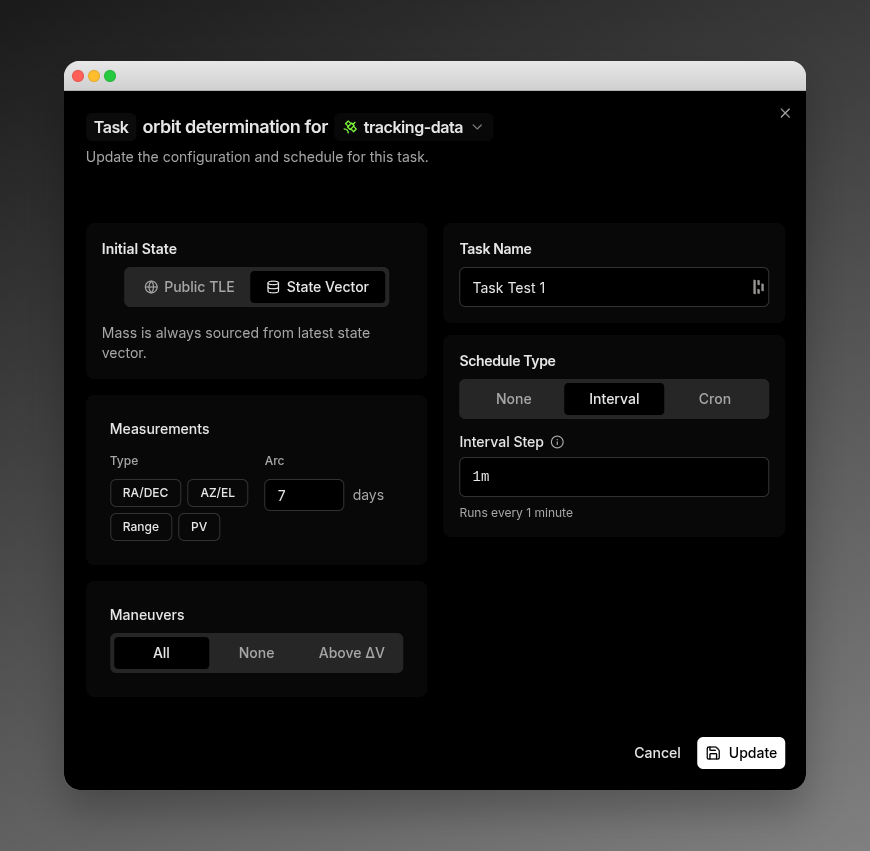 The wizard steps are:
1. **Initial State** — Select the orbit source (Public TLE or State Vector) and configure spacecraft mass
2. **Measurements** — Define the measurement arc (rolling window or custom range), select measurement types (RA/Dec, Az/El, Range, PV), and choose data sources
3. **Maneuvers** — Select which maneuvers to estimate thrust scale for (All, None, or Above ΔV threshold)
4. **Residuals** — Preview residual behavior before launching
5. **Review** — Verify all settings before saving or running
6. **Automation** — Configure the task name and schedule (only shown when saving as a task)
For a detailed guide on each configuration step, see [Orbit Determination](/features/orbit-determination).
### Alert Fetching Tasks
The Alert Fetching dialog is a single-screen modal. Use the mode selector in the header to switch between **Run** mode (execute immediately) and **Task** mode (save as a reusable task).
The wizard steps are:
1. **Initial State** — Select the orbit source (Public TLE or State Vector) and configure spacecraft mass
2. **Measurements** — Define the measurement arc (rolling window or custom range), select measurement types (RA/Dec, Az/El, Range, PV), and choose data sources
3. **Maneuvers** — Select which maneuvers to estimate thrust scale for (All, None, or Above ΔV threshold)
4. **Residuals** — Preview residual behavior before launching
5. **Review** — Verify all settings before saving or running
6. **Automation** — Configure the task name and schedule (only shown when saving as a task)
For a detailed guide on each configuration step, see [Orbit Determination](/features/orbit-determination).
### Alert Fetching Tasks
The Alert Fetching dialog is a single-screen modal. Use the mode selector in the header to switch between **Run** mode (execute immediately) and **Task** mode (save as a reusable task).
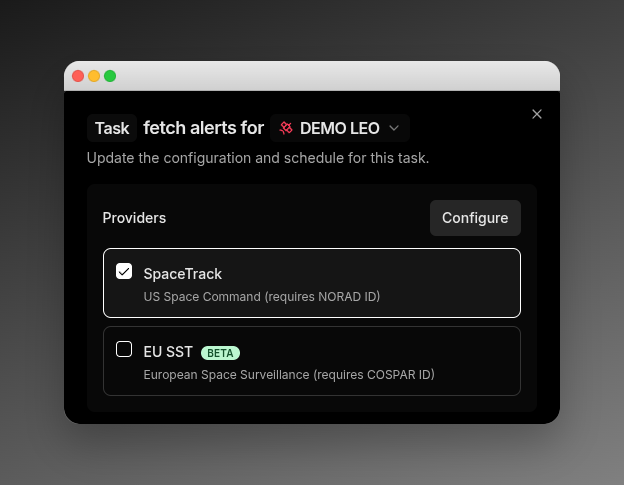 Configure the following:
* **Spacecraft** — Select which spacecraft to fetch alerts for (chosen from the header dropdown)
* **Providers** — Select one or more data sources:
| Provider | Requirement | Description |
| ----------------------------------------- | ----------- | ------------------------------------------- |
| [SpaceTrack](https://www.space-track.org) | NORAD ID | US Space Command conjunction data |
| [EU SST](https://www.eusst.eu) | COSPAR ID | European Space Surveillance & Tracking data |
Provider credentials must be configured in **Settings → Integrations → STM** before first use.
When in Task mode, the automation configuration appears below the provider selection, allowing you to name the task and set a schedule.
For more details on alert fetching and results, see [Fetch Alerts](/features/fetch-alerts).
## Scheduling & Automation
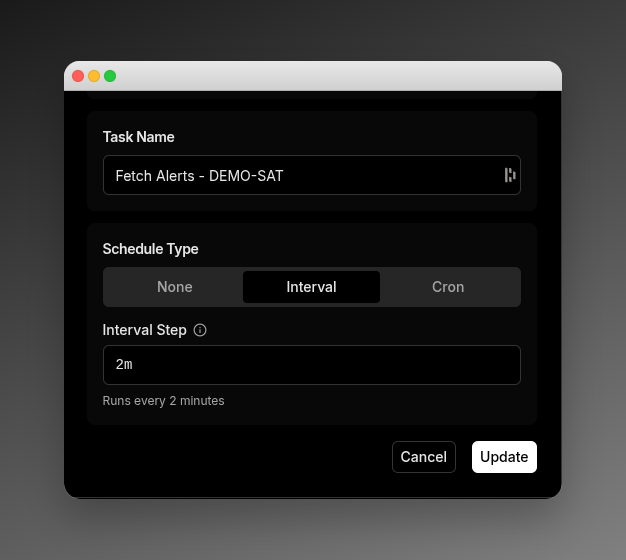
When saving a task, you configure its name and schedule in the automation section.
Configure the following:
* **Spacecraft** — Select which spacecraft to fetch alerts for (chosen from the header dropdown)
* **Providers** — Select one or more data sources:
| Provider | Requirement | Description |
| ----------------------------------------- | ----------- | ------------------------------------------- |
| [SpaceTrack](https://www.space-track.org) | NORAD ID | US Space Command conjunction data |
| [EU SST](https://www.eusst.eu) | COSPAR ID | European Space Surveillance & Tracking data |
Provider credentials must be configured in **Settings → Integrations → STM** before first use.
When in Task mode, the automation configuration appears below the provider selection, allowing you to name the task and set a schedule.
For more details on alert fetching and results, see [Fetch Alerts](/features/fetch-alerts).
## Scheduling & Automation
When saving a task, you configure its name and schedule in the automation section.
 ### Task Name
Enter a descriptive name for your task. This name appears on the task card in the dashboard and in notifications.
### Schedule Type
Choose how the task should be triggered:
| Schedule Type | Description |
| ------------- | ----------------------------------------------------------------------------------------------- |
| **None** | Manual trigger only — run the task on demand from the dashboard |
| **Interval** | Run at a fixed interval (e.g., every 6 hours) |
| **Cron** | Run on a custom schedule defined by a cron expression |
| **Event** | Run automatically when a configured event arrives (available for **Orbit Determination** tasks) |
### Interval Scheduling
Enter an interval using a number followed by a time unit:
| Format | Example | Description |
| ------ | ------- | ---------------- |
| `Nm` | `30m` | Every 30 minutes |
| `Nh` | `6h` | Every 6 hours |
| `Nd` | `1d` | Every day |
| `Nw` | `1w` | Every week |
### Cron Scheduling
Enter a 6-field cron expression in the format:
```
seconds minutes hours day month weekday
```
**Examples:**
| Expression | Description |
| ---------------- | ------------------------ |
| `0 0 */6 * * *` | Every 6 hours |
| `0 0 0 * * *` | Daily at midnight |
| `0 0 0 * * 0` | Every Sunday at midnight |
| `0 30 8 * * 1-5` | Weekdays at 8:30 AM |
### Event Scheduling
Event scheduling fires the task automatically when a matching event occurs — no schedule polling and no operator action required. The **Event** tab is available on **Orbit Determination** tasks; on other task types the tab appears disabled with the message *"No event triggers are supported for this task type yet."*.
The supported event is **New measurements**, which fires after a measurement batch is committed for any of the task's spacecraft. Each spacecraft in the batch is evaluated independently, so a single batch may start runs for some spacecraft and skip others.
#### Event Trigger Configuration
Configure these fields in the Event tab to control which batches start a run:
| Field | Description | Default |
| --------------------- | -------------------------------------------------------------------------------------------------------------------------------------------------------------- | -------------------- |
| **Event** | The event that fires this task. **New measurements** is the available event. | New measurements |
| **Measurement Types** | Restrict to batches containing at least one measurement of these types: **Range**, **RA/DEC**, **AZ/EL**, or **Position+Velocity**. | Any measurement type |
| **Sensors** | Restrict to batches containing at least one measurement from these sensors. Choose from the spacecraft's available sensors. | Any sensor |
| **Minimum Count** | Require the batch to contain at least this many measurements for the spacecraft. Range: `1`–`10000`. | `1` |
| **Debounce Window** | Suppress further runs for the same spacecraft until this duration has elapsed since the last run. Format: `Nm`, `Nh`, `Nd`, or `Nw` (e.g., `30m`, `6h`, `1d`). | No debounce |
When all filters are at their defaults, every matching batch fires the task for every spacecraft in its list. The dialog displays a warning when no filters are set.
When you save a **new** task with an event trigger, a confirmation dialog appears: *"Event trigger enabled. Runs will start from the next matching measurement batch; existing data will not be reprocessed."*. Editing an existing event-triggered task does not show this dialog.
#### Switching Between Trigger Types
Switching tabs between **None**, **Interval**, **Cron**, and **Event** discards the current trigger configuration. When the active tab has unsaved values, a confirmation dialog appears: *"Changing trigger type will discard your current trigger settings. Continue?"*. Click **Cancel** to keep the current settings or **Continue** to switch tabs and clear them.
For a detailed guide on Orbit Determination configuration that runs on each event, see [Orbit Determination](/features/orbit-determination). To learn more about measurement types and sensors that can be used as filters, see [Measurement Types](/platform-overview/measurement-types) and [Tracking Sensors](/features/tracking-sensors).
## Managing Tasks
### Running a Task
To execute a task immediately, click **⋮ → Run now** on the task card. The task runs with its saved configuration regardless of its schedule. A confirmation toast appears when the task starts.
### Enabling and Disabling
Toggle a task's automation using **⋮ → Enable** or **⋮ → Disable**. When disabled, the task retains its schedule configuration but will not run automatically. You can still run it manually.
### Editing a Task
Click **⋮ → Configure** to reopen the task's configuration dialog in edit mode. All previously saved settings are loaded, and you can modify any parameter including the schedule. Changes are saved when you confirm the dialog.
### Deleting a Task
Click **⋮ → Delete** to remove a task. A confirmation dialog appears before deletion. This action is permanent and cannot be undone.
## Task Runs
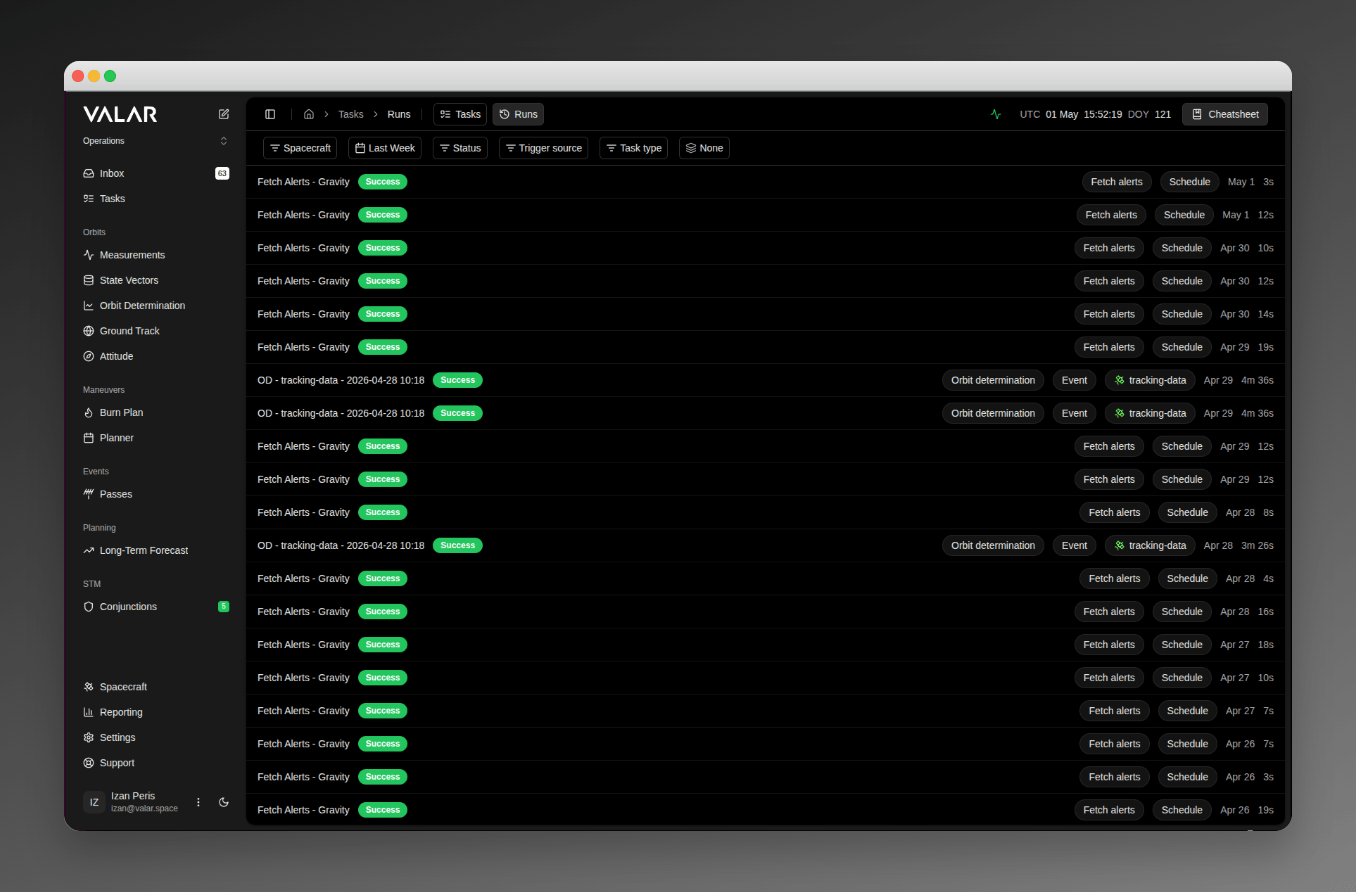
Click the **Runs** tab in the site header to open `/tasks/runs`, a centralized list of every task execution across every spacecraft in your tenant. The page polls for new runs every 10 seconds.
**Route:** `/tasks/runs`
### Task Name
Enter a descriptive name for your task. This name appears on the task card in the dashboard and in notifications.
### Schedule Type
Choose how the task should be triggered:
| Schedule Type | Description |
| ------------- | ----------------------------------------------------------------------------------------------- |
| **None** | Manual trigger only — run the task on demand from the dashboard |
| **Interval** | Run at a fixed interval (e.g., every 6 hours) |
| **Cron** | Run on a custom schedule defined by a cron expression |
| **Event** | Run automatically when a configured event arrives (available for **Orbit Determination** tasks) |
### Interval Scheduling
Enter an interval using a number followed by a time unit:
| Format | Example | Description |
| ------ | ------- | ---------------- |
| `Nm` | `30m` | Every 30 minutes |
| `Nh` | `6h` | Every 6 hours |
| `Nd` | `1d` | Every day |
| `Nw` | `1w` | Every week |
### Cron Scheduling
Enter a 6-field cron expression in the format:
```
seconds minutes hours day month weekday
```
**Examples:**
| Expression | Description |
| ---------------- | ------------------------ |
| `0 0 */6 * * *` | Every 6 hours |
| `0 0 0 * * *` | Daily at midnight |
| `0 0 0 * * 0` | Every Sunday at midnight |
| `0 30 8 * * 1-5` | Weekdays at 8:30 AM |
### Event Scheduling
Event scheduling fires the task automatically when a matching event occurs — no schedule polling and no operator action required. The **Event** tab is available on **Orbit Determination** tasks; on other task types the tab appears disabled with the message *"No event triggers are supported for this task type yet."*.
The supported event is **New measurements**, which fires after a measurement batch is committed for any of the task's spacecraft. Each spacecraft in the batch is evaluated independently, so a single batch may start runs for some spacecraft and skip others.
#### Event Trigger Configuration
Configure these fields in the Event tab to control which batches start a run:
| Field | Description | Default |
| --------------------- | -------------------------------------------------------------------------------------------------------------------------------------------------------------- | -------------------- |
| **Event** | The event that fires this task. **New measurements** is the available event. | New measurements |
| **Measurement Types** | Restrict to batches containing at least one measurement of these types: **Range**, **RA/DEC**, **AZ/EL**, or **Position+Velocity**. | Any measurement type |
| **Sensors** | Restrict to batches containing at least one measurement from these sensors. Choose from the spacecraft's available sensors. | Any sensor |
| **Minimum Count** | Require the batch to contain at least this many measurements for the spacecraft. Range: `1`–`10000`. | `1` |
| **Debounce Window** | Suppress further runs for the same spacecraft until this duration has elapsed since the last run. Format: `Nm`, `Nh`, `Nd`, or `Nw` (e.g., `30m`, `6h`, `1d`). | No debounce |
When all filters are at their defaults, every matching batch fires the task for every spacecraft in its list. The dialog displays a warning when no filters are set.
When you save a **new** task with an event trigger, a confirmation dialog appears: *"Event trigger enabled. Runs will start from the next matching measurement batch; existing data will not be reprocessed."*. Editing an existing event-triggered task does not show this dialog.
#### Switching Between Trigger Types
Switching tabs between **None**, **Interval**, **Cron**, and **Event** discards the current trigger configuration. When the active tab has unsaved values, a confirmation dialog appears: *"Changing trigger type will discard your current trigger settings. Continue?"*. Click **Cancel** to keep the current settings or **Continue** to switch tabs and clear them.
For a detailed guide on Orbit Determination configuration that runs on each event, see [Orbit Determination](/features/orbit-determination). To learn more about measurement types and sensors that can be used as filters, see [Measurement Types](/platform-overview/measurement-types) and [Tracking Sensors](/features/tracking-sensors).
## Managing Tasks
### Running a Task
To execute a task immediately, click **⋮ → Run now** on the task card. The task runs with its saved configuration regardless of its schedule. A confirmation toast appears when the task starts.
### Enabling and Disabling
Toggle a task's automation using **⋮ → Enable** or **⋮ → Disable**. When disabled, the task retains its schedule configuration but will not run automatically. You can still run it manually.
### Editing a Task
Click **⋮ → Configure** to reopen the task's configuration dialog in edit mode. All previously saved settings are loaded, and you can modify any parameter including the schedule. Changes are saved when you confirm the dialog.
### Deleting a Task
Click **⋮ → Delete** to remove a task. A confirmation dialog appears before deletion. This action is permanent and cannot be undone.
## Task Runs
Click the **Runs** tab in the site header to open `/tasks/runs`, a centralized list of every task execution across every spacecraft in your tenant. The page polls for new runs every 10 seconds.
**Route:** `/tasks/runs`
 ### Row Layout
Each run renders as a single horizontal row separated from its neighbours by a thin divider. The fields read left-to-right:
| Position | Field | Notes |
| -------- | ------------------ | ---------------------------------------------------------------------------------------------------------------------------- |
| Left | **Task name** | Bolded. Reads italic **Task deleted** when the originating task has been deleted. |
| Left | **Status badge** | Shows the run outcome — see *Status Values* below. **Skipped** rows wrap the badge in a tooltip with the skip reason. |
| Right | **Task type** | **Orbit determination** or **Fetch alerts**. |
| Right | **Trigger source** | **Schedule**, **Event**, or **Manual**. |
| Right | **Spacecraft** | A coloured chip with the spacecraft name (omitted for rows that aren't spacecraft-scoped). |
| Right | **Started** | Compact start date (e.g. `Apr 29`). |
| Right | **Duration** | Wall-clock runtime: `Xms` for sub-second runs, `Xs` under a minute, `Xm Ys` above. Empty for **Skipped** or **Queued** rows. |
Rows are sorted newest-first by start time.
### Status Values
| Status | Display | Meaning |
| ----------- | ------------- | ----------------------------------------------------------------------------------------------------------------------------------------------------------- |
| **Success** | Green badge | The run completed successfully. |
| **Failed** | Red badge | The run failed during execution. |
| **Running** | Blue badge | The run is currently executing. |
| **Timeout** | Red badge | The run exceeded its time budget. |
| **Skipped** | Muted badge | An incoming event was evaluated but did not start a run. Hover the badge for the concise reason, or click the row for the full filter-evaluation breakdown. |
| **Queued** | Outline badge | A prior run for the same spacecraft is still in progress; this row will start once that finishes. |
### Filtering Runs
Six filter controls live in the page topbar. All filter state and the **Group by** value persist in the URL — any view is bookmarkable and shareable.
| Filter | Type | Options | Default |
| ------------------ | ------------- | -------------------------------------------------------------------------- | --------- |
| **Status** | Multi-select | **Success**, **Failed**, **Running**, **Timeout**, **Skipped**, **Queued** | All |
| **Trigger source** | Multi-select | **Schedule**, **Event**, **Manual** | All |
| **Task type** | Multi-select | **Orbit determination**, **Fetch alerts** | All |
| **Spacecraft** | Multi-select | The spacecraft visible to your tenant | All |
| **Time range** | Single preset | **24h**, **Last Week**, **Last Month**, **All Time** | Last Week |
| **Group by** | Single select | **None**, **Task type**, **Spacecraft** | None |
Within a multi-select, runs matching any of the checked options are shown (logical OR). Filters across different dimensions combine with logical AND. Leaving a multi-select empty applies no filter on that dimension.
### Grouping Runs
Choose a **Group by** value to organise the list into collapsible sections without changing what is queried:
| Group by | Behaviour |
| -------------- | ---------------------------------------------------------------------------------------- |
| **None** | Flat list, newest-first. (Default.) |
| **Task type** | Rows are grouped under section headers per task type, with a count next to each header. |
| **Spacecraft** | Rows are grouped under section headers per spacecraft, with a count next to each header. |
Within each group, rows are still ordered newest-first.
### Row Actions
Click any row to open the originating task's configuration dialog — either the **Orbit Determination** wizard or the **Alert Fetching** modal, depending on the task type. The dialog opens in edit mode pre-loaded with the task's current settings.
Two exceptions:
* **Skipped rows** open the filter-evaluation popover (see [Skip Reasons](#skip-reasons)) instead of the configuration dialog.
* Rows whose task name reads **Task deleted** are not clickable — no dialog opens, no toast appears.
### Skip Reasons
Hover the **Status** badge on a **Skipped** row to see the concise reason as a tooltip. Click the row to open a popover showing how each filter was evaluated against the incoming batch (with the actual measurement types, sensors, count, and debounce values that the batch produced).
| Reason | Cause |
| ----------------------------------------- | -------------------------------------------------------------------------------------- |
| **No matching measurement type** | The batch did not contain any of the configured measurement types. |
| **No matching sensor** | The batch did not contain any data from the configured sensors. |
| **Below minimum count (X of Y required)** | The batch contained fewer measurements for the spacecraft than the configured minimum. |
| **Debounced — cooldown window active** | The debounce window from the previous run for this spacecraft has not yet elapsed. |
### Loading more runs
Rows load incrementally as you scroll — there are no pagination controls. The page polls for new runs every 10 seconds; fresh rows appear at the top of the list.
## Related Pages
* [Orbit Determination](/features/orbit-determination): Detailed guide to OD configuration and results
* [Measurements Data](/features/measurements-data): Inspect the measurement batches that fire event-triggered tasks
* [Tracking Sensors](/features/tracking-sensors): Configure sensors available as event-trigger filters
* [Fetch Alerts](/features/fetch-alerts): Detailed guide to alert fetching and provider setup
* [Conjunction Classification](/features/conjunction-classification): View and manage conjunction events
### Row Layout
Each run renders as a single horizontal row separated from its neighbours by a thin divider. The fields read left-to-right:
| Position | Field | Notes |
| -------- | ------------------ | ---------------------------------------------------------------------------------------------------------------------------- |
| Left | **Task name** | Bolded. Reads italic **Task deleted** when the originating task has been deleted. |
| Left | **Status badge** | Shows the run outcome — see *Status Values* below. **Skipped** rows wrap the badge in a tooltip with the skip reason. |
| Right | **Task type** | **Orbit determination** or **Fetch alerts**. |
| Right | **Trigger source** | **Schedule**, **Event**, or **Manual**. |
| Right | **Spacecraft** | A coloured chip with the spacecraft name (omitted for rows that aren't spacecraft-scoped). |
| Right | **Started** | Compact start date (e.g. `Apr 29`). |
| Right | **Duration** | Wall-clock runtime: `Xms` for sub-second runs, `Xs` under a minute, `Xm Ys` above. Empty for **Skipped** or **Queued** rows. |
Rows are sorted newest-first by start time.
### Status Values
| Status | Display | Meaning |
| ----------- | ------------- | ----------------------------------------------------------------------------------------------------------------------------------------------------------- |
| **Success** | Green badge | The run completed successfully. |
| **Failed** | Red badge | The run failed during execution. |
| **Running** | Blue badge | The run is currently executing. |
| **Timeout** | Red badge | The run exceeded its time budget. |
| **Skipped** | Muted badge | An incoming event was evaluated but did not start a run. Hover the badge for the concise reason, or click the row for the full filter-evaluation breakdown. |
| **Queued** | Outline badge | A prior run for the same spacecraft is still in progress; this row will start once that finishes. |
### Filtering Runs
Six filter controls live in the page topbar. All filter state and the **Group by** value persist in the URL — any view is bookmarkable and shareable.
| Filter | Type | Options | Default |
| ------------------ | ------------- | -------------------------------------------------------------------------- | --------- |
| **Status** | Multi-select | **Success**, **Failed**, **Running**, **Timeout**, **Skipped**, **Queued** | All |
| **Trigger source** | Multi-select | **Schedule**, **Event**, **Manual** | All |
| **Task type** | Multi-select | **Orbit determination**, **Fetch alerts** | All |
| **Spacecraft** | Multi-select | The spacecraft visible to your tenant | All |
| **Time range** | Single preset | **24h**, **Last Week**, **Last Month**, **All Time** | Last Week |
| **Group by** | Single select | **None**, **Task type**, **Spacecraft** | None |
Within a multi-select, runs matching any of the checked options are shown (logical OR). Filters across different dimensions combine with logical AND. Leaving a multi-select empty applies no filter on that dimension.
### Grouping Runs
Choose a **Group by** value to organise the list into collapsible sections without changing what is queried:
| Group by | Behaviour |
| -------------- | ---------------------------------------------------------------------------------------- |
| **None** | Flat list, newest-first. (Default.) |
| **Task type** | Rows are grouped under section headers per task type, with a count next to each header. |
| **Spacecraft** | Rows are grouped under section headers per spacecraft, with a count next to each header. |
Within each group, rows are still ordered newest-first.
### Row Actions
Click any row to open the originating task's configuration dialog — either the **Orbit Determination** wizard or the **Alert Fetching** modal, depending on the task type. The dialog opens in edit mode pre-loaded with the task's current settings.
Two exceptions:
* **Skipped rows** open the filter-evaluation popover (see [Skip Reasons](#skip-reasons)) instead of the configuration dialog.
* Rows whose task name reads **Task deleted** are not clickable — no dialog opens, no toast appears.
### Skip Reasons
Hover the **Status** badge on a **Skipped** row to see the concise reason as a tooltip. Click the row to open a popover showing how each filter was evaluated against the incoming batch (with the actual measurement types, sensors, count, and debounce values that the batch produced).
| Reason | Cause |
| ----------------------------------------- | -------------------------------------------------------------------------------------- |
| **No matching measurement type** | The batch did not contain any of the configured measurement types. |
| **No matching sensor** | The batch did not contain any data from the configured sensors. |
| **Below minimum count (X of Y required)** | The batch contained fewer measurements for the spacecraft than the configured minimum. |
| **Debounced — cooldown window active** | The debounce window from the previous run for this spacecraft has not yet elapsed. |
### Loading more runs
Rows load incrementally as you scroll — there are no pagination controls. The page polls for new runs every 10 seconds; fresh rows appear at the top of the list.
## Related Pages
* [Orbit Determination](/features/orbit-determination): Detailed guide to OD configuration and results
* [Measurements Data](/features/measurements-data): Inspect the measurement batches that fire event-triggered tasks
* [Tracking Sensors](/features/tracking-sensors): Configure sensors available as event-trigger filters
* [Fetch Alerts](/features/fetch-alerts): Detailed guide to alert fetching and provider setup
* [Conjunction Classification](/features/conjunction-classification): View and manage conjunction events