> ## Documentation Index
> Fetch the complete documentation index at: https://docs.valar.space/llms.txt
> Use this file to discover all available pages before exploring further.
# Creating Your First Spacecraft
> Create and configure your first spacecraft on the New Spacecraft page
> For the complete documentation index, see [llms.txt](/llms.txt).
Before you can track orbits, plan maneuvers, or predict communication windows, you need to register your spacecraft. After logging in, navigate to **Spacecraft** in the left sidebar. The detail page is organised by fidelity tier — **Identifiers**, **Cannonball model** (bulk mass plus single drag and SRP area coefficients), **Advanced geometry** (bus dimensions, panel definition, and mounted components), and a **Danger Zone** for archive and restore actions.
## Quick Start
Click **New Spacecraft** in the top-bar of the Spacecraft page to navigate to the **`/spacecraft/new`** creation page. The page mirrors the detail-page layout — the same **Identifiers**, **Cannonball model**, and **Advanced geometry** sections — but starts empty with every card already in edit mode. Required fields are marked with an asterisk and the page-level **Create Spacecraft** button at the bottom refuses to submit until every required field is filled.
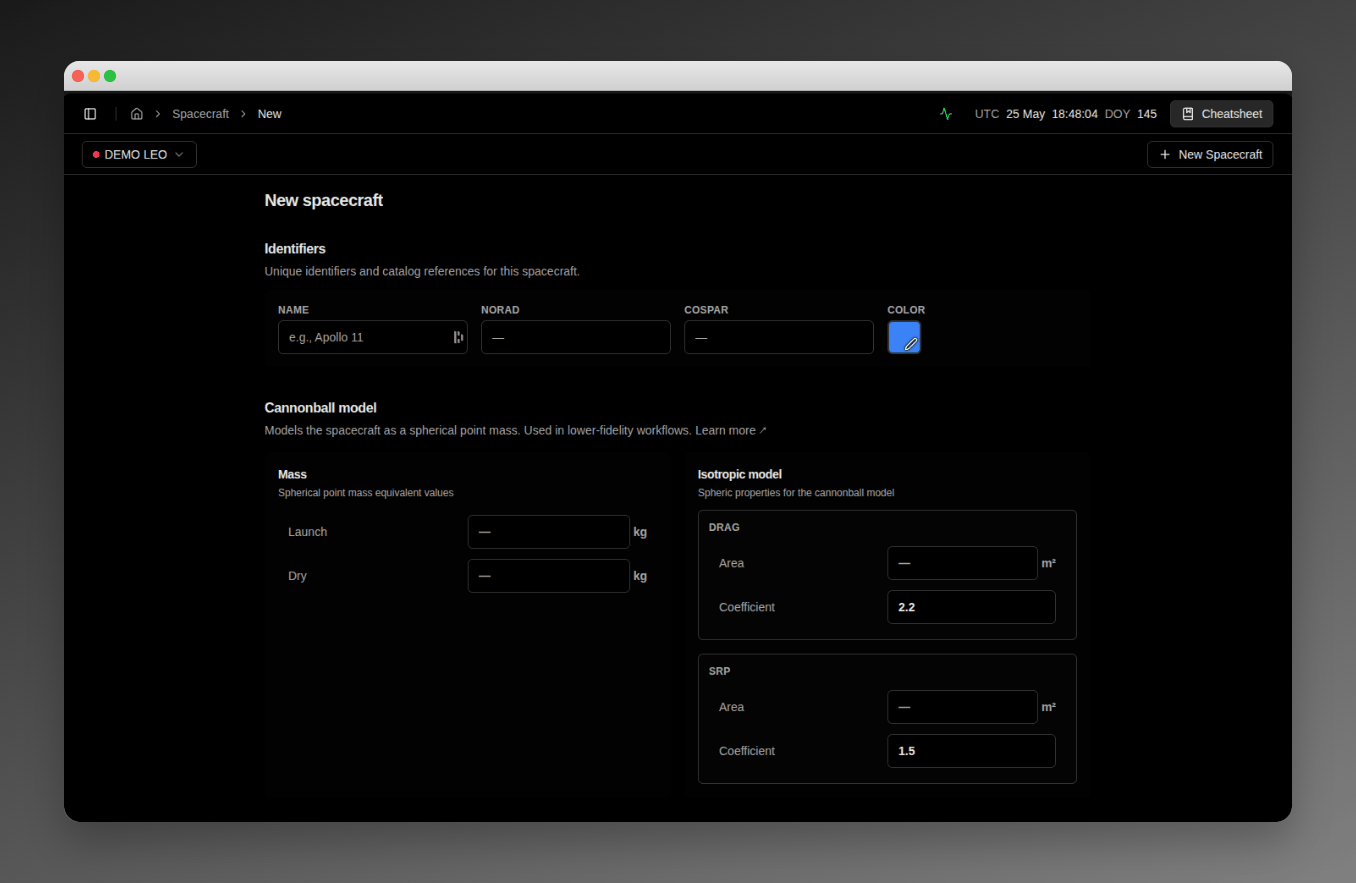 After you create the spacecraft, you'll land on the detail page that documents each section in full:
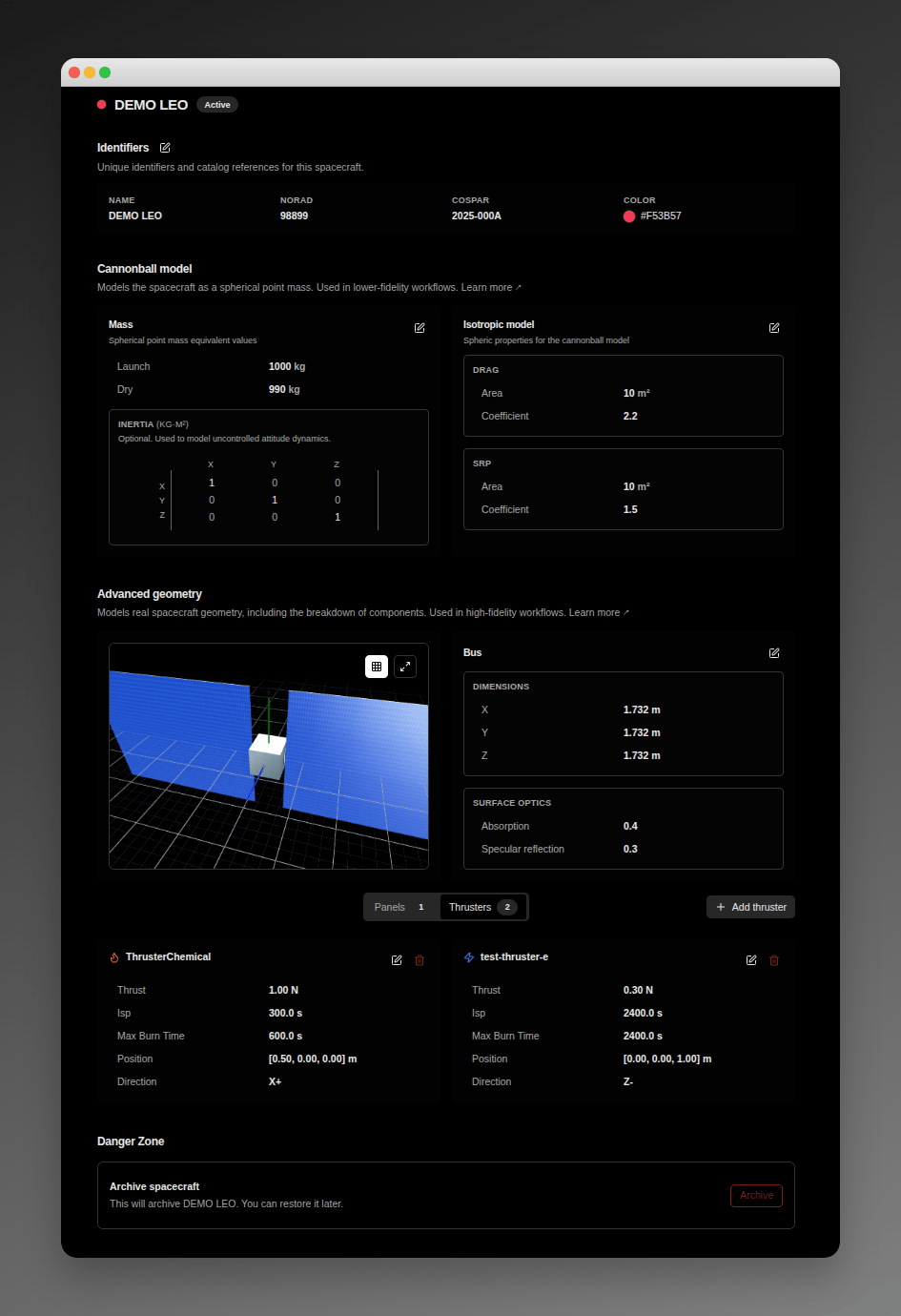 ## Identifiers
The first section on the page carries four fields:
| Field | Description | Required |
| ------------- | ------------------------------------------------------------------------------------------------------------------------------------------------------------------------------------------------------------------------------------------- | --------------------------------- |
| **Name** | The spacecraft's identifier throughout the platform. Make it memorable and unique within your organisation (for example, `Sentinel-1A`). | Yes |
| **NORAD ID** | The catalog number assigned by NORAD — a whole number up to 6 digits (for example, `25544` for the ISS). Leave blank if not yet launched. | No |
| **COSPAR ID** | International designator in the format `YYYY-NNNA` — `YYYY` is the launch year, `NNN` the launch number of that year, and `A` the piece designator (A = primary payload, B/C = secondary). Example: `1969-059A` (Apollo 11 command module). | No |
| **Colour** | Visual identifier shown throughout the platform — in orbital visualisations, conjunction graphs, and all charts. Pick a distinct colour so multi-spacecraft views are easy to scan. | No (defaults to a neutral colour) |
A blank or whitespace-only **Name** shows the literal `"Required"` inline next to the field and blocks the submit.
## Cannonball Model
The cannonball model is the default fidelity tier — bulk mass plus single drag and SRP area coefficients. The platform's default propagation and conjunction stack uses these values, so the page requires all the values below except **Dry Mass**:
| Field | Description | Unit | Required |
| ---------------------------- | ----------------------------------------------------------------------------------------------------------------------------------------------------- | ---- | -------- |
| **Launch Mass** | Initial mass at launch, with full propellant. | kg | Yes |
| **Dry Mass** | Mass without consumables — permanent structure only. Must be ≤ Launch Mass. | kg | No |
| **Drag area** | Cross-sectional area presented to the relative wind during atmospheric drag computation. Operator-typed — never derived from box or panel dimensions. | m² | Yes |
| **SRP area** | Cross-sectional area presented to the Sun-line during solar radiation pressure computation. Operator-typed — never derived from any geometry. | m² | Yes |
| **Drag coefficient** | Atmospheric drag parameter. Typical range `2.0`–`2.2` — smooth spacecraft `~2.0`, blocky with antennas `~2.2`+. Recommended default `2.2`. | — | Yes |
| **Reflectivity coefficient** | Solar radiation pressure parameter. Range `[1, 2]` — `1` is a perfect absorber, `2` is a perfect mirror, `~1.5` is typical for mixed surfaces. | — | Yes |
**Validation:** any blank required field shows `"Required"` inline. The page stays open and nothing is created until every required field is filled. See [Validation Feedback](#validation-feedback) for the full per-field surface that appears as you type.
**Drag area** and **SRP area** are always operator-typed. The platform does not derive either from box or panel dimensions, even when those are configured. The two values let you tune drag without perturbing SRP and vice versa.
## Advanced Geometry
The Advanced geometry section is optional on the creation page — leave it blank for a cannonball-only spacecraft and add the geometry later from the **Bus** card and **Panel definition** card on the detail page. When you do fill it in here, the page pre-fills **Number of panel pairs** to `2` and **Panel normal** to `+X` — both match the everyday default and rarely need tuning for newcomers.
## Identifiers
The first section on the page carries four fields:
| Field | Description | Required |
| ------------- | ------------------------------------------------------------------------------------------------------------------------------------------------------------------------------------------------------------------------------------------- | --------------------------------- |
| **Name** | The spacecraft's identifier throughout the platform. Make it memorable and unique within your organisation (for example, `Sentinel-1A`). | Yes |
| **NORAD ID** | The catalog number assigned by NORAD — a whole number up to 6 digits (for example, `25544` for the ISS). Leave blank if not yet launched. | No |
| **COSPAR ID** | International designator in the format `YYYY-NNNA` — `YYYY` is the launch year, `NNN` the launch number of that year, and `A` the piece designator (A = primary payload, B/C = secondary). Example: `1969-059A` (Apollo 11 command module). | No |
| **Colour** | Visual identifier shown throughout the platform — in orbital visualisations, conjunction graphs, and all charts. Pick a distinct colour so multi-spacecraft views are easy to scan. | No (defaults to a neutral colour) |
A blank or whitespace-only **Name** shows the literal `"Required"` inline next to the field and blocks the submit.
## Cannonball Model
The cannonball model is the default fidelity tier — bulk mass plus single drag and SRP area coefficients. The platform's default propagation and conjunction stack uses these values, so the page requires all the values below except **Dry Mass**:
| Field | Description | Unit | Required |
| ---------------------------- | ----------------------------------------------------------------------------------------------------------------------------------------------------- | ---- | -------- |
| **Launch Mass** | Initial mass at launch, with full propellant. | kg | Yes |
| **Dry Mass** | Mass without consumables — permanent structure only. Must be ≤ Launch Mass. | kg | No |
| **Drag area** | Cross-sectional area presented to the relative wind during atmospheric drag computation. Operator-typed — never derived from box or panel dimensions. | m² | Yes |
| **SRP area** | Cross-sectional area presented to the Sun-line during solar radiation pressure computation. Operator-typed — never derived from any geometry. | m² | Yes |
| **Drag coefficient** | Atmospheric drag parameter. Typical range `2.0`–`2.2` — smooth spacecraft `~2.0`, blocky with antennas `~2.2`+. Recommended default `2.2`. | — | Yes |
| **Reflectivity coefficient** | Solar radiation pressure parameter. Range `[1, 2]` — `1` is a perfect absorber, `2` is a perfect mirror, `~1.5` is typical for mixed surfaces. | — | Yes |
**Validation:** any blank required field shows `"Required"` inline. The page stays open and nothing is created until every required field is filled. See [Validation Feedback](#validation-feedback) for the full per-field surface that appears as you type.
**Drag area** and **SRP area** are always operator-typed. The platform does not derive either from box or panel dimensions, even when those are configured. The two values let you tune drag without perturbing SRP and vice versa.
## Advanced Geometry
The Advanced geometry section is optional on the creation page — leave it blank for a cannonball-only spacecraft and add the geometry later from the **Bus** card and **Panel definition** card on the detail page. When you do fill it in here, the page pre-fills **Number of panel pairs** to `2` and **Panel normal** to `+X` — both match the everyday default and rarely need tuning for newcomers.
 ### Bus shape
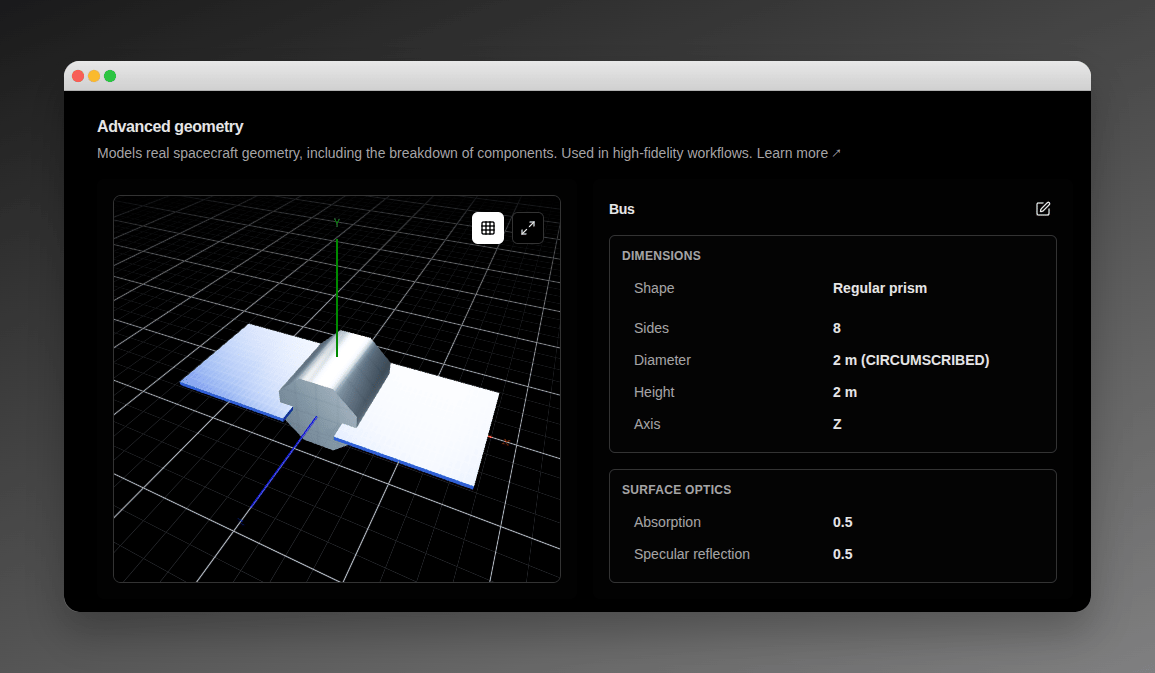
The **Bus** card opens with a **Shape** selector — choose **Box** or **Regular prism**. You define the whole bus from this single card during creation, with no extra navigation step. Switching the **Shape** clears the dimension inputs entered for the previous shape.
A **Box** bus shows three dimension fields (**Length**, **Width**, **Height**) and no prism fields — a CubeSat might be `0.1 m` per side, while larger satellites can run several metres. A **Regular prism** bus replaces them with the polygon-prism inputs:
| Field | Description | Unit |
| ------------ | -------------------------------------------------------------------------------------------------------------------------------------------------------------------------------------------------------------------- | ---- |
| **Sides** | Number of polygon sides — an integer from `3` to `12`. Rejected inline with `"Sides must be between 3 and 12"`. | — |
| **Diameter** | Cross-section diameter, with an **Inscribed / Circumscribed** measure toggle — **Inscribed** is across the flats, **Circumscribed** is across the corners. Rejected inline with `"Diameter must be greater than 0"`. | m |
| **Height** | Prism height along the extrusion axis. Rejected inline with `"Height must be greater than 0"`. | m |
| **Axis** | Extrusion axis — `X`, `Y`, or `Z` (default `Z`). | — |
In read mode the diameter is shown with its measure, for example `1.0 m (Inscribed)`.
The 3D viewer beside the card renders the bus in its true shape — the configured polygon prism for a regular-prism spacecraft, or a box for a box spacecraft.
When no [attitude profile](/features/attitude/overview) is configured, the Bus card shows the inline note **"faceted forces apply once an attitude profile is configured"** for both box and regular-prism shapes — the faceted radiation model engages once you add an attitude profile.
### Panels
| Field | Description | Unit |
| ----------------------------------------------- | -------------------------------------------------------------------------- | ---- |
| **Panel dimensions — Length, Width, Thickness** | Solar-array dimensions per panel. Thickness is typically `0.01 m` or less. | m |
## Validation Feedback
As you fill the form, each input shows inline feedback below it — the same surface you'll see on every detail-page card after creation:
| State | Indicator | Meaning |
| ----------------------------- | ----------------------- | ----------------------------------------------------------------------------------------------------------------------------------------------------- |
| **Error** (red) | Alert icon + red text | The value is invalid and blocks the submit. Examples: a blank Name, a negative inertia moment after creation, a custom Panel normal of `(0, 0, 0)`. |
| **Warning** (amber) | Alert icon + amber text | The value submits but falls outside the typical range. Useful as an early sanity-check on out-of-band Drag / SRP areas or coefficients. |
| **Unable to validate** (grey) | Muted text | The validator could not respond — usually a transient network or backend issue. You can still submit; the per-field rule re-runs on the next attempt. |
| **Valid** (green) | Check icon | The value passed validation. |
**Cross-field area-ratio warning** — when you've touched both **Drag area** and **SRP area**, an amber warning appears on the Cannonball model section if the ratio of SRP area to drag area is outside the typical band:
> Ratio of SRP area to drag area is outside typical range — check for unit confusion or stale geometry
The warning is non-blocking — you can still submit — but is a strong hint that one of the two values is wrong (commonly a `cm²` vs. `m²` slip).
## Creating the Spacecraft
Click **Create Spacecraft** at the bottom of the page to submit. On success the platform:
* Shows a confirmation toast.
* Navigates to the new spacecraft's detail page so you can complete the remaining configuration.
**Cancel** at the bottom of the page returns you to the spacecraft list without saving. If the submit fails (a backend rejection, a network error), the page stays open with your entered values intact and shows the error message inline so you can correct and retry.
## Completing the Configuration
Several fields live on the detail page rather than on the creation page. Visit each card after creation:
### Inertia tensor — Mass card
The **Mass** card in the Cannonball model section hosts the inertia tensor — three principal moments (`Ixx`, `Iyy`, `Izz`) displayed as a 3×3 matrix with the moments on the diagonal and zeros off-diagonal. Set all three moments together (or leave all three blank). Validation rejects partial or non-positive entries:
| Condition | Message |
| ---------------------------------- | ------------------------------------------------------------ |
| Some moments set but not all three | `"Inertia tensor must have all three moments set, or none."` |
| Any moment is zero or negative | `"Inertia principal moments must be positive numbers."` |
### Surface optics — Bus card
The **Bus** card in the Advanced geometry section holds two surface-optics fields used by the faceted radiation model when the spacecraft also has an [attitude profile](/features/attitude/overview) configured:
| Field | Description |
| ---------------------------- | ------------------------------------------ |
| **Absorption (α)** | Per-facet optical absorption coefficient. |
| **Specular reflection (ρs)** | Per-facet specular reflection coefficient. |
### Panel normal — Panel definition card
The **Panel definition** card in the **Panels** tab of the Advanced geometry section holds the panel-normal selector — choose one of `+X`, `-X`, `+Y`, `-Y`, `+Z`, `-Z`, or `Custom` (which reveals three numeric sub-inputs for an arbitrary vector). A zero-length custom vector is rejected with the message `"Panel normal must be a non-zero direction."`. Any other vector is accepted and normalised internally.
### Thrusters — Thrusters tab
The **Thrusters** tab in the Advanced geometry section lists every thruster mounted on the spacecraft. Click **Add thruster** to open the thruster dialog and configure each one:
### Bus shape
The **Bus** card opens with a **Shape** selector — choose **Box** or **Regular prism**. You define the whole bus from this single card during creation, with no extra navigation step. Switching the **Shape** clears the dimension inputs entered for the previous shape.
A **Box** bus shows three dimension fields (**Length**, **Width**, **Height**) and no prism fields — a CubeSat might be `0.1 m` per side, while larger satellites can run several metres. A **Regular prism** bus replaces them with the polygon-prism inputs:
| Field | Description | Unit |
| ------------ | -------------------------------------------------------------------------------------------------------------------------------------------------------------------------------------------------------------------- | ---- |
| **Sides** | Number of polygon sides — an integer from `3` to `12`. Rejected inline with `"Sides must be between 3 and 12"`. | — |
| **Diameter** | Cross-section diameter, with an **Inscribed / Circumscribed** measure toggle — **Inscribed** is across the flats, **Circumscribed** is across the corners. Rejected inline with `"Diameter must be greater than 0"`. | m |
| **Height** | Prism height along the extrusion axis. Rejected inline with `"Height must be greater than 0"`. | m |
| **Axis** | Extrusion axis — `X`, `Y`, or `Z` (default `Z`). | — |
In read mode the diameter is shown with its measure, for example `1.0 m (Inscribed)`.
The 3D viewer beside the card renders the bus in its true shape — the configured polygon prism for a regular-prism spacecraft, or a box for a box spacecraft.
When no [attitude profile](/features/attitude/overview) is configured, the Bus card shows the inline note **"faceted forces apply once an attitude profile is configured"** for both box and regular-prism shapes — the faceted radiation model engages once you add an attitude profile.
### Panels
| Field | Description | Unit |
| ----------------------------------------------- | -------------------------------------------------------------------------- | ---- |
| **Panel dimensions — Length, Width, Thickness** | Solar-array dimensions per panel. Thickness is typically `0.01 m` or less. | m |
## Validation Feedback
As you fill the form, each input shows inline feedback below it — the same surface you'll see on every detail-page card after creation:
| State | Indicator | Meaning |
| ----------------------------- | ----------------------- | ----------------------------------------------------------------------------------------------------------------------------------------------------- |
| **Error** (red) | Alert icon + red text | The value is invalid and blocks the submit. Examples: a blank Name, a negative inertia moment after creation, a custom Panel normal of `(0, 0, 0)`. |
| **Warning** (amber) | Alert icon + amber text | The value submits but falls outside the typical range. Useful as an early sanity-check on out-of-band Drag / SRP areas or coefficients. |
| **Unable to validate** (grey) | Muted text | The validator could not respond — usually a transient network or backend issue. You can still submit; the per-field rule re-runs on the next attempt. |
| **Valid** (green) | Check icon | The value passed validation. |
**Cross-field area-ratio warning** — when you've touched both **Drag area** and **SRP area**, an amber warning appears on the Cannonball model section if the ratio of SRP area to drag area is outside the typical band:
> Ratio of SRP area to drag area is outside typical range — check for unit confusion or stale geometry
The warning is non-blocking — you can still submit — but is a strong hint that one of the two values is wrong (commonly a `cm²` vs. `m²` slip).
## Creating the Spacecraft
Click **Create Spacecraft** at the bottom of the page to submit. On success the platform:
* Shows a confirmation toast.
* Navigates to the new spacecraft's detail page so you can complete the remaining configuration.
**Cancel** at the bottom of the page returns you to the spacecraft list without saving. If the submit fails (a backend rejection, a network error), the page stays open with your entered values intact and shows the error message inline so you can correct and retry.
## Completing the Configuration
Several fields live on the detail page rather than on the creation page. Visit each card after creation:
### Inertia tensor — Mass card
The **Mass** card in the Cannonball model section hosts the inertia tensor — three principal moments (`Ixx`, `Iyy`, `Izz`) displayed as a 3×3 matrix with the moments on the diagonal and zeros off-diagonal. Set all three moments together (or leave all three blank). Validation rejects partial or non-positive entries:
| Condition | Message |
| ---------------------------------- | ------------------------------------------------------------ |
| Some moments set but not all three | `"Inertia tensor must have all three moments set, or none."` |
| Any moment is zero or negative | `"Inertia principal moments must be positive numbers."` |
### Surface optics — Bus card
The **Bus** card in the Advanced geometry section holds two surface-optics fields used by the faceted radiation model when the spacecraft also has an [attitude profile](/features/attitude/overview) configured:
| Field | Description |
| ---------------------------- | ------------------------------------------ |
| **Absorption (α)** | Per-facet optical absorption coefficient. |
| **Specular reflection (ρs)** | Per-facet specular reflection coefficient. |
### Panel normal — Panel definition card
The **Panel definition** card in the **Panels** tab of the Advanced geometry section holds the panel-normal selector — choose one of `+X`, `-X`, `+Y`, `-Y`, `+Z`, `-Z`, or `Custom` (which reveals three numeric sub-inputs for an arbitrary vector). A zero-length custom vector is rejected with the message `"Panel normal must be a non-zero direction."`. Any other vector is accepted and normalised internally.
### Thrusters — Thrusters tab
The **Thrusters** tab in the Advanced geometry section lists every thruster mounted on the spacecraft. Click **Add thruster** to open the thruster dialog and configure each one:
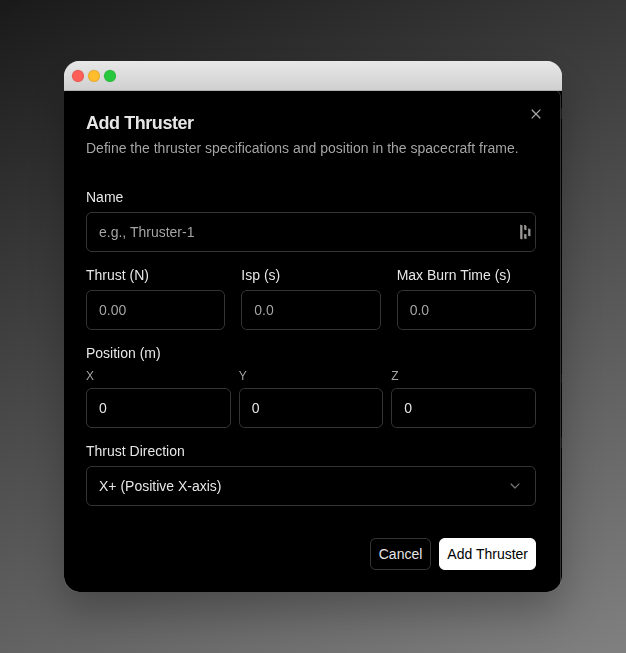 | Field | Description |
| -------------------------- | ------------------------------------------------------------------------------------------------------------------------------------------------------------------------------------------------------------- |
| **Name** | Identifier (for example, `Main Engine`, `Thruster-1`). |
| **Thrust** | Thrust force output, in Newtons. Higher thrust enables faster orbit changes but typically consumes more propellant. Attitude control: `0.1`–`1 N`. Main propulsion: `10`–`100 N`. Heavy spacecraft: `500+ N`. |
| **Specific Impulse (Isp)** | Efficiency in seconds — how effectively the thruster converts propellant mass into thrust. Chemical thrusters: `200`–`300 s`. Electric thrusters: `1,000+ s` (low thrust, very high efficiency). |
| **Max Burn Time** | Maximum continuous firing duration (for example, `600 s`). |
| **Position (X, Y, Z)** | Location relative to the spacecraft centre of mass, in metres. |
| **Direction** | Thrust vector axis — one of `X+`, `X-`, `Y+`, `Y-`, `Z+`, `Z-`. |
Deleting a thruster prompts a confirmation before applying.
### Payloads — Payloads tab
The **Payloads** tab in the Advanced geometry section lists the on-board sensors mounted on the spacecraft — each one a body-frame boresight axis plus a field of view. Payloads are added **inline** (not in a dialog): click **Add payload**, fill the card in place, and **Save** it. To add one:
1. **Name** the payload (for example, `Imager-1`). A name is required.
2. Set the **Position (m)** — the **X**, **Y**, **Z** attachment coordinates on the spacecraft body, in metres; any component may be negative.
3. Pick the **Boresight** — the body-frame axis the payload points along, one of `X+`, `X-`, `Y+`, `Y-`, `Z+`, `Z-`.
4. Choose the **FOV shape**, then fill the half-angle fields that appear for it (every angle is measured from the boresight to the edge of the field of view):
* **Conical** — one half-angle from `0°` to `90°` (`90°` is a full hemisphere).
* **Rectangular** or **Elliptical** — a half-width and a half-height, each above `0°` and below `90°`.
* **Polygon** — at least `3` sides and a radius half-angle above `0°` and below `90°`, measured from the boresight to a vertex.
A spacecraft holds up to **8** payloads; once eight are configured the **Add payload** button is disabled with a **Maximum 8 payloads** tooltip. Each payload's field of view is drawn live in the 3D viewer, oriented along its boresight with its apex at the attachment position. Payloads are optional — a spacecraft with no payloads is still complete.
## Editing After Creation
The detail page uses per-card editing — each card has its own **Edit**, **Save**, and **Cancel** controls. Entering edit mode on one card leaves every other card in read mode. While a save is in flight the card's button shows `Saving...` and its inputs are disabled until the save completes. **Cancel** discards your draft and restores the last-saved values.
The Identifiers section is the one exception: it edits all four identifier fields under a single section-level **Edit** control.
For a full walk-through of each section and its fields, see [Spacecraft Management](/features/spacecraft-management).
## What Makes a "Complete" Spacecraft?
The creation page only requires identifiers, the cannonball model values, and a few optional geometry hints, but a complete spacecraft has:
1. **Full identification**: Name, NORAD ID, COSPAR ID — establishes the spacecraft's official identity.
2. **Cannonball model**: Launch and dry mass, drag and SRP areas, drag and reflectivity coefficients — enables default propagation and conjunction analysis.
3. **Inertia tensor**: Three principal moments — required for attitude propagation and any analysis sensitive to rotational dynamics.
4. **Advanced geometry**: Bus dimensions, surface optics, panel definition, panel normal — enables the faceted radiation model.
5. **Orbital data**: State vectors or TLEs — tells the platform where the spacecraft is and where it's going.
6. **Propulsion**: Defined thrusters with positions and performance characteristics — enables maneuver planning.
7. **Payloads** (optional): On-board sensors with a boresight axis and field of view — describes what the spacecraft observes. A spacecraft with no payloads is still complete.
You can fill these in progressively. Start with what you have and add the rest as it becomes available during development, launch, and operations.
## Common Questions
**Q: I don't know the drag coefficient.** A: Use `2.2`. It works for most satellites.
**Q: Should I register a spacecraft before launch?** A: Yes. Register the spacecraft as soon as you have a name and the cannonball model values; leave NORAD and COSPAR IDs blank until they are assigned after launch.
**Q: What if I make a mistake?** A: Every section on the detail page is editable. Click **Edit** on the relevant card and save your correction.
**Q: Do I need to understand orbital mechanics?** A: No. The platform handles the calculations — you describe physical properties.
**Q: Can I create multiple spacecraft?** A: Yes. There's no limit. Create entries for an entire constellation or manage multiple missions simultaneously.
***
Detail-page sections, per-card editing, and the Danger Zone.
Import orbital data for your spacecraft.
Continue your onboarding journey.
Navigate the VALAR interface.
| Field | Description |
| -------------------------- | ------------------------------------------------------------------------------------------------------------------------------------------------------------------------------------------------------------- |
| **Name** | Identifier (for example, `Main Engine`, `Thruster-1`). |
| **Thrust** | Thrust force output, in Newtons. Higher thrust enables faster orbit changes but typically consumes more propellant. Attitude control: `0.1`–`1 N`. Main propulsion: `10`–`100 N`. Heavy spacecraft: `500+ N`. |
| **Specific Impulse (Isp)** | Efficiency in seconds — how effectively the thruster converts propellant mass into thrust. Chemical thrusters: `200`–`300 s`. Electric thrusters: `1,000+ s` (low thrust, very high efficiency). |
| **Max Burn Time** | Maximum continuous firing duration (for example, `600 s`). |
| **Position (X, Y, Z)** | Location relative to the spacecraft centre of mass, in metres. |
| **Direction** | Thrust vector axis — one of `X+`, `X-`, `Y+`, `Y-`, `Z+`, `Z-`. |
Deleting a thruster prompts a confirmation before applying.
### Payloads — Payloads tab
The **Payloads** tab in the Advanced geometry section lists the on-board sensors mounted on the spacecraft — each one a body-frame boresight axis plus a field of view. Payloads are added **inline** (not in a dialog): click **Add payload**, fill the card in place, and **Save** it. To add one:
1. **Name** the payload (for example, `Imager-1`). A name is required.
2. Set the **Position (m)** — the **X**, **Y**, **Z** attachment coordinates on the spacecraft body, in metres; any component may be negative.
3. Pick the **Boresight** — the body-frame axis the payload points along, one of `X+`, `X-`, `Y+`, `Y-`, `Z+`, `Z-`.
4. Choose the **FOV shape**, then fill the half-angle fields that appear for it (every angle is measured from the boresight to the edge of the field of view):
* **Conical** — one half-angle from `0°` to `90°` (`90°` is a full hemisphere).
* **Rectangular** or **Elliptical** — a half-width and a half-height, each above `0°` and below `90°`.
* **Polygon** — at least `3` sides and a radius half-angle above `0°` and below `90°`, measured from the boresight to a vertex.
A spacecraft holds up to **8** payloads; once eight are configured the **Add payload** button is disabled with a **Maximum 8 payloads** tooltip. Each payload's field of view is drawn live in the 3D viewer, oriented along its boresight with its apex at the attachment position. Payloads are optional — a spacecraft with no payloads is still complete.
## Editing After Creation
The detail page uses per-card editing — each card has its own **Edit**, **Save**, and **Cancel** controls. Entering edit mode on one card leaves every other card in read mode. While a save is in flight the card's button shows `Saving...` and its inputs are disabled until the save completes. **Cancel** discards your draft and restores the last-saved values.
The Identifiers section is the one exception: it edits all four identifier fields under a single section-level **Edit** control.
For a full walk-through of each section and its fields, see [Spacecraft Management](/features/spacecraft-management).
## What Makes a "Complete" Spacecraft?
The creation page only requires identifiers, the cannonball model values, and a few optional geometry hints, but a complete spacecraft has:
1. **Full identification**: Name, NORAD ID, COSPAR ID — establishes the spacecraft's official identity.
2. **Cannonball model**: Launch and dry mass, drag and SRP areas, drag and reflectivity coefficients — enables default propagation and conjunction analysis.
3. **Inertia tensor**: Three principal moments — required for attitude propagation and any analysis sensitive to rotational dynamics.
4. **Advanced geometry**: Bus dimensions, surface optics, panel definition, panel normal — enables the faceted radiation model.
5. **Orbital data**: State vectors or TLEs — tells the platform where the spacecraft is and where it's going.
6. **Propulsion**: Defined thrusters with positions and performance characteristics — enables maneuver planning.
7. **Payloads** (optional): On-board sensors with a boresight axis and field of view — describes what the spacecraft observes. A spacecraft with no payloads is still complete.
You can fill these in progressively. Start with what you have and add the rest as it becomes available during development, launch, and operations.
## Common Questions
**Q: I don't know the drag coefficient.** A: Use `2.2`. It works for most satellites.
**Q: Should I register a spacecraft before launch?** A: Yes. Register the spacecraft as soon as you have a name and the cannonball model values; leave NORAD and COSPAR IDs blank until they are assigned after launch.
**Q: What if I make a mistake?** A: Every section on the detail page is editable. Click **Edit** on the relevant card and save your correction.
**Q: Do I need to understand orbital mechanics?** A: No. The platform handles the calculations — you describe physical properties.
**Q: Can I create multiple spacecraft?** A: Yes. There's no limit. Create entries for an entire constellation or manage multiple missions simultaneously.
***
Detail-page sections, per-card editing, and the Danger Zone.
Import orbital data for your spacecraft.
Continue your onboarding journey.
Navigate the VALAR interface.