
For the complete documentation index, see llms.txt.VALAR uses a dual-navigation layout designed for efficient spacecraft operations, with a persistent sidebar for main features and a contextual header for page-specific tools.
Navigation Structure
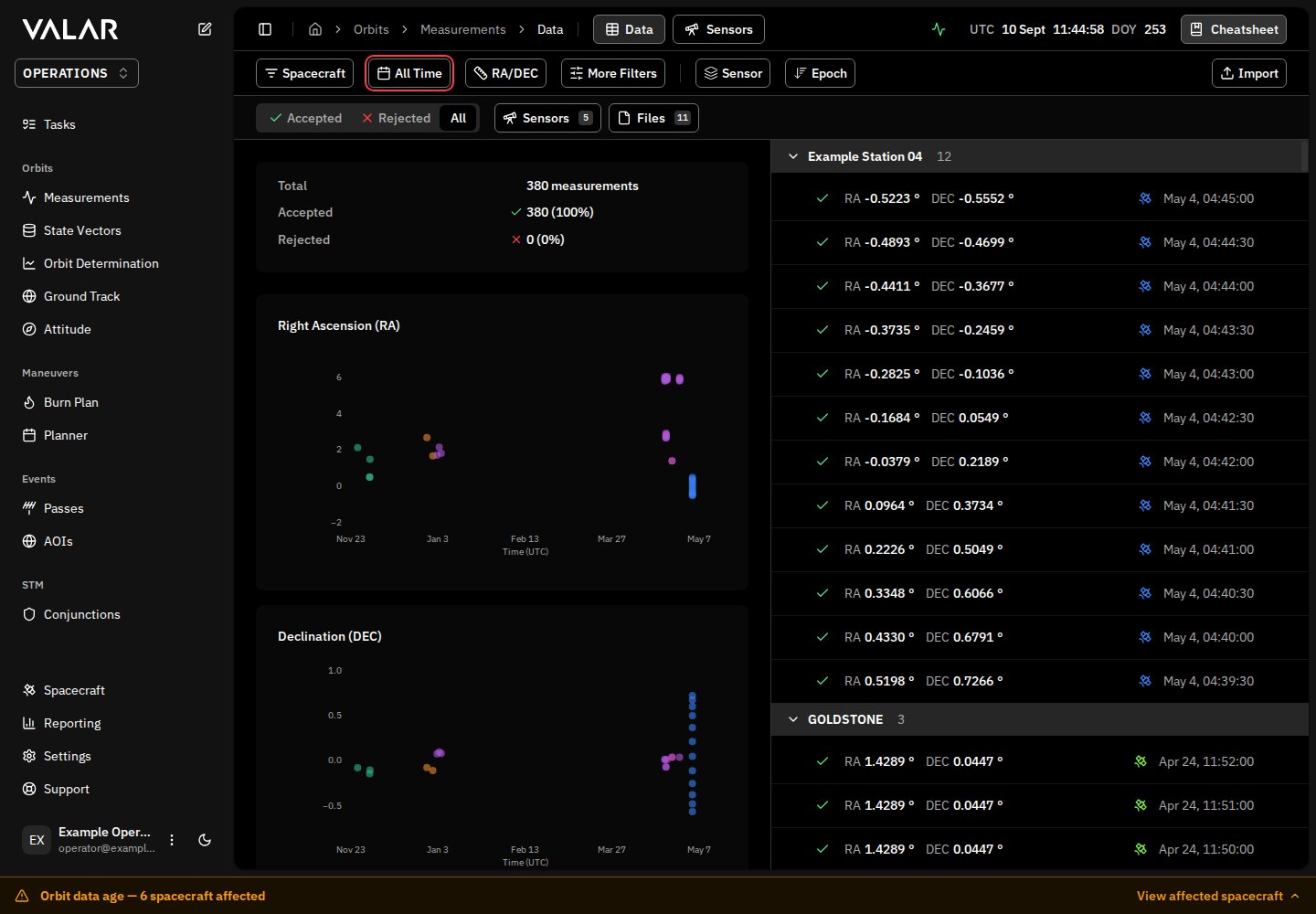
Left Sidebar
Your primary navigation hub for accessing all platform capabilities:Main Sections
Orbits: Track, determine, and visualize orbital data- Tracking measurements & sensors
- State vectors (Table & Keplerian views)
- Orbit determination solutions
- Ground track visualization
- Burn plan for maneuver execution
- Planner for future maneuvers
- Conjunction analysis with risk assessment
Sidebar Footer
Quick access tools at the bottom:- Support Menu: Documentation, API docs, status page
- User Profile: Account settings and logout
- Settings: Platform configuration
- Theme Toggle: Light/Dark mode
Top Header
Contextual navigation and real-time tools: Left: Breadcrumb navigation showing current location Center: Page-specific tabs- Solutions: “Solutions” | “Configs”
- Tracking: “Measurements” | “Sensors”
- State Vectors: “Table” | “Keplerian Elements”
- Process Status: Monitor async operations
- UTC Clock: Live time display
- Cheatsheet: Quick reference to spacecraft data
Command Palette
Trigger:⌘K (Mac) / Ctrl+K (Windows/Linux) or pen icon in sidebar header
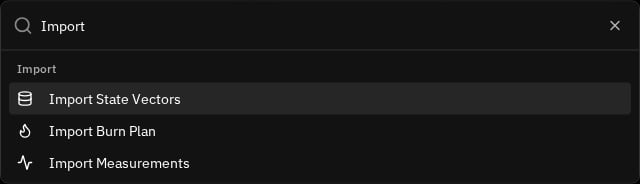
- Import: State vectors, burn plans, measurements
- Add: Spacecraft, maneuvers
- Run: Orbit determination
- Generate: Ephemerides
- Open: Settings, cheatsheet, process monitor
Cheatsheet (Quick Reference)
Access: Click Cheatsheet in the operations header.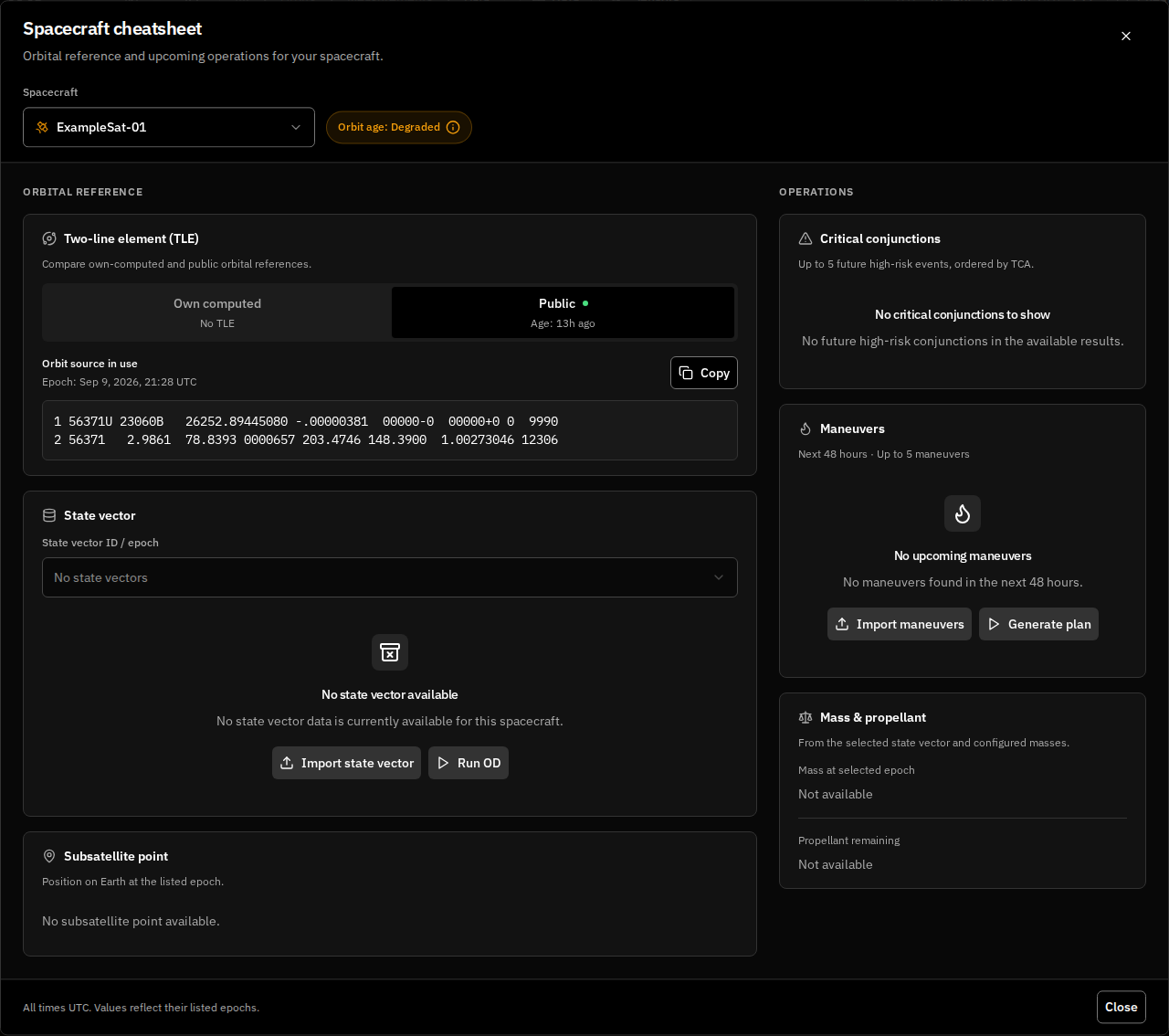
All timestamps are UTC. Selecting an older state vector changes the displayed elements and mass; the TLE and subsatellite point retain their own epochs.
Use Close, the top-right close icon,
Esc, or click outside the dialog to return to your page. If orbit-age details or a selector is open, Esc closes that first. When offered, Import state vector, Run OD, Import maneuvers, and Generate plan close the cheatsheet before opening the corresponding workflow.
Settings
Access: Settings button in sidebar footer or Command Palette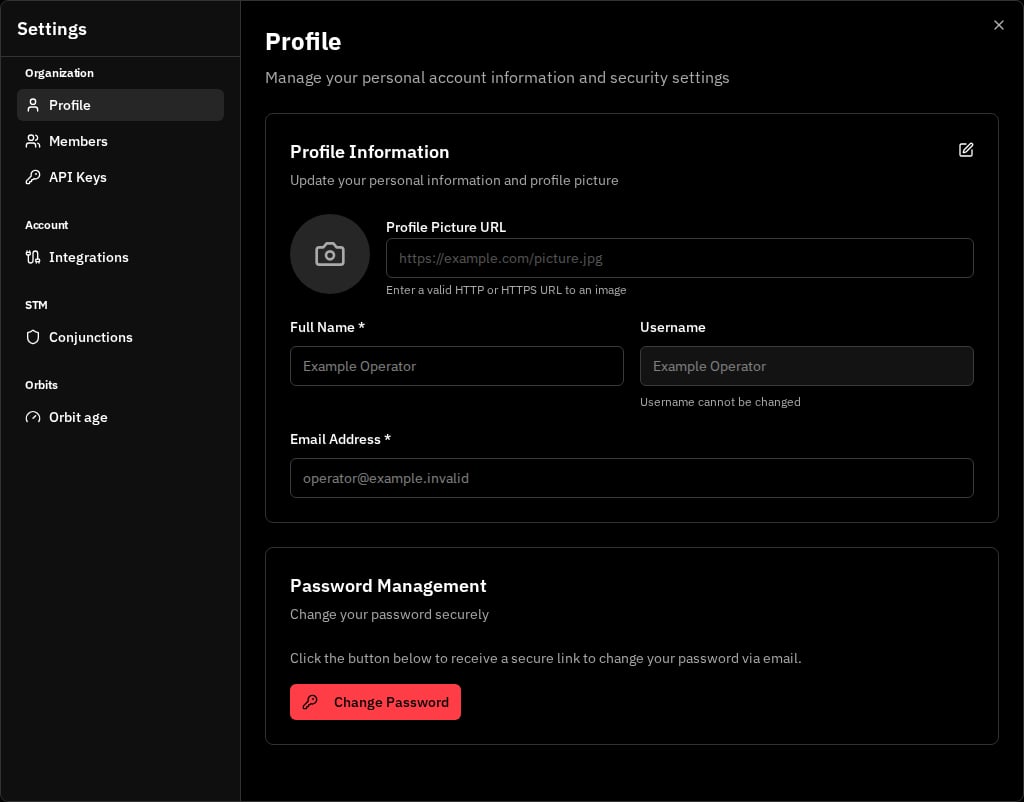
- Profile: Name, email, password management
- Members: Invite and manage team members
- Orbits: Force model configuration (drag, SRP, gravity field, tides)
- Notifications: Alert preferences and integrations
- STM: Conjunction thresholds and computation methods
Key Features
Modals & Dialogs
Focused workflows for:- Importing files (OEM, burn plans, measurements)
- Adding/editing spacecraft, thrusters, stations, maneuvers
- Generating ephemerides
- Viewing covariance matrices and burn details
Real-time Updates
- Push notifications for critical events
- Process monitoring (15s refresh)
- Live UTC clock
Theme System
On your first visit, VALAR follows your operating system’s light or dark preference. Use the sidebar footer toggle to choose Light or Dark mode. Your choice is saved in this browser and used on later visits. Both themes use the same IBM Plex typography and red action and focus colors. Page backgrounds, panels, dialogs, menus, and form controls adapt together. Vector maps follow the selected theme; photographic backgrounds retain their imagery. Spacecraft colors and plotted data keep their operational meaning.Main Routes
Default route:
/ redirects to /orbits/measurements/data/orbits/measurements/data: Measurements/orbits/measurements/sensors: Sensors/orbits/solutions: Orbit determination solutions/orbits/ground-track: Ground track visualization
/state-vectors: State vector table/state-vectors/keplerian-elements: Keplerian view
/maneuvers/burn-plan: Burn execution/maneuvers/planner: Maneuver planning
/conjunctions: Conjunction analysis
/spacecraft: Fleet overview
Next Steps
Quick Start Guide
Get started with your first spacecraft
Platform Architecture
Detailed architecture documentation
Spacecraft Management
Manage your spacecraft fleet
Core Concepts
Learn fundamental operations concepts