
For the complete documentation index, see llms.txt.API Keys allow you to access the VALAR API programmatically. Use them to integrate VALAR with your own systems, automate workflows, or build custom applications. Route:
/settings
Page Layout
The API Keys section is located in the Settings page. It displays all your organization’s API keys in a table with management actions.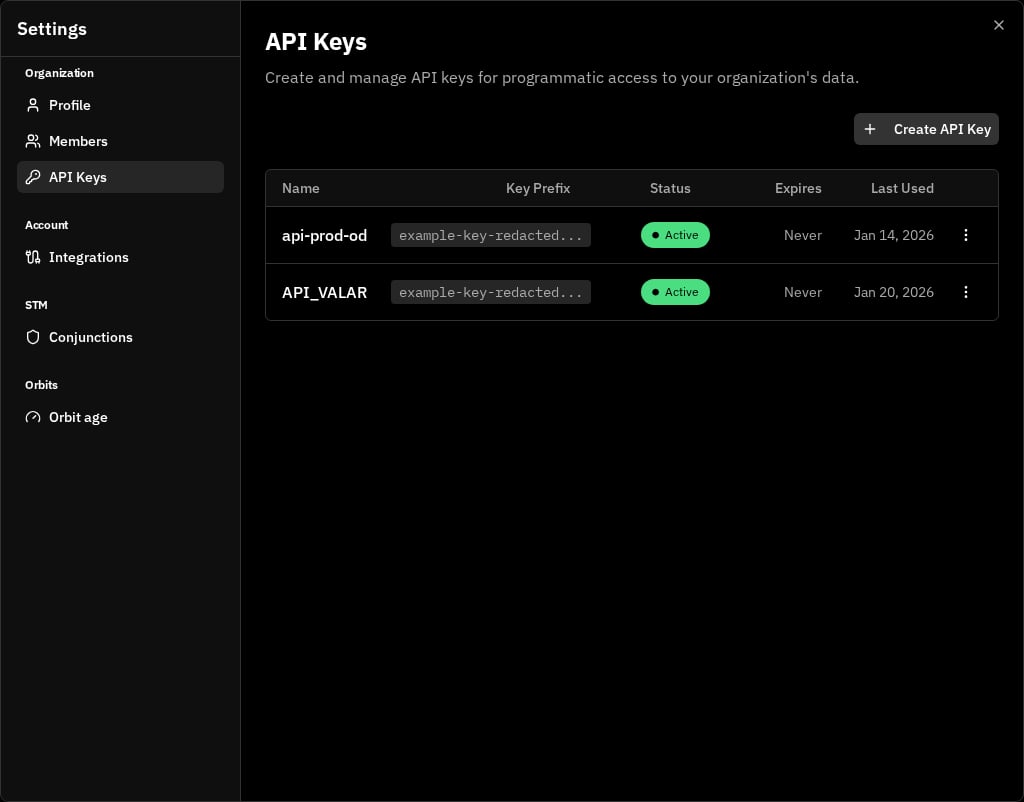
API Keys Table
The table shows all API keys for your organization:Actions Menu
Click the three-dot menu on any row to access these actions:Creating an API Key
Click Create API Key to open the creation dialog. This is a two-step process.Step 1: Configure Key Settings
Expiration Options:
- 1 Day
- 1 Week
- 1 Month
- 3 Months
- 1 Year
- No Expiry
192.168.1.1 or 10.0.0.0/24). Maximum 50 entries. Leave empty to allow all IPs.
Step 2: Copy Your Key
After clicking Create Key, your new API key is displayed.- Use the copy button to copy the key to your clipboard
- Use the eye icon to show/hide the key value
- Click Done when you’ve saved the key
Editing an API Key
Click Edit from the actions menu to modify an existing key.Changing status to Revoked immediately stops all API access using this key. Applications will receive authentication errors until the key is re-enabled.
Rotating an API Key
Rotation generates a new secret value for the key while keeping the same name and settings. Use this to periodically refresh credentials or if you suspect a key may be compromised. To rotate a key:- Click Rotate from the actions menu
- Type the key name to confirm
- Click Rotate Key
- Copy the new key value (shown only once)
Deleting an API Key
Permanently remove an API key when it’s no longer needed. To delete a key:- Click Delete from the actions menu
- Type the key name to confirm
- Click Delete Key
Viewing Audit Logs
The audit log shows all API requests made with a specific key. Use it to monitor usage, troubleshoot issues, or investigate security concerns. Click View Audit Log from the actions menu to open the dialog.
Navigation:
- Click Refresh to fetch the latest logs
- Use Previous/Next buttons to navigate through pages
Security Best Practices
Follow these guidelines to keep your API keys secure:Using Your API Key
Include your API key in theAuthorization header using the Bearer scheme:
vsp_sk_ prefix to identify them as VALAR Space secret keys.
Environment grant
Each API key is granted access to exactly one environment — eitherOPERATIONS or MISSION_ANALYSIS — and that grant is fixed when the key is created. When no environment is specified at creation, the key is granted OPERATIONS.
The environment grant is immutable: it is never changed after the key is created. There is no way to move an existing key to a different environment — create a new key for the other environment instead.
A key may only be used against routes for the environment it was granted. Calling a route for a different environment with a mismatched key is rejected with a 403 — “API key is not granted access to this environment.”