
For the complete documentation index, see llms.txt.The Measurements page provides visualization and management tools for your measurement data. View measurements in interactive charts, filter by various criteria, and manage outlier status. Route:
/orbits/measurements/data
Page Layout
The page uses a split-view design with a plot panel on the left and a table panel on the right: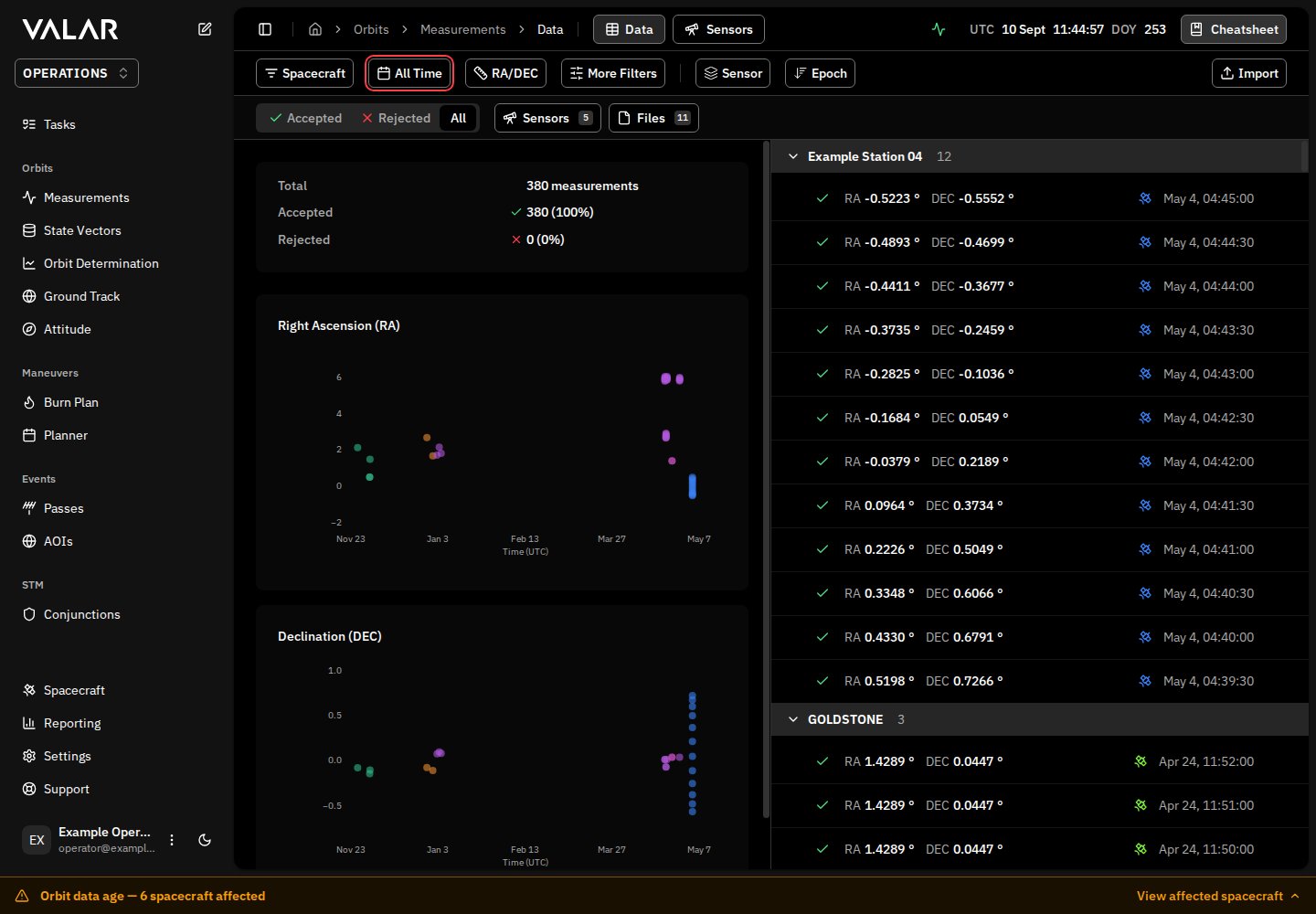

Filtering
Spacecraft Filter
Filter measurements by spacecraft. Click to open a multi-select dropdown, check/uncheck spacecraft, and click Apply to confirm.Time Range Filter
The time filter offers preset ranges. View imported measurements can also open the exact UTC time span of an import; choose a preset to leave that span.
Measurement Type Selector
All five measurement types appear as tabs with counts for the selected spacecraft and time range, including rejected measurements. Counts are independent of the sensor, file, and outlier filters.
When opening the page, a type specified in the link takes priority. Otherwise, the page restores your last-used type if it has data, or selects a type that does. Manual selections stay selected even when empty. An empty type offers a View [type] measurements action when another type has data; this action clears additional filters.
After an import, View imported measurements opens the spacecraft, measurement type, and UTC time span of the stored data. This also reveals imports outside the current date range.
Advanced Filters
Click More Filters to expand additional filtering options.Outlier Status Tabs
Sensors Filter
Click Sensors to open a popover with all available sensors. Click sensors to toggle selection, then click Apply to filter.Files Filter
Click Files to open a popover with all source files. Click files to toggle selection, then click Apply to filter.Grouping
Click Group By to change how measurements are organized:Group Header Actions
When grouping is enabled, each group header provides:- Chevron: Click to expand/collapse the group
- Select All: Select all measurements in the group (appears on hover)
- Clear: Deselect all in group (appears when any are selected)
Sorting
Click the ↓ Epoch / ↑ Epoch button to toggle sort order:Plot Panel
Statistics Card
Above the charts, a statistics card displays:- Total: Count of all measurements
- Accepted: Count with green checkmark and percentage
- Rejected: Count with red X and percentage
Interacting with Data Points
Hover over any scatter point to see a tooltip with:- Timestamp
- Value
- Sensor
- Status (Accepted/Rejected)
- Point becomes highlighted
- Tooltip stays visible with action buttons
- Corresponding table row highlights and scrolls into view
Accept/Reject from Plot
Use the Select points icon button in the top-right corner of the chart to enable selection. Hover over or focus the button for instructions. Click observations or drag boxes around clusters. Boxes add to the selection; click a selected point again or hold Alt while dragging to remove points. Selection is shared between charts and table, and all components of the same measurement are selected together. Choose Reject selected or Restore selected to update the selected measurements in one batch. Both panes refresh after the update. Selection clears when you change the spacecraft, time span, measurement type or filters. Bulk chart actions become available after the full measurement dataset has loaded. Changes affect shared measurements used by future OD runs; saved orbit solutions are unchanged. Turn Select points off to inspect individual points. When a point is selected, the tooltip shows an action button:Table Panel
Row Information
Each measurement row displays:Row Actions
Click a row (not the checkbox) to focus it:- Row highlights with a colored ring
- Corresponding point on chart highlights
- Row enters selection state
- Floating bulk actions bar appears
Row Context Menu
Click the ⋮ button on any row to access:Bulk Actions
When one or more rows are selected, a floating toolbar appears at the bottom.Selection Count
Shows the number of selected measurements out of total visible.Select All
Selects all visible measurements (after filters are applied).Reject / Accept Actions
Delete File
Opens a confirmation dialog to delete ALL measurements from the selected file(s).Clear
Deselects all currently selected rows.Cross-Component Synchronization
The plot and table panels stay synchronized:Color Coding
Status Colors
Series Colors
When grouping is enabled:- Sensor grouping: Each sensor gets a unique color
- Spacecraft grouping: Uses spacecraft context colors
- File grouping: Each file gets a unique color
- No grouping: Single default color
Loading States
While data is loading, the page displays skeleton placeholders:- Table: 8 skeleton rows with placeholder shapes matching the actual row layout
- Plot: Loading indicator while chart data is prepared
Chart Limitations
The scatter plot is view-only with the following characteristics:Large datasets render all data points without sampling. For very large measurement sets, this may affect chart performance.
Unresolved spacecraft references
When you request measurements through the VALAR API and name spacecraft by reference — for example by NORAD id, COSPAR id, name, or external key — the response includes anunresolvedSpacecraftReferences field alongside the results.
This field is always present. When every reference you supplied resolved, it is an empty array. When one or more references could not be resolved, it lists them — and the results you received cover only the references that did resolve.
The list follows three rules:
- Duplicates are collapsed — a reference you supplied more than once appears at most once.
- Your order is preserved — the references appear in the order you supplied them.
- There is no positional correspondence between this list and the
contentarray — an entry’s position here does not line up with any row in the results.
Related Pages
- Import measurements: Upload TDM, OEM, and SP3 files
- Manage sensors: Configure ground stations for tracking