
For the complete documentation index, see llms.txt.The State Vectors page displays orbit solutions for your spacecraft, including position, velocity, and covariance data. Import state vectors from OPM files, view orbital elements, and export data for external use. Route:
/state-vectors/data
Page Layout
The page uses a split-view design with a state vector list on the left and a details panel on the right: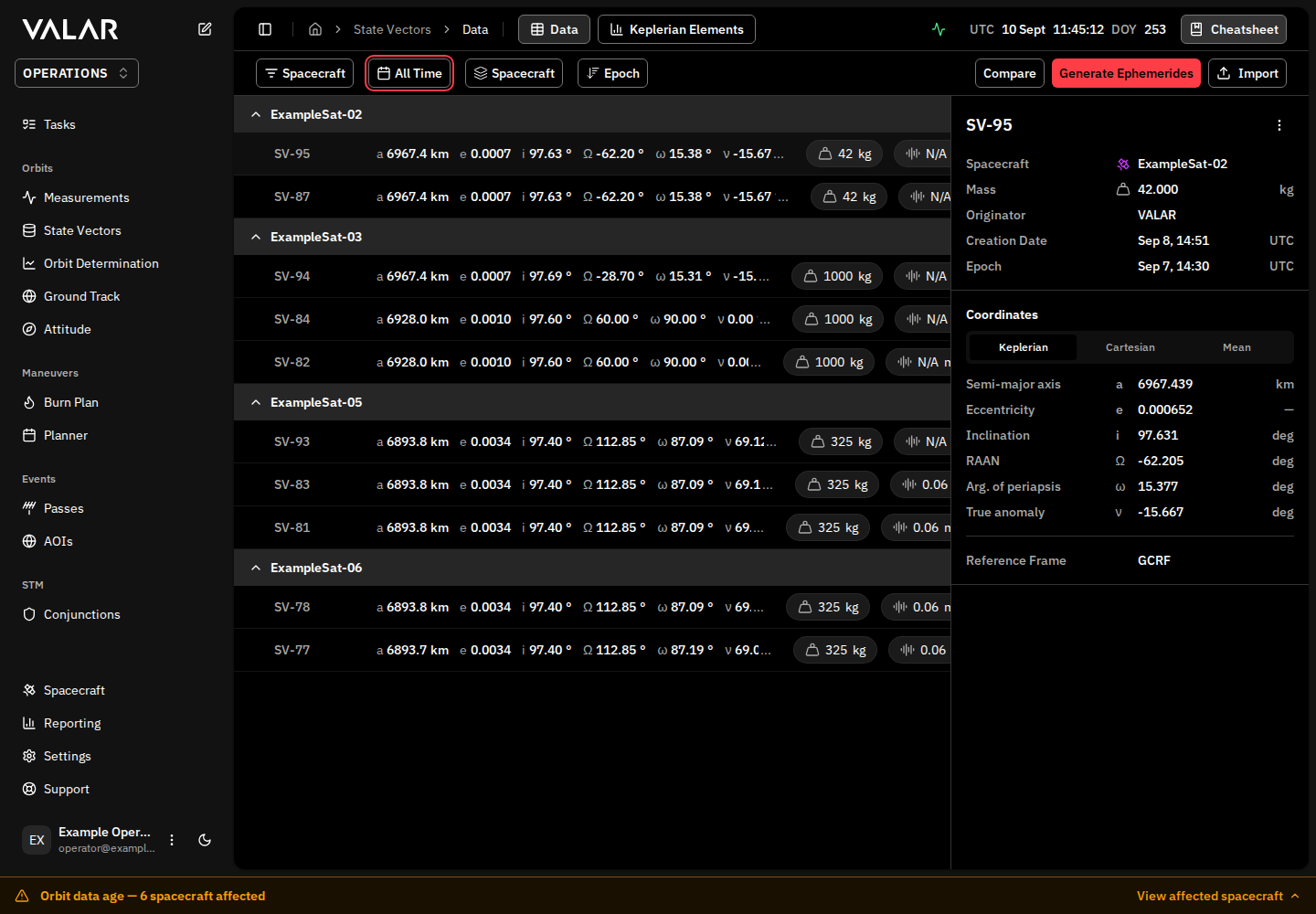
Filtering
Spacecraft Filter
Filter state vectors by spacecraft. Click to open a multi-select dropdown, check/uncheck spacecraft, and click Apply to confirm. Default: Shows all spacecraft when none selected.Time Range Filter
Group By
Sort by Epoch
Click the Epoch Newest first button to toggle sort order:State Vector List
Row Information
Each row displays:Row Selection
- Click row: Selects state vector for details panel
- Click checkbox: Adds to bulk selection for bulk actions
Grouped View
When grouped by spacecraft, each group has a collapsible header:Group Selection
When items are selected within a group:- Select All: Select all items in current page of this group
- Clear: Deselect all items in this group
Details Panel
Click a state vector row to view its details in the right panel.Header
Shows the full state vector ID with a ⋮ menu button.More Menu Actions
Metadata Section
Coordinates Section
Toggle between Keplerian and Cartesian tabs. Keplerian Tab:
Cartesian Tab:
Covariance Section
Only shown if covariance data exists in the state vector. The Position σ column in the list view also only appears for state vectors with covariance data.
Click View Full Matrix to open a modal with the complete 6×6 covariance matrix.
Importing State Vectors
Click Import in the toolbar to open the import dialog.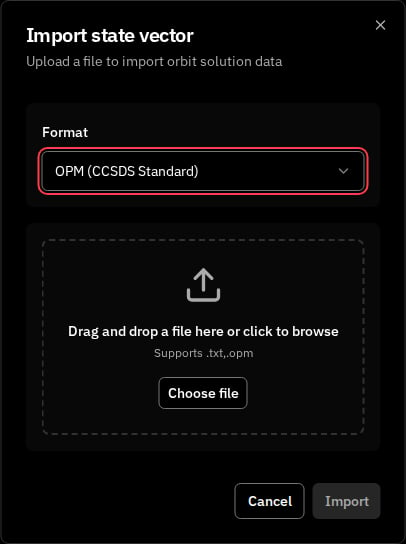
Configuration
Format Selection:
Spacecraft Selection: Shown only for SpaceX OPM — choose which spacecraft the state vector belongs to. For OPM (CCSDS Standard), VALAR resolves the spacecraft from the file, so no selector appears.
File Upload
Drag and drop files onto the upload zone, or click to browse. Accepted files:.txt, .opm
Upload Outcomes
- Success: Toast notification, dialog closes, data refreshes
- Partial Success: Warning toast with count (e.g., “Imported 1 of 2 orbit solutions”)
- Error: Red alert with the error code and message. See OPM Import Error Modes for the common errors and how to resolve them.
Generating Ephemerides
Click Generate Ephemerides in the toolbar to open the OEM Export wizard. This multi-step wizard creates ephemeris files from your state vectors.Wizard Steps
For detailed documentation of each step, see Ephemeris Generation.
Exporting State Vectors
Single Export
From the details panel, click ⋮ → Download OPM to download a single state vector as an OPM file.Bulk Export
Select multiple state vectors using checkboxes, then click Export as OPM in the floating toolbar.Deleting State Vectors
Single Delete
From the details panel, click ⋮ → Delete State Vector. Confirmation dialog: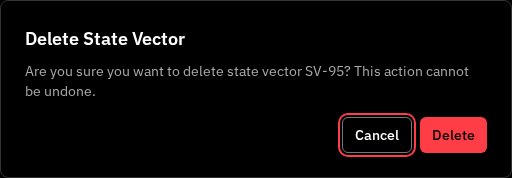
Bulk Delete
Select multiple state vectors, then click Delete in the floating toolbar. Outcomes:- Full success: “Successfully deleted X orbit solution(s)”
- Partial success: “Partially successful: X deleted, Y failed”
- Full failure: “Failed to delete any orbit solutions”
Bulk Actions Toolbar
Appears when one or more state vectors are selected via checkboxes.Unresolved spacecraft references
When you request state vectors through the VALAR API and name spacecraft by reference — for example by NORAD id, COSPAR id, name, or external key — the response includes anunresolvedSpacecraftReferences field alongside the results.
This field is always present. When every reference you supplied resolved, it is an empty array. When one or more references could not be resolved, it lists them — and the results you received cover only the references that did resolve.
The list follows three rules:
- Duplicates are collapsed — a reference you supplied more than once appears at most once.
- Your order is preserved — the references appear in the order you supplied them.
- There is no positional correspondence between this list and the
contentarray — an entry’s position here does not line up with any row in the results.
Related Pages
- Generate OEM: Generate ephemeris files from state vectors
- Generate TLE: Access TLE data via the cheatsheet
- OPM Format: OPM file format specification