
For the complete documentation index, see llms.txt.Import measurement and ephemeris files into VALAR using the Import dialog. Supported formats include TDM, OEM, and SP3. Route:
/orbits/measurements/data
Import Dialog
On the measurements page, click the Import button in the top-right corner of the toolbar: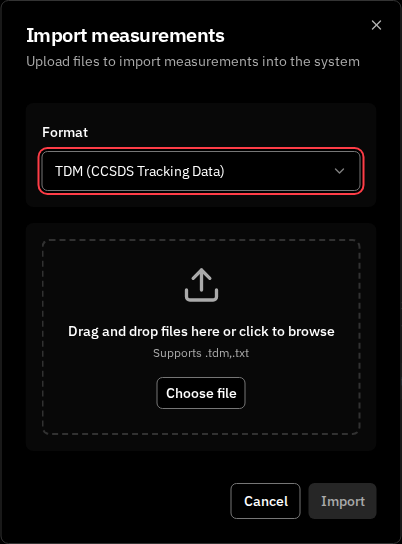
1. Configuration
Spacecraft Selection- Select which spacecraft the measurements belong to
- If you had a spacecraft selected on the page, it will be pre-selected
Doppler (range-rate) observables are a supported TDM measurement type. TDM blocks containing
DOPPLER_INSTANTANEOUS rows require configured uncertainty and declared producer correction/convention information, as well as supported bands and integration intervals. See Doppler (Range-Rate) Measurements for requirements and error remedies.2. File Upload
A drag-and-drop zone where you can:- Drag and drop files directly onto the zone
- Click to browse and select files from your file system
- Upload multiple files at once
- All selected files are uploaded in a single batch request
- Files are processed concurrently on the server
- Each file receives individual success/failure status
- No explicit file size limit is enforced by the frontend
3. File Queue
After adding files, they appear in a list showing:- File name
- Status icon (idle, uploading, success, or error)
- Progress bar during upload
- Remove button to remove files before upload
Validation
Frontend Validation
Before upload, the system checks:- File extension: Must match the selected format
- Queue not empty: At least one file must be selected
- Upload state: Cannot upload while another upload is in progress
Backend Validation
When you click Import, files are validated on the server:- Format validation: CCSDS TDM/OEM or IGS SP3 syntax, as applicable
- Data structure validation: Required fields and proper data types
- Timestamp validation: Valid ISO-8601 date formats
- Spacecraft association: Data must be associable with a valid spacecraft
Upload Outcomes
Missing Required Inputs
VALAR preserves valid supplied uncertainty. The baseline compatibility policies are below; workspaces with configurable PVT uncertainty use spacecraft defaults or import overrides for missing OEM/SP3 uncertainty.
Correct the named sensor or source-file input and retry the failed file. A catalog lookup outage requires restoring catalog access, not entering a replacement sigma. Initial TDM inspection checks syntax, identity, and epochs; uncertainty is checked during conversion before persistence, so inspection alone does not certify OD readiness.
Without configurable PVT uncertainty, missing SP3 uncertainty rejects the file. Missing required Doppler uncertainty, invalid dimension-matched TDM sigma values, or invalid supplied OEM covariance rejects that file without persisting its observations. Missing angle/range uncertainty and missing OEM covariance use the compatibility assumptions described above. Other successful files in the batch remain successful. Doppler block-level rejections can instead preserve valid sibling blocks; review the per-file error details. Supplied zeros remain valid where physically meaningful, but a zero sigma is not a usable OD weight. Historical imported values are not automatically reclassified as missing merely because they equal a former default. Successful import with assumed uncertainty does not establish measured accuracy or qualify an OD solution.
Configurable PVT uncertainty
When available in your Operations workspace, open Spacecraft → PVT measurement uncertainty. Use the pencil icon at the top right to edit the shared defaults, then Save or Cancel in the same header. Every spacecraft starts with 100 m position / 0.1 m/s velocity, expressed as positive, finite one-sigma values per source-frame axis. The same settings apply to supported PVT measurement imports, including OEM and SP3. The import dialog offers Use spacecraft defaults or Override for this import when uncertainty is missing. Supplied OEM covariance and individual SP3 component accuracies take precedence; only missing uncertainty uses the chosen values. Invalid supplied uncertainty still rejects the file. Review each file’s values and affected observation counts. If shared defaults change before submission, use Refresh defaults. Import results retain the selected values and their source. Existing measurements and skipped duplicates keep their original uncertainty. Editing shared defaults requires spacecraft-write access; overrides require measurement-upload access. This feature initially serves internal users. Without access, OEM retains its 100 m / 0.1 m/s compatibility assumption and SP3 still requires complete supplied component accuracy. The PV importer requires measured position and velocity; this setting does not make position-only SP3 or EP/EV records supported.Full Success
- Toast notification: “Successfully imported X tracking files”
- Dialog auto-closes after 500ms
- Data automatically refreshes
Partial Success
- Toast warning: “X of Y files imported successfully. Z failed.”
- Dialog stays open showing failed files
- Alert displays failed files with error codes and messages
- Successfully imported files are removed from queue
- Data refreshes for the successful imports
Full Failure
- Toast error with first file’s error details
- Dialog stays open
- Alert displays all failed files with error codes and messages
Network/Server Error
- All files marked as failed
- Error message displayed in toast and dialog
Error Display
Failed files show detailed error information: Common error codes:PARSE_ERROR: File could not be parsed (syntax error)INVALID_FORMAT: Missing required fields or invalid structure
After Upload
After successful upload:- The dialog closes automatically
- The measurements data table and plot refresh
- New measurements appear with their source file name preserved
- You can filter by the uploaded file using the More Filters option
Next Steps
After uploading measurements, you can:- View and filter your data in the interactive plot and table
- Configure sensors for processing measurements