
For the complete documentation index, see llms.txt.Orbit Determination (OD) enables you to compute precise spacecraft orbits by processing tracking measurements. Configure estimation runs, review residuals, and manage the resulting orbit solutions through an intuitive wizard interface. Route:
/orbits/orbit-determination/solutions
Overview
Orbit Determination uses tracking measurements (range, angles, position/velocity) to estimate spacecraft state vectors with associated uncertainties. The platform supports:- Batch Least Squares estimation from tracking measurements
- Maneuver estimation for thrust scale and pointing calibration
- Residual analysis for data quality assessment
- Maneuver-aware processing where detected maneuvers during the measurement arc are either estimated or considered
Refine an Orbit from its Residuals
Beside a saved solution’s Residuals, choose Refine orbit to select and stage rejection or restoration of multiple measurements. Use the Select points icon button at the top right of the chart to enable box selection; hover over or focus it for instructions. Selection and pending edits carry across residual components. Historical residuals without a source measurement link cannot be selected. Choose Apply and configure new run to save those changes and open a new OD configuration. It starts from the solution’s saved state vector and exact measured time span. Original run settings are not stored, so review the initial state, measurements and maneuvers before launching. Saving outlier changes does not launch OD; cancelling the subsequent configuration does not undo those saved changes. The original solution and residuals remain unchanged. Refinement is available after all residuals load and requires a saved state vector and a valid measured time span.Page Layout
The Solutions page uses a split-view design with a solution list on the right and a details panel on the left.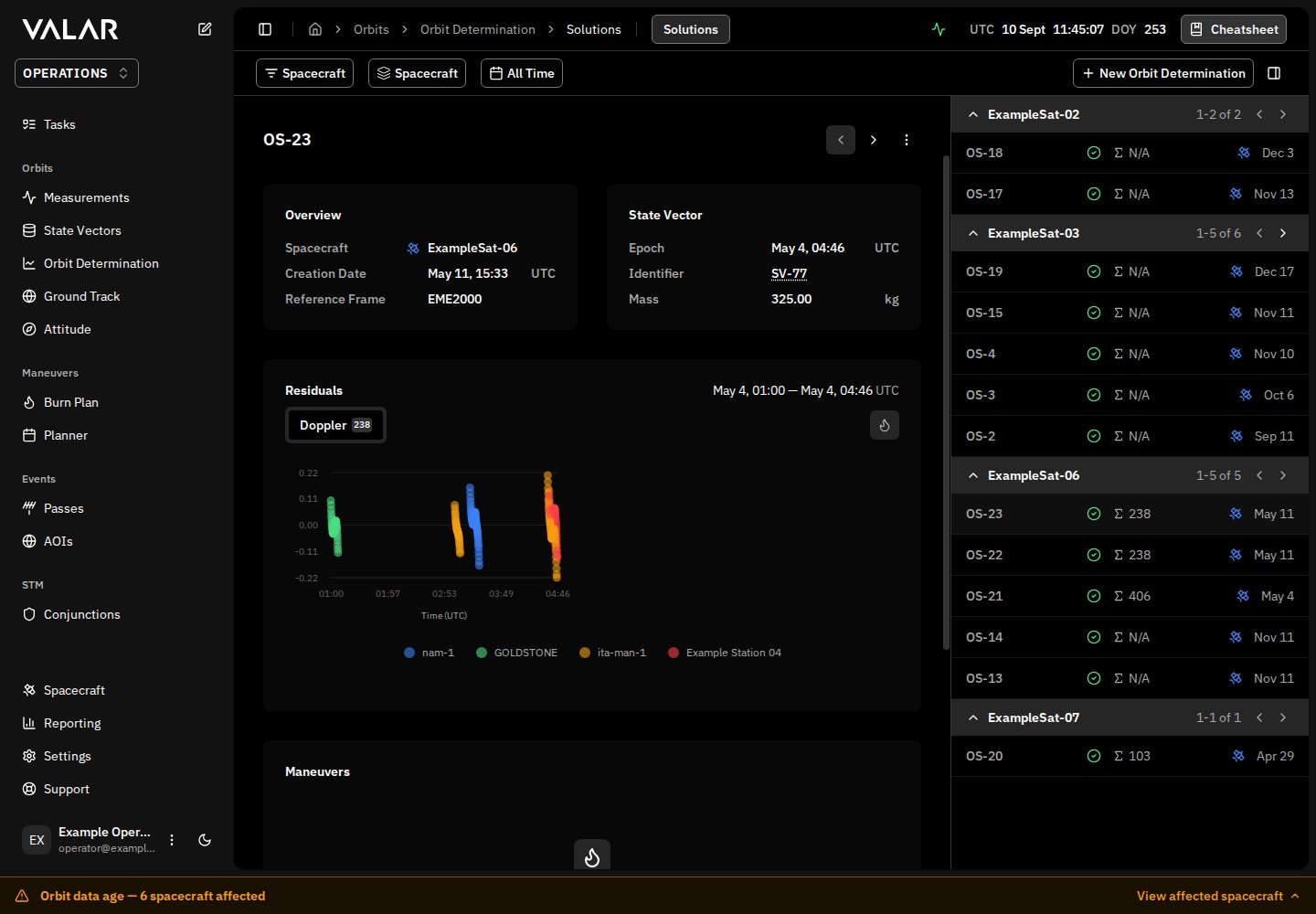
Viewing Orbit Solutions
Solution List
The solution list displays orbit solutions with the following information:- Solution ID: Unique identifier
- Status: Convergence indicator icon (green checkmark = converged, red X = failed, gray circle = unknown)
- Measurements: Total measurement count used (hover for breakdown by type)
- Spacecraft: Colored satellite icon matching the spacecraft’s assigned color
- Created: Creation date in short format (hover for full UTC timestamp)
Filtering Solutions
- Spacecraft: Filter by one or more spacecraft using the spacecraft filter bar (empty shows all)
- Time Range: Filter by solution creation date
- Group: Group solutions by spacecraft or show as flat list
Details Panel
Click a solution to view details in the left panel. Use the Previous/Next navigation buttons at the top of the panel to step through solutions without returning to the list. Overview Section:- Spacecraft name with colored icon
- Creation date (UTC)
- Reference frame (GCRF, EME2000, TEME, or ITRF)
- Epoch (UTC)
- Mass (kg), or “From state vector” if mass was inherited
- Toggle between Keplerian and Cartesian tabs:
- Keplerian: Semi-major axis (km), Eccentricity, Inclination (°), RAAN (°), Arg. of periapsis (°), True anomaly (°)
- Cartesian: Position X/Y/Z (km), Velocity X/Y/Z (km/s)
- Arc time span (start and end epochs)
- Tabbed scatter plots by measurement type:
- Range: Residuals in meters
- RA/Dec: Right ascension and declination residuals in arcseconds
- Az/El: Azimuth and elevation residuals in arcseconds
- PV: Position (m) and velocity (m/s) residuals for X/Y/Z components
- Doppler: Range-rate residuals in m/s
- Measurement count badge on each tab showing how many measurements of that type were used
- Sensor legend with dynamic color coding (up to 8 distinct sensor colors)
- Maneuver overlay toggle (flame icon button): Show or hide vertical markers at maneuver epochs on the residual plots. This helps identify whether residual patterns correlate with propulsive events
- Reference frame indicator: A small chip next to the chart title on the PV tab shows the frame the X/Y/Z position and Vx/Vy/Vz velocity residuals are expressed in (driven by the OD solution’s stored reference frame, e.g.,
GCRF). The other residual tabs (Range, RA/Dec, Az/El, Doppler) are non-frame-bearing and intentionally show no badge. Hover the badge for the full frame name; click Learn more to open the reference frame catalog.
- Estimated maneuvers: Full cards showing thrust estimation results for each maneuver that was selected for estimation:
- Normalized performance — thrust scale as a percentage of nominal (100.0% = nominal thrust). Color-coded: green (95–105%), orange (90–110%), red (outside 10% deviation)
- Azimuth deviation — pointing offset in degrees from nominal thrust direction
- Elevation deviation — pointing offset in degrees from nominal thrust direction
- Execution epoch — when the maneuver was executed (UTC)
- Individual fields show “N/A” when only partially estimated
- Considered maneuvers: Compact pills showing only the maneuver ID. These are maneuvers that occurred during the measurement arc but were not selected for thrust estimation. They are still accounted for in the orbit propagation (the OD process uses their nominal delta-V) but no thrust scale or pointing corrections are computed
Running Orbit Estimation
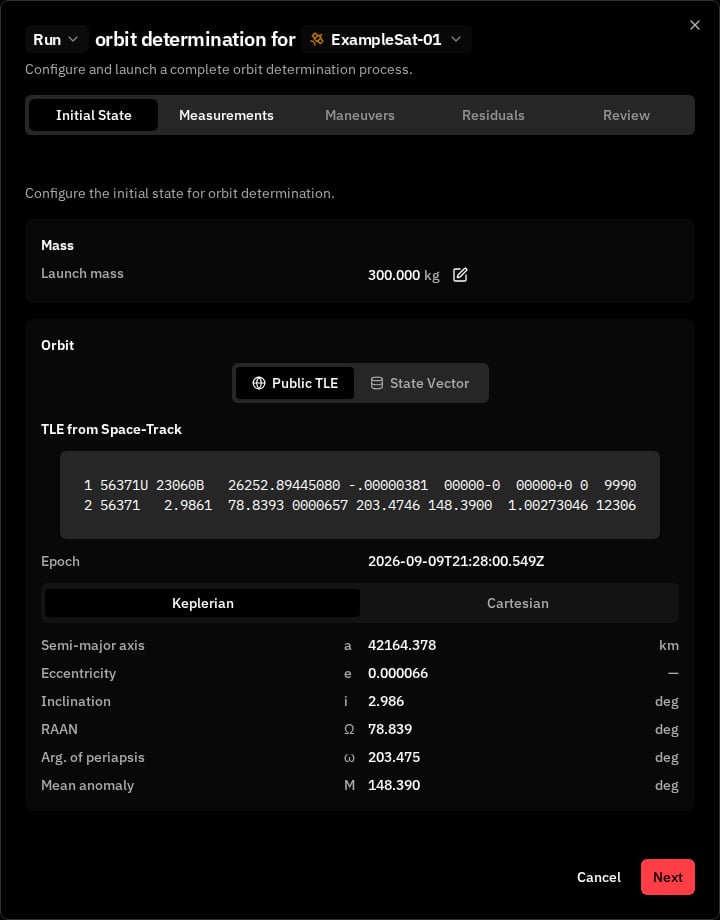
Click New Orbit Determination in the toolbar to open the configuration wizard. The wizard guides you through the following steps to configure and launch an orbit estimation.Step 1: Initial State
Configure the starting point for orbit estimation:- Source Type: Choose between:
- Public TLE — Automatically fetched from SpaceTrack using the spacecraft’s NORAD ID. The TLE is displayed read-only once loaded. Requires a NORAD ID to be configured on the spacecraft
- State Vector — Select an existing state vector from the system (last 30 days, sorted by epoch)
- Mass: Spacecraft mass in kilograms. Choose between entering a manual override or inheriting mass from the selected state vector
Step 2: Measurements
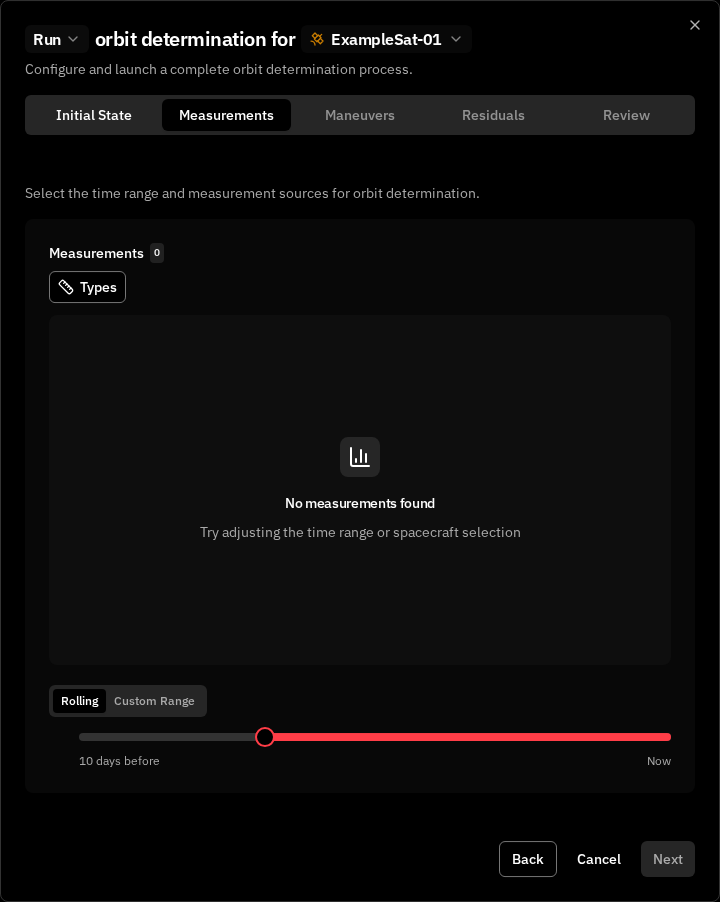
Configure which measurements to use for estimation:- Spacecraft: Select the spacecraft (shown in wizard header)
- Time Range: Configure the measurement arc using one of two modes:
- Rolling window: Last N days from current time (default 7 days). Adjustable via slider from 6 hours to 10 days in 6-hour increments
- Custom range: Select a specific end date via date picker (up to 90 days in the past)
- Measurement Types: Select data types to include — RA/Dec, Az/El, Range, PV, Doppler. All available types are selected by default
- Data Sources: Select specific sensors from available sources. Only shown when sensors are associated with the measurement data
- Distribution Chart: Interactive chart visualizing measurement coverage, groupable by type or by sensor
Step 3: Maneuvers
Configure which maneuvers to include for thrust scale estimation during orbit determination. Three selection modes are available:- All: Estimate thrust scale for every maneuver detected in the measurement time range
- None: Don’t estimate any maneuvers (maneuvers are still considered with their nominal delta-V)
- Above ΔV: Only estimate maneuvers with delta-V at or above a specified threshold (in m/s)
Step 4: Residuals Preview
Preview residual behavior before running the full estimation. This step shows pre-computation residuals as scatter plots, grouped by measurement type. Use the Select points icon button in the top-right corner of the chart to enable selection. Hover over or focus the button for instructions. Click individual observations or drag boxes around clusters. Each box adds to the selection; click a selected point again or hold Alt while dragging to remove points. Selection carries across component tabs, and each measurement is counted once even when it appears in multiple components. Choose Reject selected or Restore selected to stage changes without recomputing. Pending changes remain highlighted on the existing plots. Continue reviewing other clusters, use Undo to reverse the last edit, or Discard changes to clear unsaved edits. When ready, choose Apply and recompute to save the batch and refresh the preview once. Apply or discard pending changes before moving to another wizard step. If recomputation fails after saving, retry the preview; saved measurement changes remain in effect. Outlier changes update shared measurements and affect future OD runs that use them. They do not modify previously saved solutions. The Recompute button is also available to refresh the preview after other configuration changes.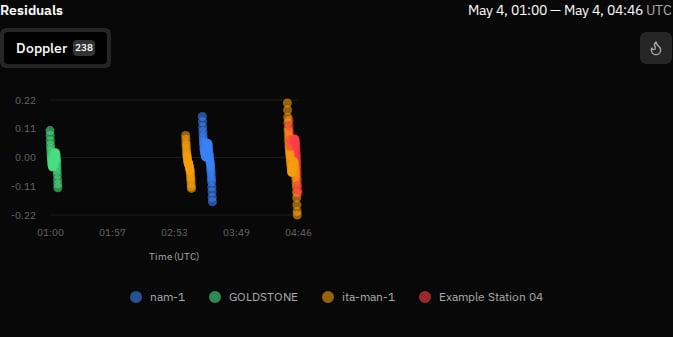
Step 5: Review
Review all configuration settings before launching. The review page shows summary cards for:- Initial State — Source type (TLE or State Vector), source details, and mass
- Measurements — Time span and selected measurement types
- Maneuvers — Selected maneuver codes displayed as pills, or “No maneuvers selected” when none are chosen
Estimated Parameters and Force Model
Regardless of which force model the platform applies during propagation, orbit determination always estimates the same dynamic parameters: a scalar drag coefficient (Cd) and a scalar reflectivity coefficient (Cr). Configuring an attitude profile on the spacecraft so that propagation runs in attitude-dependent mode does not add, remove, or rename estimated parameters. The OD setup, residual plots, and convergence reporting remain consistent; the estimated coefficients act as scaling factors over the underlying force model the propagator is using.Monitoring OD Progress
After launching, the platform processes OD jobs asynchronously. You can navigate away and return later to view results. The solution will appear in the list once processing completes. Solution status is indicated by icons in the solution list:- Green checkmark: Converged successfully
- Red X: Failed to converge
- Gray circle: Unknown/processing
Deleting Orbit Solutions
From the details panel header, click the ⋮ menu and select Delete Solution. A confirmation dialog will appear before deletion.Related Pages
- State Vectors: Manage orbit solutions, import solutions (OPM, SpaceX OPM formats), and export ephemeris (OEM format)
- Measurements Data: View and manage tracking measurements
- Tracking Sensors: Configure measurement sources
- Force Model: How VALAR selects between isotropic and attitude-dependent drag/SRP