
For the complete documentation index, see llms.txt.VALAR exposes spacecraft attitude through two complementary plots:
- A quaternion time series on the dedicated Quaternions tab, showing the four quaternion components over a chosen time window.
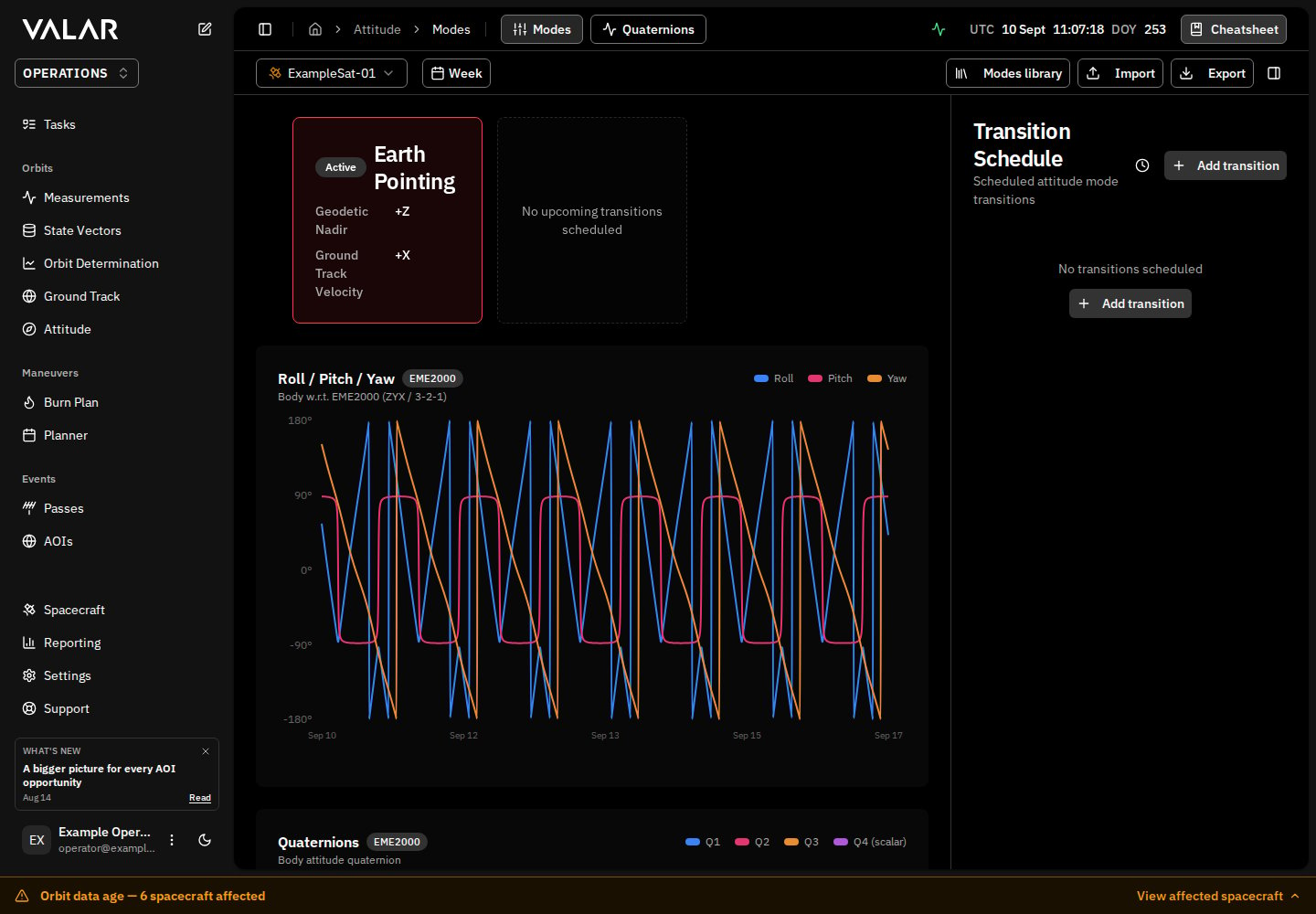
- A roll / pitch / yaw Euler-angle plot on the Modes tab, embedded alongside the mode schedule.
Quaternion plots on the Quaternions tab
Open the Quaternions tab from the sidebar at Attitude → Quaternions, then pick a spacecraft from the spacecraft selector at the top. The page renders four stacked charts, one for each quaternion component:- Q1, Q2, Q3 — the three vector components of the unit quaternion.
- Q4 (scalar) — the scalar (real) component of the unit quaternion.
Adjusting the time window
The time-range pill at the top of the page controls how much history and forecast appear on each chart. The default is 24 h — twelve hours of past attitude and twelve hours of forecast around the current moment. You can switch to 12 h for a tighter view or 72 h for a longer one. If no attitude data is available for the selected window, the charts render blank with no points.Reading discontinuities
The quaternionq and its negation -q represent the same physical rotation, so the same attitude can be written in two equivalent ways. When the underlying samples flip sign between consecutive points, the chart draws a brief gap instead of an artificial jump from +0.9 to -0.9. Gaps therefore mark sign transitions in the data, not gaps in coverage.
Sign flips most often appear at mode-transition boundaries, because the active and the scheduled modes may produce quaternions with opposite signs even though they describe smoothly continuous orientations.
What the plotted data reflects
The plotted quaternions reflect your spacecraft’s full attitude schedule:- When no transition is active, the plot follows the spacecraft’s default attitude mode.
- When a scheduled transition is active, the plot follows the scheduled mode for the duration of its window.
- After a transition ends, the plot returns to the default mode until the next transition.
Reference frame badge
A reference-frame indicator badge appears next to the chart title on all four Q1 / Q2 / Q3 / Q4 cards, showing the frame the body-frame quaternions are expressed against (e.g.,LVLH-CCSDS for an Earth-pointing mode, or a custom name carried verbatim from an imported AEM file such as ROLL_PITCH_YAW). All four cards share the same badge value because the quaternion-profile endpoint carries a single top-level frame for the whole window. Hover the badge for the full frame name; click Learn more to open the reference frame catalog.
Euler angle plot on the Modes tab
For an operator-friendly view of the same attitude, open Attitude → Modes. The right side of the modes page shows a Roll / Pitch / Yaw chart that expresses the same attitude as three rotation angles instead of four quaternion components.- Roll, Pitch, Yaw are the rotation angles around the spacecraft’s body axes, applied in the ZYX (3-2-1) sequence.
- Values are in degrees and range from -180 to 180.
Reference frame
The chart subtitle reads Body w.r.t. <frame> (ZYX / 3-2-1). The frame name identifies the reference the rotation is expressed against — for example,Sun-aligned local frame, LVLH-CCSDS, or EME2000. The frame depends on the active mode: a Sun-pointing mode reports angles against a Sun-aligned frame; an inertial mode reports against an inertial frame. For definitions of each frame, see Reference frames.
A reference-frame indicator badge also appears next to the chart title, showing the same frame as a compact chip. The existing Body w.r.t. <frame> subtitle remains alongside the badge — the slight redundancy is intentional: the subtitle is the canonical sentence, the badge is the at-a-glance signal that mirrors what appears on every other plot in the product. Hover the badge for the full frame name; click Learn more to open the reference frame catalog.
Empty and unavailable states
Two situations prevent the plots from rendering with data:No state vector
If the spacecraft has no state vector, the entire Attitude section shows a No state vector available message with an Add a state vector button that takes you to the State Vectors page. Attitude cannot be computed without orbital state, so neither the Quaternions tab nor the Modes tab will render their charts until you add a state vector.No attitude configuration
If the spacecraft has a state vector but no default attitude mode has been set, the Quaternions tab shows a Configure modes prompt that links to the Modes tab. The Modes tab in turn lets you pick a default mode and start scheduling transitions — see Attitude modes overview.Attitude modes overview
Understand attitude modes, body axes, target types, and the workspace catalog
Manage attitude modes
Browse, create, edit, and delete modes in the workspace catalog
Schedule attitude transitions
Plan time-anchored mode switches and override the default
Import and export AEM files
Exchange attitude ephemeris with external partners and tools