
For the complete documentation index, see llms.txt.Use this page to bring an externally-computed attitude profile into VALAR, recover from a broken AEM import, or hand off a VALAR-computed attitude to a downstream tool. Both flows use the AEM (Attitude Ephemeris Message) format — a CCSDS-standard ASCII file carrying time-ordered orientation samples for a spacecraft. Route:
/attitude/modes
For attitude mode concepts and the unified workspace catalog, see Attitude Modes Overview. For how an imported AEM appears alongside other entries in the transition schedule, see Schedule attitude transitions.
Importing an AEM File
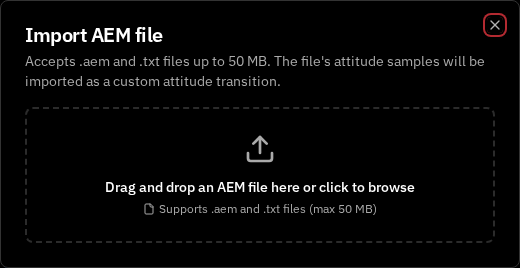
Click the Import button in the attitude modes page header to open the Import AEM file dialog. The dialog accepts.aem and .txt files up to 50 MB. Drop a file directly onto the upload zone — labelled Drag and drop an AEM file here or click to browse — or click the zone to pick a file with the system file picker.
QUATERNION, QUATERNION/DERIVATIVE, QUATERNION/RATE, QUATERNION/ANGVEL). Files using Euler angles or other attitude representations are rejected with a validation message (see below).
On a successful import, every attitude sample window from the file is added to the spacecraft’s transition schedule as a CUSTOM mode row, sequenced by the file’s START_TIME and STOP_TIME. The new transitions appear in the transition table alongside any operator-scheduled mode transitions.
When you next view the Quaternions tab during a window covered by this AEM file, the quaternion charts surface the file’s REF_FRAME_A header verbatim in the reference-frame indicator badge — including free-form custom frames such as ROLL_PITCH_YAW that are preserved exactly as your source tool wrote them. Click Learn more on the badge to open the reference frame catalog.
Before the file reaches the backend, the dialog rejects non-AEM extensions with the literal message “Only .aem and .txt files are supported.” and oversized files with the size message documented in AI-4004 below. All other rejections come from backend validation.
AEM Import Validation Messages
When the AEM file is rejected, the dialog surfaces an error message that describes why. Each backend error code carries a fixed user-facing message; some include{...} placeholders that the dialog substitutes at runtime, as detailed below the table.
The parameterized messages above fill their placeholders at runtime:
- For AI-4004,
{size}is the uploaded file’s size and{limit}is the maximum allowed size. Both values are formatted in the largest fitting unit —B,KB,MB, orGB. - For AI-4005,
{filename}is the conflicting AEM file’s name, and{start}and{end}are the conflicting file’s time range in UTC. - For AI-4006,
{count}is the number of existing transitions the new file would shadow. The wording usestransitionwhen{count}is1andtransitionsotherwise.
Recovering from a Broken AEM Import
If a previously-imported AEM ends up unreachable — for example, the underlying file was removed or its storage location can no longer be served — VALAR replaces the affected attitude surface (such as the Quaternions tab) with a Broken AEM import empty state. The empty state names the failing import by its identifier and, when known, the original filename so you can pinpoint which upload is broken. Two recovery paths are available depending on whether you have write access to the spacecraft:- With write access, the empty state shows a destructive Delete this import button. Click it to open a confirmation dialog with the literal copy Delete AEM import ‘
{filename}’? This cannot be undone. (or a filename-less variant when the original name is unknown). Confirm to remove the broken record. On success, the empty state clears and you can re-import a corrected AEM file using the Import button. If the delete itself fails, the page keeps the broken-import state mounted and surfaces the toast Failed to delete import — please retry so you can retry without losing context. - Without write access, the Delete this import button is replaced with a Contact support link. Use it to raise the cleanup with the support team — they will remove the broken import on your behalf.
Exporting Attitude Ephemeris
The Export button opens the Export attitude ephemeris dialog, which generates a CCSDS AEM v2 file containing the spacecraft’s computed attitude over a time window. The button sits in the page header next to Import, and is available from both the attitude Modes page and the attitude Quaternions page — the same dialog opens from either.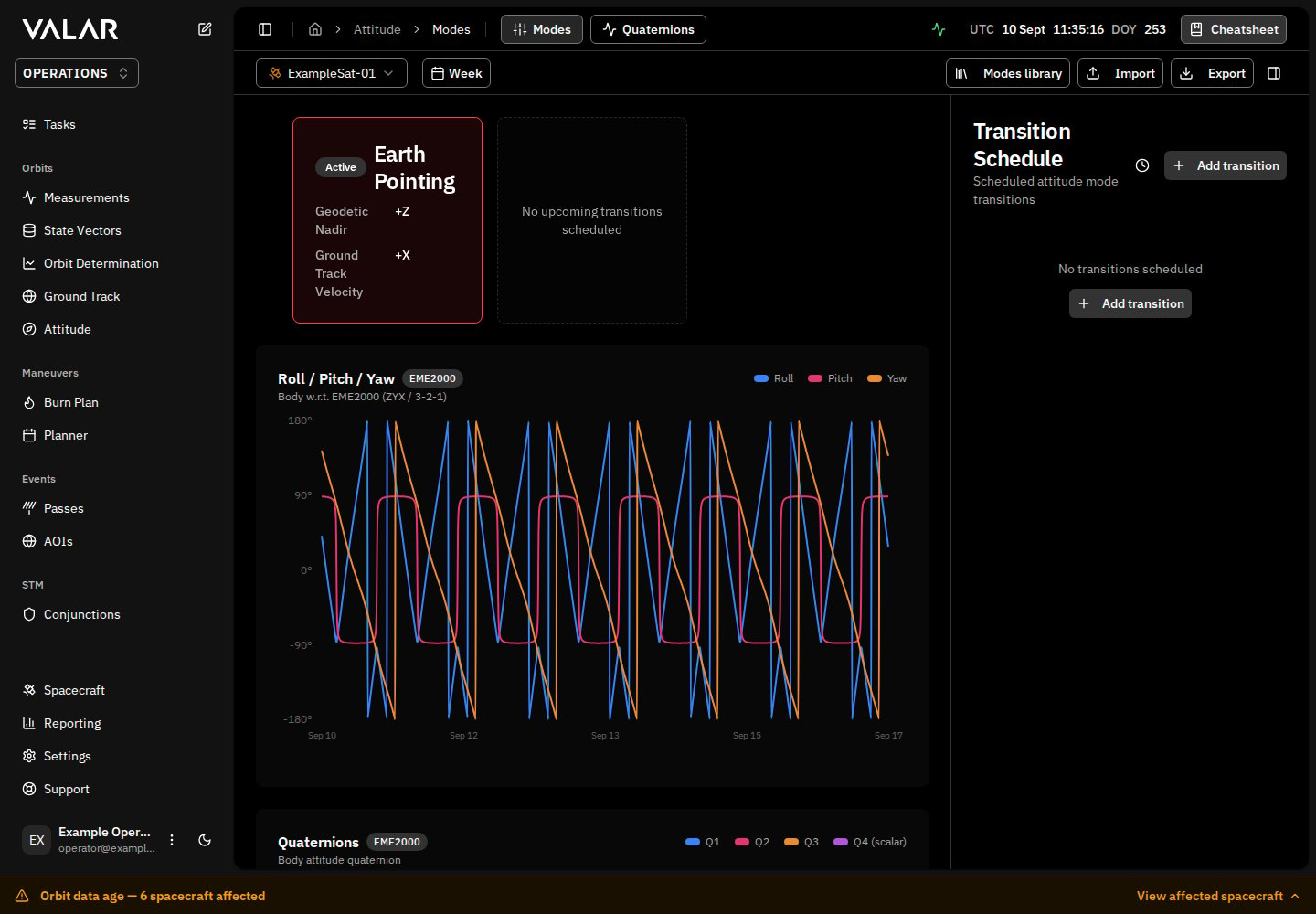
- The spacecraft has an attitude configuration (a default mode is set).
- The spacecraft has at least one state vector so attitude can be sampled against the orbit.
Representations and reference frames
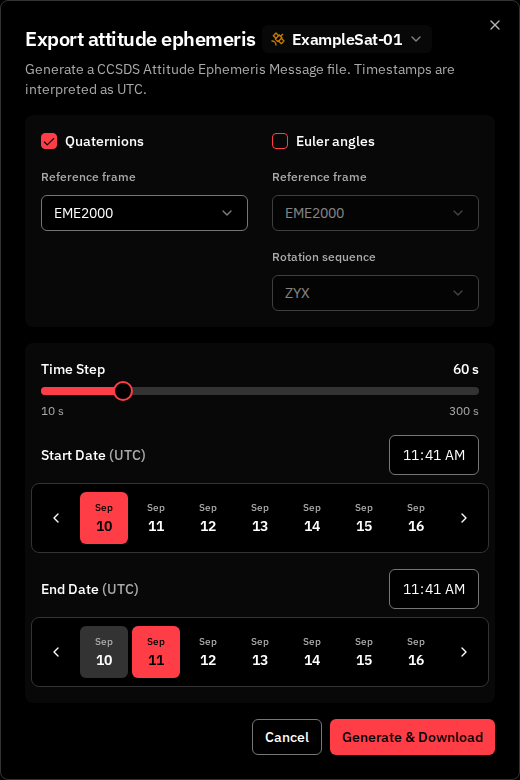
The dialog presents two representation cards — Quaternions and Euler angles. Tick a card to include that representation in the file; tick both to write a single file carrying one segment per representation. The default selection is Quaternions in EME2000, so leaving the cards untouched reproduces the classic single-quaternion export.- The Quaternions card exposes no convention selector. CCSDS 504.0-B-2 mandates scalar-last quaternion ordering, so there is nothing to choose.
- The Euler angles card writes the attitude as RPY (roll, pitch, yaw) angles and adds a Rotation sequence selector —
ZYX(default),XYZ, orZXY. - Each card has its own Reference frame selector —
EME2000,ITRF2014, orLVLH_ROTATING— so a combined export can express each segment in a different frame.
When a card’s reference frame is set to
LVLH_ROTATING, the dialog shows the notice AEM is not self-contained in LVLH. Consumer must also fetch the companion OEM. An LVLH attitude file is only meaningful alongside the orbit ephemeris it was expressed against — the AEM reference describes the companion-OEM COMMENT block VALAR writes so the consumer can locate it.An
ITRF2014 reference frame uses the EOP 14 C04 Earth-orientation realization (EOP 14 C04 → ITRF2014). Consumers pinned to ITRF2020 should confirm compatibility before consuming the file — the two realizations agree only to the few-millimetre level.Time window and sampling
All timestamps are interpreted as UTC.
Generating the file
Click Generate & Download to produce the file. While VALAR computes the attitude over the requested window, the dialog displays aComputing attitude ephemeris… progress indicator. When the file is ready, your browser saves it locally and a confirmation toast — Attitude ephemeris export ready — appears. If the backend rejects the request, the dialog stays open with your inputs intact, displays the reason, and surfaces a matching toast so you can adjust the inputs and retry without re-entering data.
The downloaded file is a CCSDS AEM v2 document. By default it carries scalar-last quaternion samples (Q1 Q2 Q3 QC); the reference frames and Euler sequence you choose are reflected in each segment’s metadata. See the AEM format reference for the full structure, including the two-segment layout written when you select both representations.
Euler-angle singularities
Euler angles are undefined at gimbal lock (pitch at ±90°), where a single rotation sequence cannot describe the orientation. If the chosen Euler sequence is singular at any sample in the requested window, the export is refused with a 400 response, error code AE-4007, and the dialog shows the alert RPY sequence is singular at this timestamp — with the offending timestamp and two suggested alternative Euler conventions offered as one-click buttons (for example, TryXYZ or Try ZXY). Pick a suggested sequence and run the export again. Quaternion exports are never refused — they have no singularity — so a file that includes the Quaternions card always contains that segment.
Attitude modes overview
Understand attitude modes, body axes, target types, and the unified workspace catalog
Manage attitude modes
Browse, create, edit, and delete modes in the workspace catalog
Schedule attitude transitions
Plan time-anchored mode switches and override the default
Visualize attitude
Inspect quaternion and Euler angle plots over time
AEM file format reference
AEM structure, quaternion ordering, reference frames, time systems, and a sample file