
For the complete documentation index, see llms.txt.Task Automation lets you save operational workflows as reusable tasks with optional scheduling. Configure orbit determination runs or alert fetches once, then execute them on demand or on a recurring schedule. Route:
/tasks
Task Dashboard
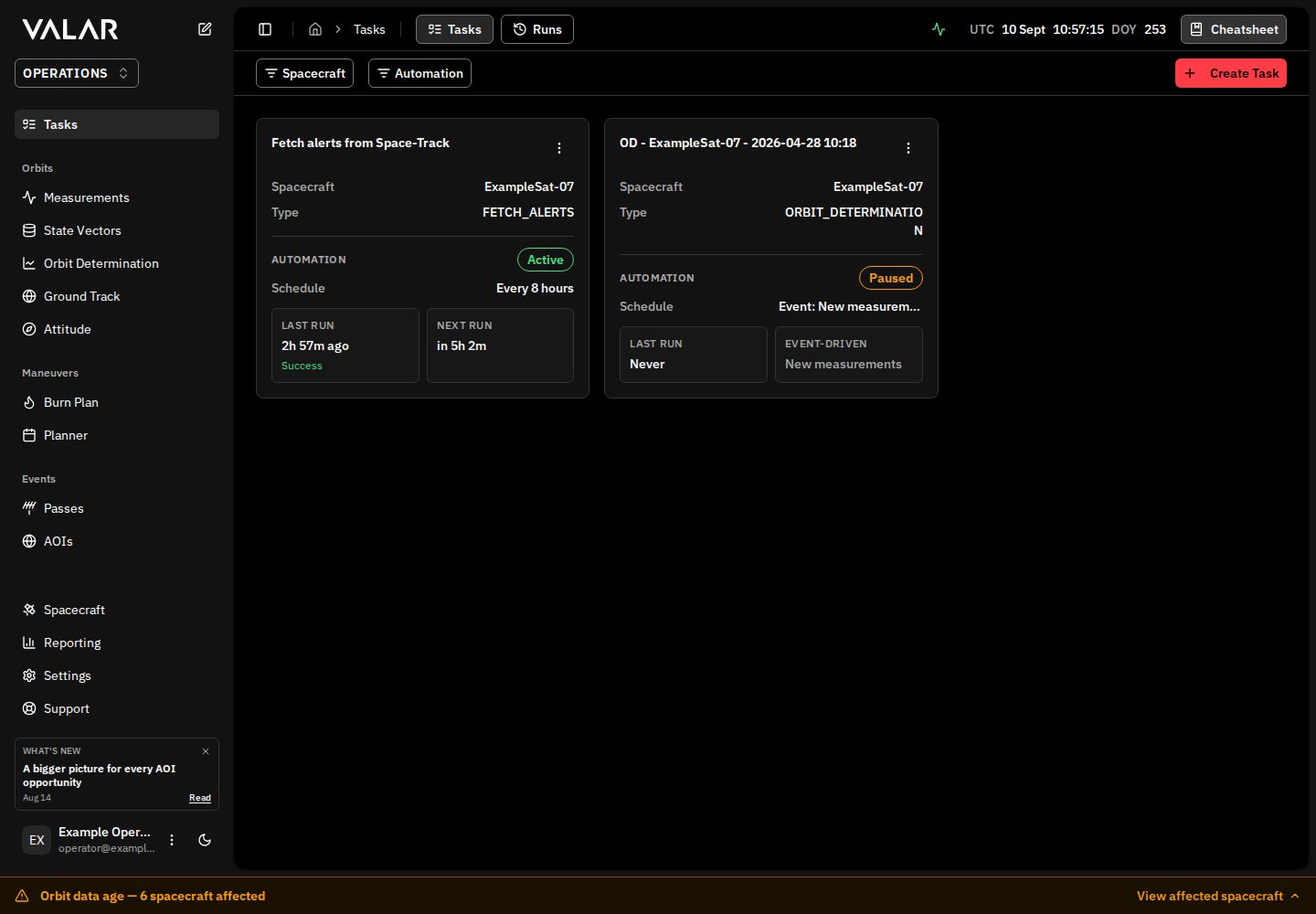
The Tasks page displays all configured tasks in a responsive grid layout. Each task appears as a card showing its configuration, automation status, and last run. The site header shows two tabs next to the breadcrumbs: Tasks (this page) and Runs (the centralized run history at/tasks/runs). Each tab keeps its own filter state across switches.
Filtering Tasks
Two filters are available in the toolbar:- Spacecraft filter: Show only tasks associated with specific spacecraft
- Automation status filter: Filter by automation state:
Both filters persist in the URL, so you can bookmark or share filtered views.
Task Cards
Each task card displays:- Task name — The display name you assigned when creating the task
- Spacecraft — Which spacecraft the task is configured for
- Type — The task type (Orbit Determination or Fetch Alerts)
- Automation section — Schedule details, last run time with status, and a live countdown to the next scheduled run
Event: New measurements and the Next Run tile is replaced with an Event-driven tile naming the configured event. Hover the tile to see when the event fires.
Task Actions
Click the ⋮ menu on any task card to access:Creating a Task
Click Create Task in the toolbar to open the task type picker.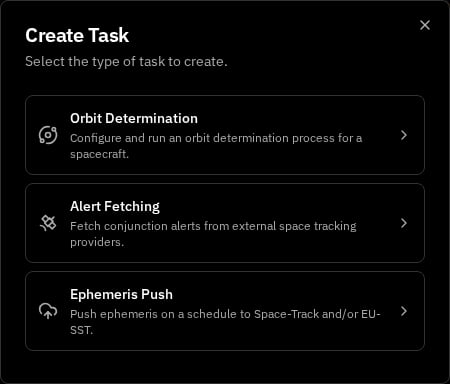
After selecting a type, the corresponding configuration dialog opens.
Orbit Determination Tasks
The Orbit Determination dialog is a multi-step wizard. When creating a task, you first choose between Run now (execute immediately) or Save as task (save the configuration for reuse) using the mode selector in the dialog header.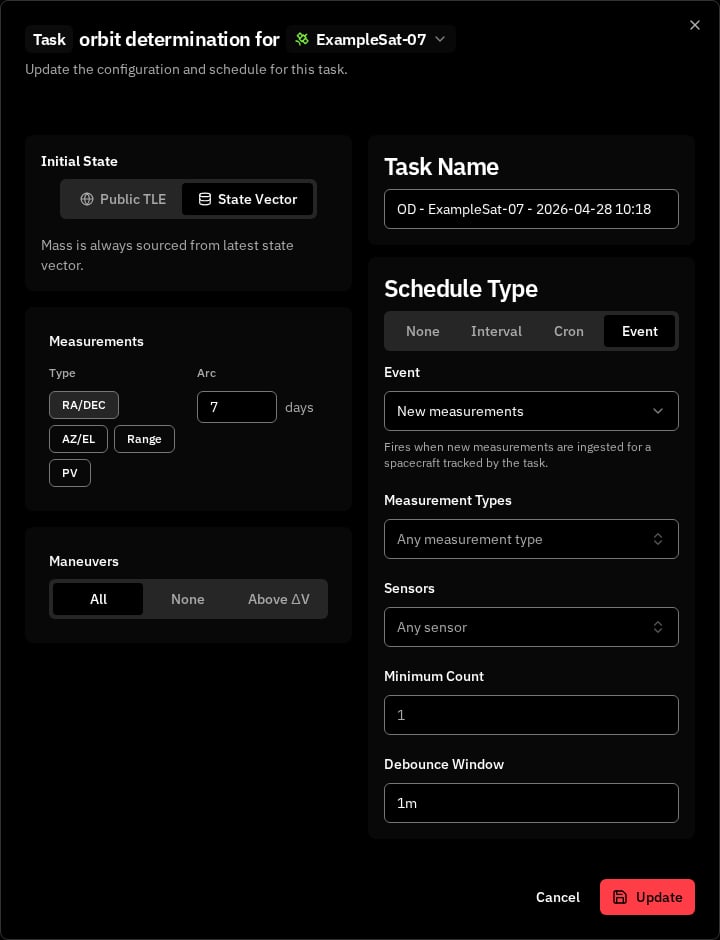
- Initial State — Select the orbit source (Public TLE or State Vector) and configure spacecraft mass
- Measurements — Define the measurement arc (rolling window or custom range), select measurement types (RA/Dec, Az/El, Range, PV), and choose data sources
- Maneuvers — Select which maneuvers to estimate thrust scale for (All, None, or Above ΔV threshold)
- Residuals — Preview residual behavior before launching
- Review — Verify all settings before saving or running
- Automation — Configure the task name and schedule (only shown when saving as a task)
Alert Fetching Tasks
The Alert Fetching dialog is a single-screen modal. Use the mode selector in the header to switch between Run mode (execute immediately) and Task mode (save as a reusable task).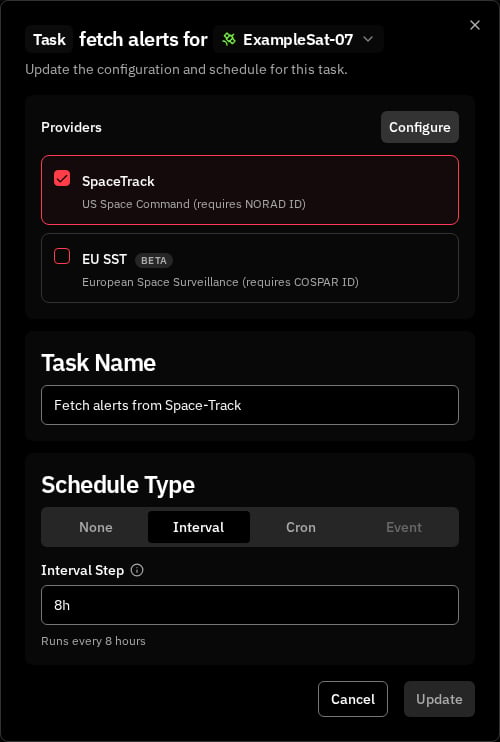
- Spacecraft — Select which spacecraft to fetch alerts for (chosen from the header dropdown)
- Providers — Select one or more data sources:
Provider credentials must be configured in Settings → Integrations → STM before first use.
When in Task mode, the automation configuration appears below the provider selection, allowing you to name the task and set a schedule.
For more details on alert fetching and results, see Fetch Alerts.
Scheduling & Automation
When saving a task, you configure its name and schedule in the automation section.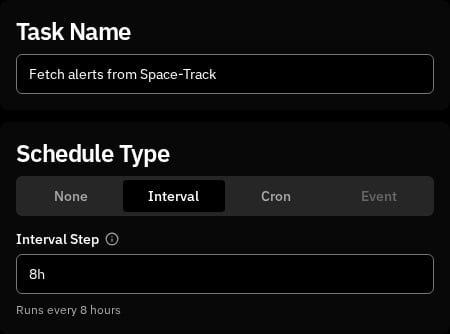
Task Name
Enter a descriptive name for your task. This name appears on the task card in the dashboard and in notifications.Schedule Type
Choose how the task should be triggered:Interval Scheduling
Enter an interval using a number followed by a time unit:Cron Scheduling
Enter a 6-field cron expression in the format:Event Scheduling
Event scheduling fires the task automatically when a matching event occurs — no schedule polling and no operator action required. The Event tab is available on Orbit Determination tasks; on other task types the tab appears disabled with the message “No event triggers are supported for this task type yet.”. The supported event is New measurements, which fires after a measurement batch is committed for any of the task’s spacecraft. Each spacecraft in the batch is evaluated independently, so a single batch may start runs for some spacecraft and skip others.Event Trigger Configuration
Configure these fields in the Event tab to control which batches start a run:When all filters are at their defaults, every matching batch fires the task for every spacecraft in its list. The dialog displays a warning when no filters are set.
Switching Between Trigger Types
Switching tabs between None, Interval, Cron, and Event discards the current trigger configuration. When the active tab has unsaved values, a confirmation dialog appears: “Changing trigger type will discard your current trigger settings. Continue?”. Click Cancel to keep the current settings or Continue to switch tabs and clear them. For a detailed guide on Orbit Determination configuration that runs on each event, see Orbit Determination. To learn more about measurement types and sensors that can be used as filters, see Measurement Types and Tracking Sensors.Managing Tasks
Running a Task
To execute a task immediately, click ⋮ → Run now on the task card. The task runs with its saved configuration regardless of its schedule. A confirmation toast appears when the task starts.Enabling and Disabling
Toggle a task’s automation using ⋮ → Enable or ⋮ → Disable. When disabled, the task retains its schedule configuration but will not run automatically. You can still run it manually.Editing a Task
Click ⋮ → Configure to reopen the task’s configuration dialog in edit mode. All previously saved settings are loaded, and you can modify any parameter including the schedule. Changes are saved when you confirm the dialog.Deleting a Task
Click ⋮ → Delete to remove a task. A confirmation dialog appears before deletion. This action is permanent and cannot be undone.Task Runs
Click the Runs tab in the site header to open/tasks/runs, a centralized list of every task execution across every spacecraft in your tenant. The page polls for new runs every 10 seconds.
Route: /tasks/runs
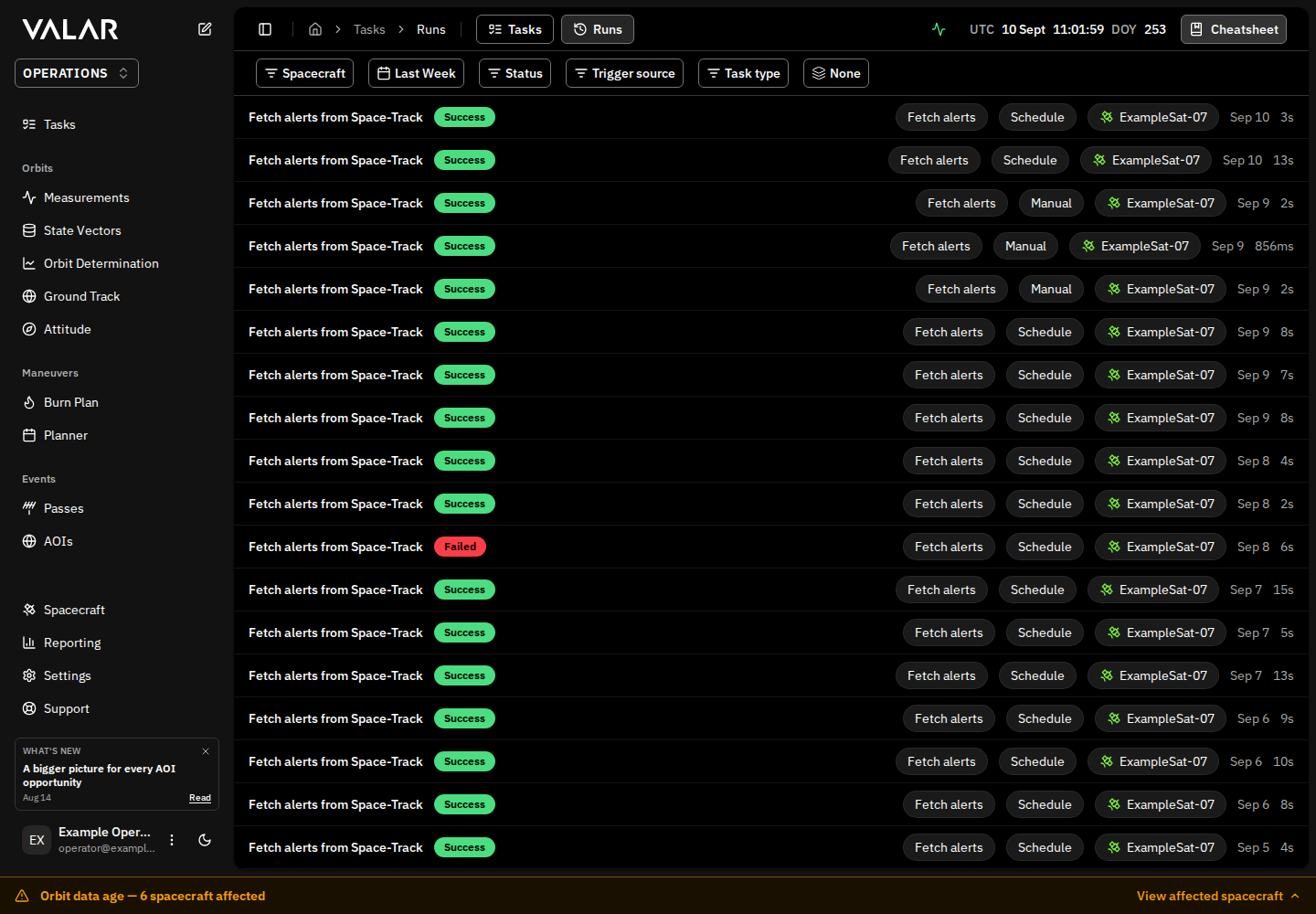
Row Layout
Each run renders as a single horizontal row separated from its neighbours by a thin divider. The fields read left-to-right:
Rows are sorted newest-first by start time.
Status Values
Filtering Runs
Six filter controls live in the page topbar. All filter state and the Group by value persist in the URL — any view is bookmarkable and shareable.
Within a multi-select, runs matching any of the checked options are shown (logical OR). Filters across different dimensions combine with logical AND. Leaving a multi-select empty applies no filter on that dimension.
Grouping Runs
Choose a Group by value to organise the list into collapsible sections without changing what is queried:
Within each group, rows are still ordered newest-first.
Row Actions
Click any row to open the originating task’s configuration dialog — either the Orbit Determination wizard or the Alert Fetching modal, depending on the task type. The dialog opens in edit mode pre-loaded with the task’s current settings. Two exceptions:- Skipped rows open the filter-evaluation popover (see Skip Reasons) instead of the configuration dialog.
- Rows whose task name reads Task deleted are not clickable — no dialog opens, no toast appears.
Skip Reasons
Hover the Status badge on a Skipped row to see the concise reason as a tooltip. Click the row to open a popover showing how each filter was evaluated against the incoming batch (with the actual measurement types, sensors, count, and debounce values that the batch produced).Loading more runs
Rows load incrementally as you scroll — there are no pagination controls. The page polls for new runs every 10 seconds; fresh rows appear at the top of the list.Related Pages
- Orbit Determination: Detailed guide to OD configuration and results
- Measurements Data: Inspect the measurement batches that fire event-triggered tasks
- Tracking Sensors: Configure sensors available as event-trigger filters
- Fetch Alerts: Detailed guide to alert fetching and provider setup
- Conjunction Classification: View and manage conjunction events